
How to make a template you can reuse
To make a template in thirds.ai, you pick a start, add your logo, colours, and fonts, and click Save. You can start from a gallery design, a short description for the AI, your own HTML, or a picture. After that, you type new details and export a finished PDF or image each time. These steps cover templates for branded PDFs and images, not Word or Google Docs files. A verified free account gets 50 credits each month, and each finished file costs 1 credit.
Give this prompt to your AI agent. The agent does the task for you.
Read https://thirds.ai/docs/design-a-template and help me plan and build an editable branded template, then explain how to review and save it.
thirds.ai is a web app where your designs become templates. You save an invoice, a project brief, a certificate, or a social post once. Next time you only type the new name, date, or price, and you get a file with the same layout and brand. You stop copying an old file and fixing it by hand. To see one branded invoice go from the gallery to a finished PDF, read Create branded templates for PDFs and images.
These steps use the web app. To create a PDF from your own code, follow Generate your first PDF with the API.
Make it without code
You can make your first template in the thirds.ai editor without writing any code. It takes three steps, and you need a free thirds.ai account. A gallery design already has a layout and sample details, so you only change what's yours.
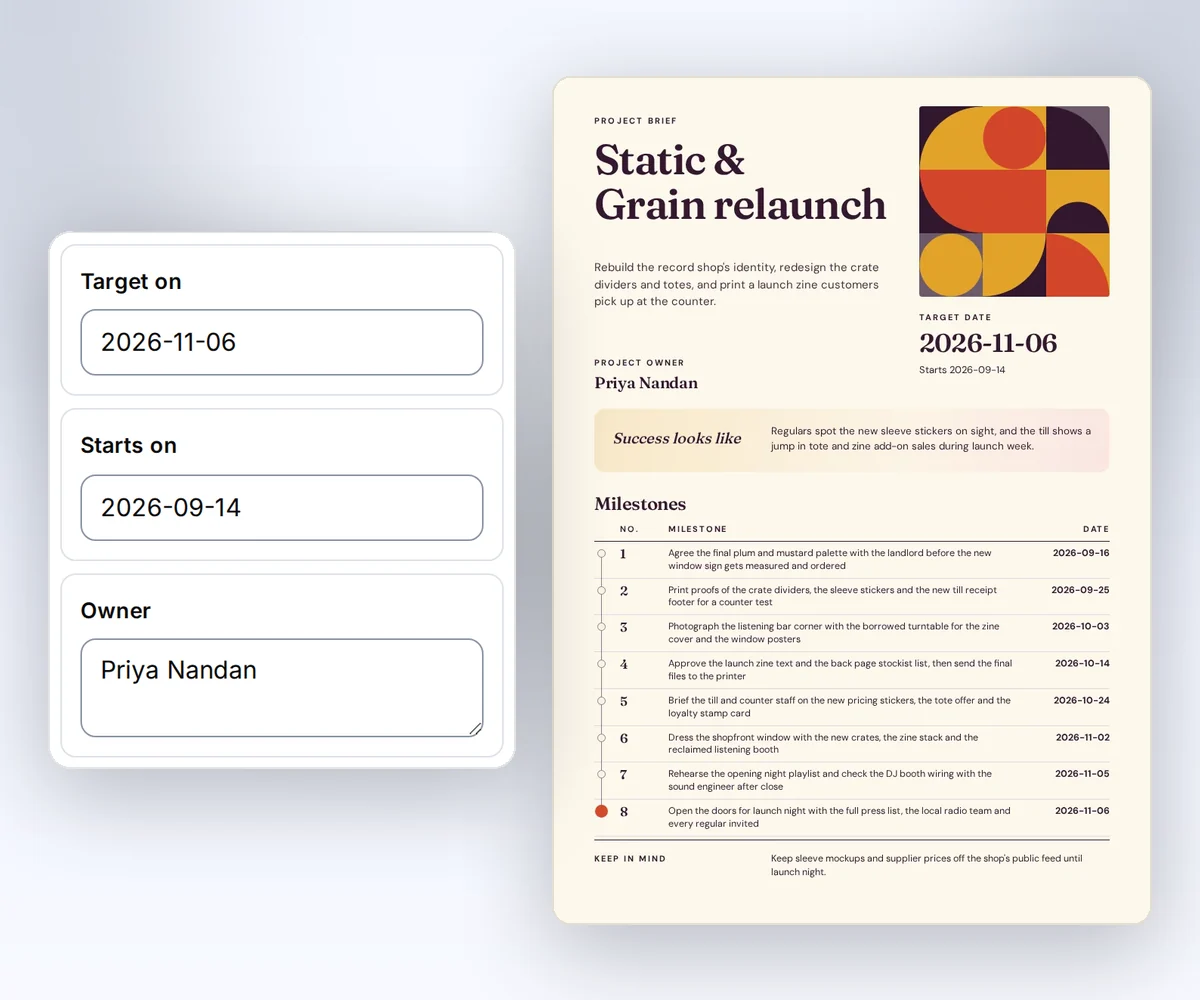
- Open the Project brief template and click Use this template. Sign in first if you need to.
- Open the Data tab and type your project name, owner, dates, and summary. The brief changes on the canvas as you type. To see your milestones on the page, click Preview with data above the canvas. Change the colours or the text on the canvas if you like, then click Save.
- Click Export, then Export PDF, and download the file. Check the names and dates in the file itself.
Next month you open the same template, change the details, and export again.
Choose how to create your template
You can start a thirds.ai template from a description, your own HTML, a picture, a gallery design, or a blank page. Your HTML, a gallery design, and a blank page cost no AI credits. In the studio, the AI chat and the template editor work on the same draft, so you can switch between them as you make changes. Pick the start that's closest to what you have now.
| Start | What happens |
|---|---|
| Describe what you need | The AI builds a draft from your words. |
| Use your HTML | The editor opens your source without an AI call. |
| Start from an image | The AI rebuilds your image as an editable template. |
| Copy a gallery design | You get your own saved copy of a reviewed template. |
| Start with a blank page | The canvas opens a blank A4 page. |
Read the price beside the chat button before you send a message. Opening the page does not spend credits. See credits and billing for AI costs, export costs, and failed work.
Try a template before you sign in
You can try a thirds.ai template in the free playground before you make an account. Four steps take you from the sample to a clean file, and you need no account until you download.
- Open the sample invoice or sample product image.
- Change the sample details, such as the client's name or the price. The preview shows your values as you type, in the same layout. Opening the page doesn't make a file.
- Click Download free. Sign in or create an account, and your clean file downloads when you come back. It uses 1 of your free credits.
- To keep working on the design, click Edit in the editor. The editor opens the same template with your values.
The playground preview is free and has usage limits. Manual edits are free. A new AI build costs 50 credits. You can use free monthly credits for an AI build.
See invoices, social images, or the gallery for another task. The download guide explains errors and file limits.
Make your first file after sign-in
A new thirds.ai account gets a short guide on Home. It takes four steps, and you end with your own branded file. You don't need a card or an API key.
- Add your brand. Type your website, upload your logo, or pick your colours. If you set your brand before you signed up, it's already there.
- Pick one of three designs. Each one already shows your logo and colours.
- Type your business name or your headline, and watch the design change.
- Click Download. One file costs 1 credit. The design stays in Templates, so you can make the next one.
You can skip the guide, and start it again from Home.
Set up your brand kit
You set up a brand kit once with your colours, tone, logos, and fonts, so each template you make can use them. Create the kit before you use the AI chat. Open Brand kits, create a kit, and add your details. For each step and what to put in the kit, read how to create a brand kit.
To put a kit on a design, pick it in the Brand kit box in the editor. Every gallery design takes the kit's logo, colours, and fonts at once, with no AI message and no credits.
Use PNG, JPEG, or WebP for a logo. If your logo is an SVG, convert it with the free SVG to PNG tool first. How to convert SVG to PNG explains how to keep it sharp and see-through. Choose an included font or upload a WOFF2 file. Each file can be at most 10 MiB. Animated images are not supported. Use files you have the right to use.
Choose a kit before you send the first message. The chat keeps that kit, and each new message uses its current details. Changing the kit later does not change a saved template version.
The AI receives the kit's name, colours, tone, and primary logo. Check the draft to see which fonts and logos it uses. The AI may leave out a logo or font that you upload.
Archiving a kit stops changes and new uploads. It does not delete the kit's logos or fonts. Replacing a logo or font keeps the old file for work that already uses it.
Describe a template
You can describe the template you want in plain words, and the thirds.ai AI chat builds a first draft with your brand. It takes five steps. You need a brand kit and 50 available credits. Free monthly credits can pay for the build.
- Open Describe what you need and choose your brand kit.
- Say what the result must show. Name the details that change between uses.
- Choose PDF or Image under Output, or let the AI choose.
- Check the credit cost, then send the message. The chat shows the current step and elapsed time.
- Compare Before and After, then click Apply changes to use the draft or Discard to keep your design.
For example:
Make a one-page project brief PDF with my brand colours.
Include a project name, client name, due date, summary, and a list of tasks.
Keep those values as data fields so I can reuse the template.
Send another message to change the draft, such as "Make the task text larger." The chat receives your current canvas and source edits before it starts, so it works from your latest changes. A later words or HTML message costs 25 credits.
Your chat stays with the template. When you open the template again, you see your messages and can keep going from where you stopped.
The AI template prompt guide shows how to name the details, check a long list, and reuse the design from your own code. Use the playground to try a gallery design before you choose a paid AI start. The AI template generator page shows what you can build from a short description.
Start with HTML
You can turn your own HTML into a thirds.ai template without spending AI credits. Open Use your HTML, paste your source, and open it in the editor. Use the Source tab to change the HTML and the Data panel to type in your details.
To apply your brand with AI, attach the HTML file in the chat. This sends the HTML to the model provider and uses AI credits. Add any instructions in the message box. The chat sends them with your HTML.
The visual editor supports one page of placed text, images, boxes, tables, and lists. It keeps other HTML in source blocks. If your HTML has no editor canvas, it opens in flow mode and the Add controls are off. You can still change the source, preview the result, and save it.
The editor saves a consistent HTML layout and keeps unsupported source blocks. Check the Source tab before you save if exact source formatting matters. Read templates and data for the supported field syntax.
Rebuild a source image
You can turn a picture of a design into an editable thirds.ai template with your own brand. It takes five steps. You need a PNG, JPEG, or WebP image that you have the right to use, a brand kit, and AI credits. If your design is a PDF, save the page as a PNG first with the free PDF to PNG converter.
- Open Start from an image and choose your brand kit.
- Attach one PNG, JPEG, or WebP image you have the right to use.
- Choose your output, check the cost, and send the file. The chat shows the current step and elapsed time.
- Compare Before and After and check text, layout, branding, and any numbers.
- Use the chat or editor to fix the result before you save it.
The source image can be at most 10 MiB, 7,680 pixels wide, and 4,320 pixels high. It must have one frame and no more than 32 million pixels. Corrupt, animated, and unsupported files fail before they reach the model provider.
The import rebuilds the layout with your brand so you can turn an image into a template that you edit and reuse. Expect to review the result, since it may not match every pixel. The AI receives instructions to replace the source brand and issuer name. Check both before you save. The Terms of Service include your warranty that you have the rights to use the source.
For image output, the import uses the source dimensions unless your API request sets both width and height. See PDF and image options for file formats and size limits.
Adapt a gallery template
You can copy any thirds.ai gallery design into your account and change it into your own template. It takes five steps, and your edits never change the gallery original.
- Open a design in the gallery and read its purpose, output formats, and the details it expects.
- Click Use this template. Sign in first if needed.
- Open the Data tab and change the sample values that are already there.
- Change the design in the canvas or source. To ask the AI for a brand change, choose your kit and send a message.
- Check the live layout and click Save. Use Export when you need a file.
Your copy starts at version 1. You can move, resize, remove, and add objects. Sample values stay in this browser for your next export.
For an episode series, the YouTube thumbnail recipe changes the title and channel name in one saved image layout. The social image workflow shows where that data step fits in regular content work.
Edit, preview, export, and save
You change a thirds.ai template on the canvas, fill it in the Data panel, and keep it with Save. Previews are free, and each exported file costs one credit when it succeeds.
Select an object on the canvas or in the object list. Drag it to move it, or use the keyboard and inspector controls. Use Undo and Redo to step through your edits.
Type your details and table rows in the Data panel. Use the Fields view, or the JSON view if you'd rather paste data. Open Advanced to add a schema.
Canvas shows the layout as you edit. Simple details, such as a name or a date, fill in on the canvas as you type. Lists, such as invoice lines or milestones, show when you click Preview with data above the canvas. The preview uses your latest details each time you open it. If the preview says values are missing, click Fill missing and preview to add example values.
Export makes a PDF or image. It shows progress, a download, and your recent files. On an image template, Export pack saves first, then makes every chosen size. Adapting a size is free. Each successful image in the pack costs one credit, and a failed size costs nothing. On a PDF design with two or more pages, Export lets you choose the slides and download them as carousel images or one PDF. Reviewing a completed chat draft costs no extra credits. See downloads and limits for file rules.
Image templates also have a Sizes strip. Add the presets you need, or a custom width and height. The layout adapts to each canvas from the original design. Switching sizes reopens the saved layout, so going from A to B and back to A looks the same. A size you edit by hand stays as you left it. See add sizes and export a pack.
Click Save. A new template that isn't saved yet asks for a name first. Each save keeps the current source and schema as a new version in your account. You choose when to save, including after an AI message. Your saved template stays in your account and does not enter the public gallery.
Save work you need to keep. The browser can offer to restore unsaved edits when you return. Open Template, then Versions and settings, to see earlier designs and restore one as a new version. Read templates and data for version rules and API use.
Use your template to make the next file
You use a saved thirds.ai template again by typing the new details and exporting a new file. The layout, logo, colours, and fonts stay the same each time. You can make one file in the editor, many files from a spreadsheet, or files from your own code, and each successful file costs 1 credit.
- One file. Open Templates and click Edit on your design. Change the details on the Data tab, then click Export. The card's Export button takes you straight to the export step.
- Many files. Open Batches, choose the template, and paste or load your rows. When the first row names each detail, each column fills its own spot. The button shows your row count, such as Make 3 files. Click it to start. PDF mail merge from a CSV has the plan limits and a sample file.
- From your own code. To use a saved template through the API, open Template in the editor and click Copy beside Template ID. Each card on your Templates page has the same button. To ask for the next file from your terminal instead, follow the Gemini MCP server setup for Gemini CLI.
Generate an AI image
You can make a new picture for your template with AI, right on the canvas, and each successful image costs 50 credits. Choose AI image in the left toolbar. Pick an aspect ratio, then drag on the canvas to place and size the image. A popup opens with your prompt and aspect ratio. Type what you want, click Generate, then confirm the 50-credit cost. The popup shows progress until the image is ready.
Free monthly credits can pay for AI. If you need more credits, the credit popup shows your options. Failed or cancelled generation costs nothing.
AI images use Seedream 5.0 Lite through OpenRouter. The tool tells the model to add text only when you ask for it. Check the result before you use it. Save the template to keep the image in your design. Saving, reopening, and exporting use the saved image without another generation charge. Export still follows the normal file price.
Select an AI image and click Edit to open its prompt, aspect ratio, and saved versions. Change the prompt and click Regenerate, then confirm the 50-credit cost. The Regenerate button on the selected image opens that confirmation directly. Your current picture stays in place until the new one is ready. Restoring a saved version is free.
The chat can suggest an image inside an empty frame. Select the frame and click Edit prompt to open its popup. Choose Upload instead to use your own picture, or Generate and confirm the 50-credit price. You can apply and save the layout before you fill the image frame.
Send files and review changes
You can attach a picture or an HTML file to the thirds.ai AI chat, then compare the AI's draft with your design before you use it. Attach an image to rebuild its layout or use it as a reference for your request. Choose Place it on the canvas to upload the picture without an AI charge. Use a still PNG, JPEG, or WebP up to 10 MiB. HTML and its written instructions can total up to 64 KiB. You can add written instructions with either kind of file.
The chat shows each stage as it runs. When enough requests from the last two days exist, it shows their average time for the same kind of work and model. A slow request keeps its progress below 100% until it finishes.
Compare Before and After side by side, or use the overlay to check their alignment. On a narrow screen, switch between Before and After. Click an object in After to add a note about it. Send your notes together to revise the draft. You can also type another message. Apply changes puts the draft on your canvas, and Discard keeps your current design.
AI review, privacy, and failures
You review each AI draft yourself before you use it, even though the model checks it first. Look closely at names, amounts, dates, text, and image quality. We make each draft into a real file and ask the model to review it. A prompt or HTML message gets one review. An image import gets up to five repair reviews.
The AI uses Gemini 3.8 Flash through OpenRouter. We send your prompt, submitted HTML, working draft, brand details, source image, and review preview as needed. OpenRouter and its selected model host receive this content.
The selected host can change, and we do not promise that processing stays in the UK or EU. OpenRouter can keep request metadata, such as token counts and latency. The provider may use this content to improve its models.
Each template keeps the newest 100 messages of its chat, and we keep that content until you close your account. Hidden attempts and temporary brand copies leave when the message ends. AI chat content stays out of backups, logs, and analytics. Read the privacy policy for the full data notice.
The template's chat keeps a record of the input type, selected brand kit, and message history. The draft also records whether AI made it. These records describe how the draft starts. They do not prove rights to a source image or certify the result.
If an AI message fails, you keep the prior draft and get the reserved credits back. Wait for the current message to finish before you send another. Repeated failed or cancelled work can reach a daily limit. You can still use the canvas, source, and preview while the chat is paused. Read retries and limits to find the next step for your error code.