
Connect your AI agent to the thirds.ai MCP image and PDF server
The thirds.ai MCP server lets your AI agent make branded PNG, JPEG, WebP, and PDF files from designs you've saved. With thirds.ai, you save a design once, such as an invoice, a report, or a social post, with your logo, colours, and fonts. After that, your agent types in new details and gets back a finished file, so you stop rebuilding the same layout by hand. Each finished PDF or image costs one credit, and a verified free account gets 50 credits a month.
Give this prompt to your AI agent. The agent does the task for you.
Read https://thirds.ai/docs/mcp and help me connect my AI client to thirds.ai and create an output with clear credit approval
You connect your client to https://thirds.ai/mcp. In an app that supports MCP sign-in, such as Claude or ChatGPT, that URL is all you need. Other clients and scripts send an API key. MCP uses your existing account, credits, and templates, with the same render rules as the API.
For repeat work, add the thirds.ai skills to your agent. They guide it through brand kits, templates, single files, and batches. Connect this MCP server so the agent can use the tools.
Make it without code
You can make the same branded PDFs and images in the thirds.ai editor without an AI agent or any setup. It takes three steps, and all you need is a free thirds.ai account. The Packing slip template is a good first try if you ship orders, because you fill it in again for every parcel.
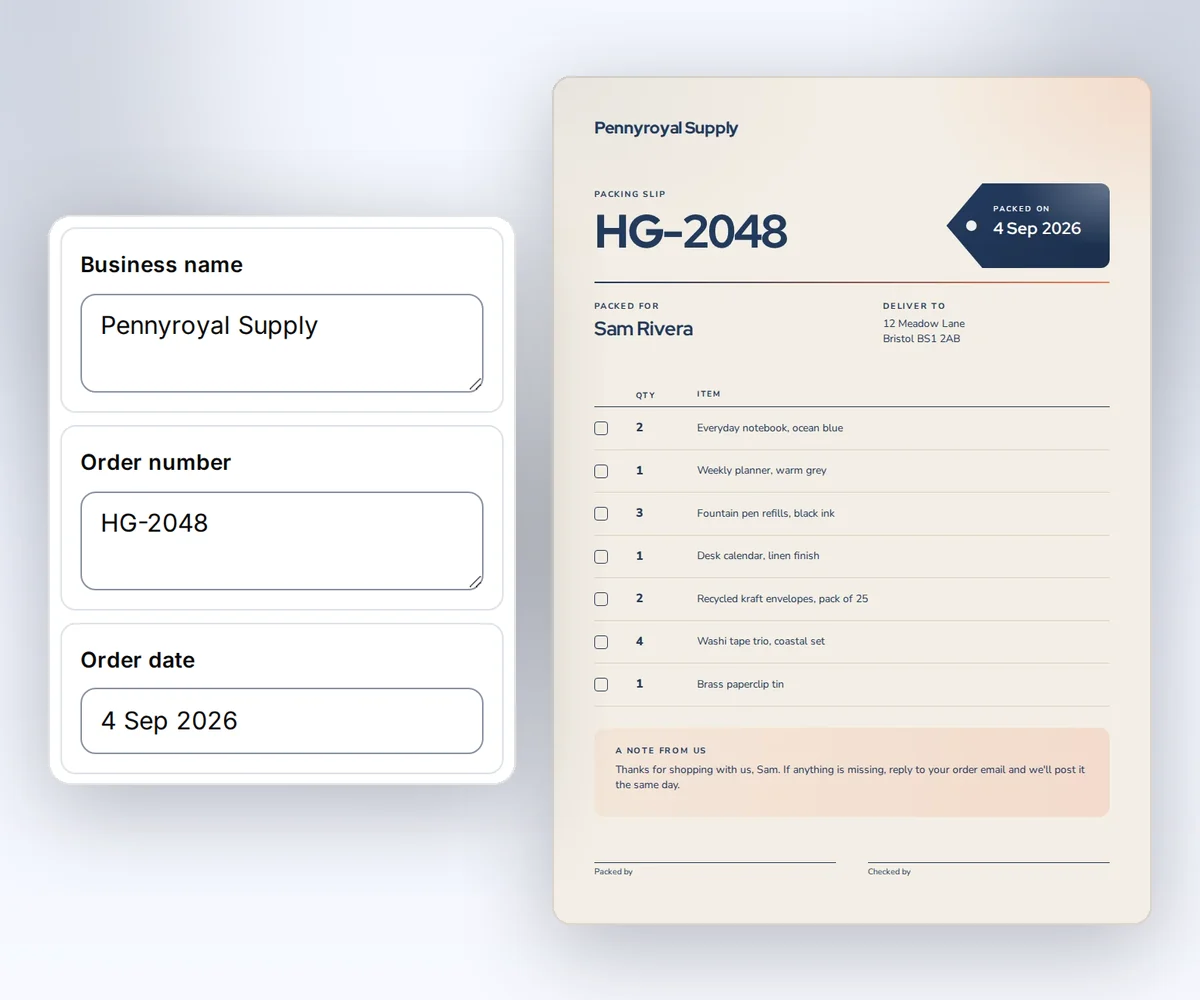
- Open the Packing slip template and click Use this template. Sign in and verify your account first if you need to.
- Open the Data tab and type your business name, the order number, the customer, and each item. Click Add row for another item. Then click Preview with data above the canvas to check the slip. The preview is free.
- Click Export, then Save and export PDF, and download the file.
When you'd rather have your AI agent fill in the same design for each new order, connect it to the thirds.ai MCP server.
Can an MCP server make branded images from my template?
Yes. Through the thirds.ai MCP server, your AI assistant takes a saved template, your brand kit, and your data, and returns a branded PNG, JPEG, WebP, or PDF. Give it new data next time, and it builds the same design again, so every file keeps the same layout, logo, colours, and fonts.
This is different from typing a new prompt into an AI image generator each time. Ask for the same picture twice from a prompt, and you can get two different results.
See the Property listing ad template for a branded image example, and the Packing slip template for a branded PDF example. Your agent can make both with the render tool and a saved template.
For finished examples and prompts, choose your AI agent. These pages have prompts you can copy:
- If you use Claude, start with the Claude image generator prompts for a post image, a certificate, and a report.
- If you use Gemini CLI, try the Gemini CLI image generation prompts for a sale image and a coffee bag label.
- If you use Codex, the Codex MCP server page shows how to make an invoice PDF, a post image, or a monthly report from Codex in the ChatGPT desktop app or the Codex CLI.
- If you code in Cursor, the Cursor image generation page has three prompts that make branded images and PDFs from Cursor Agent.
- If you work in a terminal, the OpenCode MCP server page has prompts for a client invoice, a product label, and a monthly report.
- Kimi Code can't make images by itself, so the Kimi image generator page shows you how to make labels, certificates, and sale images from your saved designs.
- For an agent that runs on its own schedule, see the Hermes Agent use cases for product labels, sale images, and client reports.
- To make a poster for each new event every week, see OpenClaw image generation for event posters.
- If you use xAI's Grok Bot app, the Grok Bot page has prompts for invoices, sale images, and monthly reports.
Choose your client
- Claude Code
- Claude Desktop
- Cursor
- VS Code
- Codex
- Grok
- ChatGPT
- Gemini CLI
- Kimi Code
- OpenClaw
- Grok Bot and Grok API bots
- Warp
- Zed
- OpenCode
- Antigravity
- Lovable
- Replit
- Hermes
- Browser agents
- A generic HTTP client
In ChatGPT, you can add thirds.ai as a Developer mode app with only the URL, or connect through Codex in the ChatGPT desktop app. A private GPT with Actions uses the REST API instead. The ChatGPT guide covers all three setups, and the ChatGPT social media post prompts give you designs to try after it.
Connect your client
You connect an MCP client to thirds.ai by giving it the server URL https://thirds.ai/mcp, and then it signs in one of two ways. An app that supports MCP sign-in, such as Claude or ChatGPT, needs only the URL, and you click Allow on a thirds.ai page. Any other client sends an API key as a bearer token. Either way, your client needs Streamable HTTP support.
Connect with only the URL
Add https://thirds.ai/mcp as a remote server in your app, then start the connection. Your app opens a thirds.ai page. Sign in if you need to, check the app's name, and click Allow. You go back to your app, and it's ready to use. You don't copy a key anywhere.
A connection made this way gets every tool except the two AI image tools, create_ai_image and cancel_ai_image. Connect with an API key when you need those.
To stop an app, open Settings, find it under Connected apps, and click Disconnect. The app loses access right away.
Connect with an API key
An API key works in every client that can send a header, and in your own scripts. Create a key on the API keys page, then add the server to your client with the key as a bearer token.
Keep the key in your client's secret store. Do not paste it into a prompt, a public configuration file, or source control.
VS Code
Run MCP: Open User Configuration in VS Code, then add this entry to your mcp.json. VS Code asks for the key instead of saving it in the file. The fields follow the VS Code MCP configuration reference.
{
  "inputs": [
    {
      "type": "promptString",
      "id": "thirds-api-key",
      "description": "thirds.ai API key",
      "password": true
    }
  ],
  "servers": {
    "thirds": {
      "type": "http",
      "url": "https://thirds.ai/mcp",
      "headers": {
        "Authorization": "Bearer ${input:thirds-api-key}"
      }
    }
  }
}
Run MCP: List Servers, select thirds, and start it. Enter your key when VS Code asks, then enable the tools in chat. To make your first report, certificate, or post image, copy a prompt from the PDF MCP server for VS Code page.
This setup needs a VS Code session that supports interactive MCP inputs. VS Code does not forward input-based configurations to Agent Host sessions. See the VS Code setup guide if you use Agent Host.
Other clients and direct HTTP
Set the server URL to https://thirds.ai/mcp and choose Bearer authorization. Include these headers on every JSON-RPC POST:
Authorization: Bearer YOUR_API_KEY
Content-Type: application/json
Accept: application/json, text/event-stream
thirds.ai supports protocol versions 2025-11-25 and 2026-07-28. Each request contains one JSON-RPC object, and the server returns JSON. Batch requests, persistent MCP sessions, and GET event streams are not supported.
To use 2025-11-25, start with this initialize request:
{
  "jsonrpc": "2.0",
  "id": 1,
  "method": "initialize",
  "params": {
    "protocolVersion": "2025-11-25",
    "capabilities": {},
    "clientInfo": { "name": "thirds-example", "version": "1.0" }
  }
}
The response selects 2025-11-25. Include MCP-Protocol-Version: 2025-11-25 on later requests, including notifications/initialized.
To check the connection over HTTP, save a request body as rpc.json. Set THIRDS_API_KEY through your secret store, then run:
curl https://thirds.ai/mcp \
  -H "Authorization: Bearer $THIRDS_API_KEY" \
  -H "Content-Type: application/json" \
  -H "Accept: application/json, text/event-stream" \
  -H "MCP-Protocol-Version: 2025-11-25" \
  --data-binary @rpc.json
For 2026-07-28, use server/discover. Send MCP-Protocol-Version and MCP-Method headers that match the request. A tools/call request also needs MCP-Name set to its tool name.
Each request for this version needs three entries in params._meta:
| Entry | Value |
|---|---|
io.modelcontextprotocol/protocolVersion | The protocol version string. |
io.modelcontextprotocol/clientInfo | The client object. |
io.modelcontextprotocol/clientCapabilities | The capabilities object. |
Results for this version include resultType: "complete".
Choose a tool
The thirds.ai MCP server has 32 tools for gallery designs, brand kits, templates, images, packs, carousels, and batches. An app you connect with only the URL gets 30 of them, because it doesn't get the two AI image tools. Your AI agent picks the tool that fits your request. Listing the tools costs no credits. Ask your client to list the available tools. If you send requests directly, use:
{ "jsonrpc": "2.0", "id": 2, "method": "tools/list", "params": {} }
Each tool's inputSchema lists its fields and limits. Use this table to choose a tool, or browse the gallery for reviewed templates.
| Tool | What it does |
|---|---|
create_brand_kit | Saves a brand kit name, colours, and tone guidance. |
update_brand_kit | Changes a brand kit's text fields. |
set_brand_asset | Adds or replaces a logo or WOFF2 font from base64 bytes. |
list_brand_kits | Reads brand kit IDs and dates. |
get_brand_kit | Reads one kit's name, colours, guidance, and asset IDs. |
get_brand_asset | Reads an owned logo or font as base64. |
list_gallery_templates | Finds reviewed gallery designs by name or use. |
get_gallery_template | Reads a gallery design's source, sample data, outputs, and page size. |
create_template | Starts a new template with its AI chat from a prompt, HTML, or source image. AI work is billed. input.type: source compiles your own template with no AI credits. Put every {{variable}} in sample_data. |
edit_template | Sends a change to a template's AI chat by its template_id. |
publish_template | Saves a message's draft as the template's next version, which never changes. Send its template_id and message_id after chat.current_draft is true. |
cancel_template_message | Cancels pending template work with its template and message IDs. |
list_templates | Reads saved template IDs and their latest versions. |
get_template | Reads one saved template, its latest source, schema, sizes, and page, and its AI chat. |
get_template_version | Reads one exact saved version. |
save_template | Saves HTML as a reusable template with no AI call, then use render with the returned id. |
save_template_version | Saves new source as an immutable version. Send the old schema, sizes, and page if you want to keep them. |
preview_template | Fills HTML with sample data for free. It does not save or render a file. |
adapt_template | Makes new image sizes from HTML for free. Save the returned source in a version if you want to keep it. |
upload_image_asset | Uploads a still image for use in a template. |
get_image_asset | Reads an owned image as base64 so you can use it again. |
render | Starts a PDF, PNG, JPEG, or WebP from HTML or a saved template. |
create_image_pack | Makes one image for each chosen size. Each successful file costs one credit. |
retry_image_pack | Retries unfinished pack images. Finished files stay in place. |
create_carousel | Makes ordered image pages from a saved template. Each successful file costs one credit. |
retry_carousel | Retries unfinished carousel pages. Finished files stay in place. |
create_ai_image | Starts AI artwork from your approved prompt and ratio. A successful image costs 50 credits. API-key connections only. |
cancel_ai_image | Cancels queued AI artwork. API-key connections only. |
create_batch | Renders one saved template version once per JSON row. Your plan sets the most rows, from 10 to 200. Each successful file costs one credit. |
retry_batch | Retries failed, cancelled, or pending rows. Succeeded rows are not billed again. |
cancel_batch | Cancels pending and queued batch rows. Running jobs finish. |
get_status | Reads a render, batch, image pack, carousel, or AI image state and safe result details. |
List tools return up to 100 records. When the result includes next_cursor, call the same list tool again with that value as cursor to read the next page. The template creation guide explains brand kits, source images, editing, and publication.
For a one-shot file, call render. To start from a reviewed design without saving it, call list_gallery_templates, then get_gallery_template. Pass its source and sample_data to preview_template for a free check. Use the preview HTML with render to make a file, or call save_template to keep the design. Set the image width and height or the PDF page size from the gallery result. To check your own HTML with data for free, call preview_template before you save or render. To keep HTML as a reusable template without AI, call save_template, then render with template_id. For many data rows, call create_batch with JSON objects, then poll get_status until the batch state is complete, partial, failed, or cancelled. To make the same rows from a spreadsheet without code, follow the CSV batch guide. The thirds.ai skills guide an agent through repeat tasks with these tools.
create_template with prompt, html, or image starts billed AI work. create_template with type: source compiles your template in the chat with no AI credits. Each call returns a new template with its chat. The chat belongs to that template, so edit_template, publish_template, and cancel_template_message take its template_id. Put a sample_data value for every {{variable}} except brand fields from the selected kit. Image size is request.image.width and request.image.height. viewport is valid only on PDF requests.
Create and collect an output
You make a PDF or image through MCP by calling the render tool, then calling get_status until the file is ready to download. It takes two tool calls and a download. A successful file costs one credit, and a failed one costs nothing. Give each new render a new idempotency key. This request makes a PDF:
{
  "jsonrpc": "2.0",
  "id": 3,
  "method": "tools/call",
  "params": {
    "name": "render",
    "arguments": {
      "output": "pdf",
      "idempotency_key": "mcp-first-report",
      "request": {
        "html": "<h1>Quarterly report</h1><p>Ready to share.</p>"
      }
    }
  }
}
To create an image, set output to png, jpeg, or webp. Put its width and height in request.image.width and request.image.height. Check the tool schema for options that apply to the format you choose.
You can fill HTML fields with request.html and request.data, or use a saved template with request.template_id and request.data. Set an integer request.version to choose an exact saved version. If you leave it out, thirds.ai selects the latest version when it creates the job.
MCP work runs in the background. Read result.isError first. The tool text is the same safe JSON as result.structuredContent. A successful tool call means thirds.ai accepts the request, but the file may still be rendering. Keep the returned id and use get_status to check it.
Replace this sample ID with your job ID:
{
  "jsonrpc": "2.0",
  "id": 4,
  "method": "tools/call",
  "params": {
    "name": "get_status",
    "arguments": { "id": "pdf_00000000000000000000000000000000" }
  }
}
Keep checking while render status is queued or running. Stop at succeeded, failed, or cancelled. For AI template work, call get_template with the template_id instead, and find the message in chat.messages by its ID. Read its state and phase. Wait until the message state is succeeded and chat.current_draft is true before you edit or publish. The message's progress field reports the current stage and elapsed time. An estimate uses recent successful work on the same model route and can be absent when too few samples exist. A dead connection is cut after 30 minutes. Call cancel_template_message if you need to free that lane. Put a delay between checks and set a time deadline in your client.
When the render succeeds, download.url is an absolute HTTPS link. Download the file before download.expires_at. Keep the signed link private because anyone with it can collect the file. You can call get_status for a fresh link while the file remains available. The quickstart shows the download steps through the API.
To save HTML as a reusable template without AI, send:
{
  "jsonrpc": "2.0",
  "id": 5,
  "method": "tools/call",
  "params": {
    "name": "save_template",
    "arguments": {
      "name": "Quarterly report",
      "source": "<h1>{{ title }}</h1><p>{{ summary }}</p>"
    }
  }
}
Then call render with the returned id as request.template_id and a data object.
Recreate a source image
Image input asks the AI to rebuild one still PNG, JPEG, or WebP as an editable branded template. The result is inspired by the source. It is not a pixel copy. For a close visual match, send HTML with save_template or create_template with input.type: source.
The source-image guide owns the size limits. Send compact standard or URL-safe base64. A data URL prefix is accepted. Downscale before you encode. An invalid or oversized file returns invalid_upload before the model runs. A create-time failure has no repair_code. Read details.reason instead.
- Choose the brand kit.
- Call
create_templatewithinput.type: image, the base64 bytes, andoutputsize when you need a fixed canvas. - Poll
get_templateuntil the messagestateissucceededandchat.current_draftis true, or until the message fails. - On failure, read
failure_codeandrepair_code. Retry with a new idempotency key. The same key replays the failed result.
An image import can use up to five review slots. Prompt and HTML messages get one.
Control credits and retries
You can list tools and check status without spending credits. Before your agent runs a paid tool, ask it to show you the action and credit cost. Confirm publication separately when you want to save a reusable template version. See credits and billing for AI template prices, render charges, reservations, and spending limits.
create_template, edit_template, render, create_batch, create_image_pack, create_carousel, and create_ai_image require an idempotency_key. If a request times out or loses its response, retry with the same key and exact arguments. After a failed AI message, that same key replays the failed result. Use a new key for a new attempt. A new key can start new work and spend more credits. save_template and save_template_version do not use an idempotency key. The JSON-RPC id only matches a request to its response. It does not stop duplicate work.
Closing your client or sending notifications/cancelled does not stop work that thirds.ai has accepted. To cancel a pending template message and release its reserved credits, call cancel_template_message with template_id and message_id. To cancel pending batch rows, call cancel_batch. MCP has no single-render cancel tool. Use the recovery guide to check an accepted render and decide what to do next.
Keep content private
Status and list results contain IDs, states, limited error details, and signed result links. Full read tools return the owned brand text, template source, or image bytes that you ask for. Your client also sees the content you give it. Ask it to treat uploaded, saved, and generated content as data, rather than instructions to use more tools or reveal secrets.
Read the privacy policy before you send content. AI template work uses the model provider route disclosed there. Keep API keys and signed download links out of shared chats and logs. Revoke an exposed key on the API keys page.
Fix a failed call
An HTTP or JSON-RPC error can stop a request before its tool runs. A tool itself can fail even when HTTP returns 200. Check result.isError, then use the stable code in the tool text JSON, which matches structuredContent.
| Result | Next step |
|---|---|
HTTP 401 | Check that the key is active and sent as Authorization: Bearer .... For an app you connected with only the URL, connect it again. |
HTTP 403 with an origin error | Use an HTTP client outside browser page code. Cross-origin browser calls are refused. |
HTTP 406 | Include both required types in Accept. |
HTTP 415 | Send Content-Type: application/json. |
JSON-RPC -32022 | Send a supported protocol version. The error lists the supported versions. |
JSON-RPC -32020 | Make the method and tool headers match the request body for the modern protocol. |
JSON-RPC -32602 or tool invalid_request | Check the tool name, arguments, and current inputSchema. |
rate_limited, overloaded, or a concurrency limit | Wait for the returned retry delay, then retry the same command with the same key. |
insufficient_credits, spend_cap_reached, or overage_limit_reached | Check credits and billing before you try again. |
not_found | Check the ID and the account that owns it. |
invalid_upload | Use a still PNG, JPEG, or WebP within the source-image limits. Send compact base64, then retry with a new key. |
template_missing_data | Put a value in sample_data for every template variable, then retry. |
template_layout_overflow | Enlarge the overflowing block or reduce its content, then send a new edit. |
final_render_failed | Check the design and its assets, then send a new edit with a new idempotency key. |
provider_invalid_output | Read the message repair_code in get_template. The same key replays this failure. Use a new key for a new attempt. |
review_limit_reached | Automatic review used every slot. Read repair_code, then send a new edit with a new key. |
A failed or repairing chat message can include repair_code and repair_hint. Those fields are safe machine text. They never hold prompts, images, or provider text.
For failed jobs and downloads, follow the recovery guide. If you need help, send support the request ID and error code. Leave out your API key, private content, and signed links.
Find saved work and name outputs
You find saved templates and brand kits with filters on the list tools, and you name each file with reference and filename on render.
list_templates accepts q for a name search, tag for one exact tag,
status (active, archived, or all), and cursor for the next page.
Search and tag filters run on the server. list_brand_kits accepts status
and cursor. To restore a kit, call update_brand_kit with its
brand_kit_id and archived_at: null.
The render request accepts reference, filename, and retention_days for
every output type. retention_days sets how many days we keep the file.
The reference returns in render and get_status, so you can match the job
to your own record. See the PDF request fields
for the bounds and download name rules. The image request uses the same rules.