
Add the thirds.ai MCP server to Zed
You add thirds.ai to Zed as a remote MCP server with one context_servers entry and your thirds.ai API key. With thirds.ai, you save a design once, such as an invoice, a report, a certificate, or a social post, with your logo, colours, and fonts. Then you type in new details and get a finished PDF or image. Once Zed has the server, you can ask Zed Agent for those files while you code, so you don't have to leave your editor or lay out each one by hand. Each successful PDF or image costs one credit, and a verified account gets 50 free credits each month.
Give this prompt to your AI agent. The agent does the task for you.
Read https://thirds.ai/docs/mcp/zed and help me connect Zed to thirds.ai with an API key
Make it without code
You can make the same branded files in the thirds.ai editor without Zed or any code. It takes three steps, and you need a free thirds.ai account. The Product launch square is a good first try if you ship software, because you fill it in again for every release.
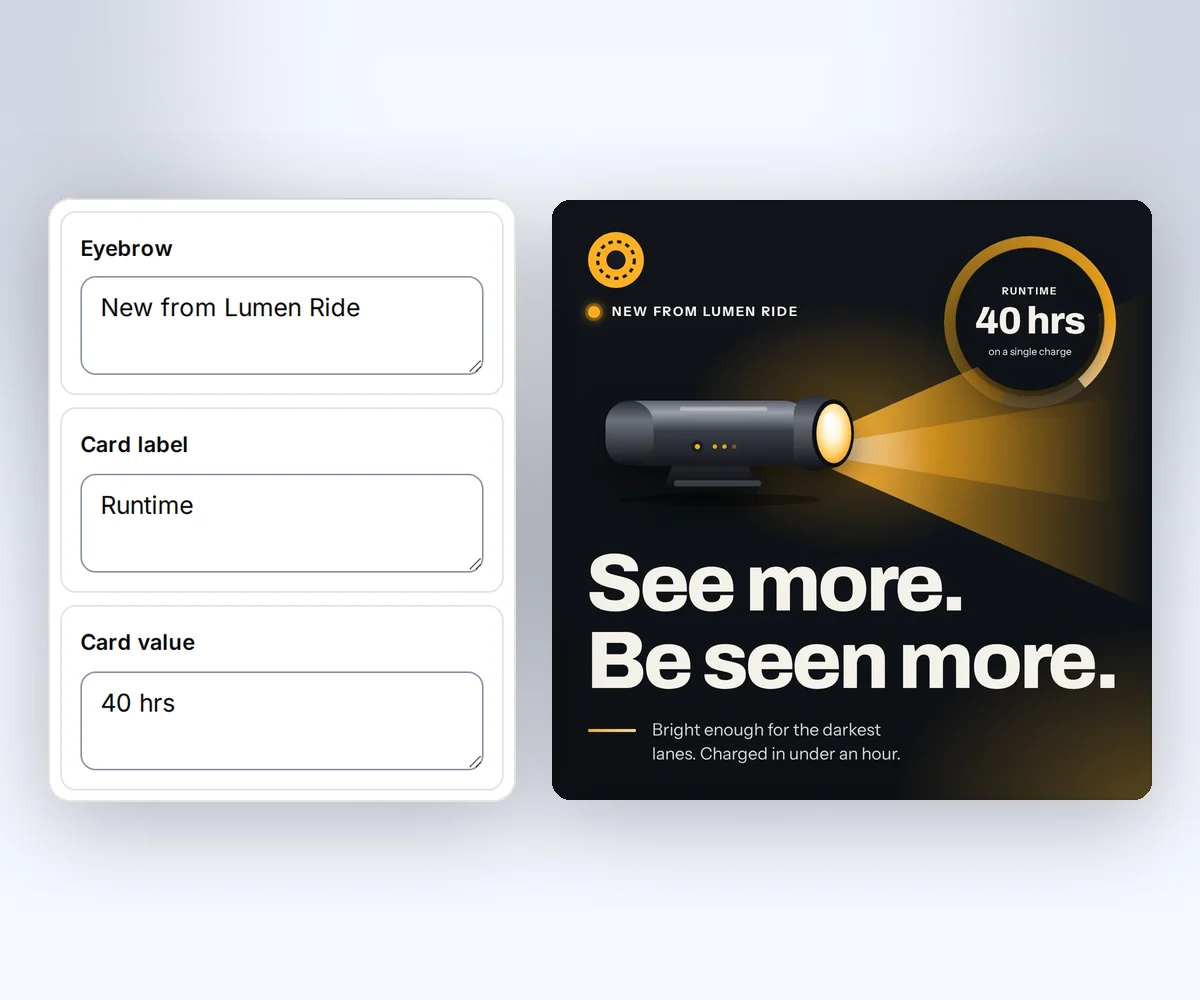
- Open the Product launch square template and click Use this template. Sign in and verify your account first if you need to.
- Open the Data tab and type the short line above the headline, the headline, the big number with its label, and one line about the release. Click Preview with data above the canvas to see the image. The preview is free.
- Click Export, then Save and export PNG, and click Download image.
When you'd rather have Zed Agent make the next launch image from your release notes, add the thirds.ai MCP server to Zed.
How do I add the thirds.ai MCP server to Zed?
You add the thirds.ai MCP server to Zed in three steps: create a key, add a remote server, and paste the key into its header. You need a thirds.ai account and Zed on your computer. The steps follow the Zed MCP guide (checked 25 September 2026).
- Create an API key on the API keys page.
- In Zed, open Settings → AI → MCP Servers, click Add Server, and choose Add Remote Server.
- Give the server the URL
https://thirds.ai/mcpand anAuthorizationheader with your key. Zed writes an entry like this to your settings file:
{
  "context_servers": {
    "thirds": {
      "url": "https://thirds.ai/mcp",
      "headers": {
        "Authorization": "Bearer YOUR_API_KEY"
      }
    }
  }
}
Replace YOUR_API_KEY with your real key. The Zed MCP guide doesn't show a way to read the key from an environment variable, so your key sits in the settings file. Keep the file private to your user account, and never commit it to source control. If you also use OpenCode in your terminal, its config can read the key from an environment variable instead, as the OpenCode MCP config guide shows.
Connect with only the URL
You can skip the key and sign in on a thirds.ai page. Add the remote server with the URL https://thirds.ai/mcp and no Authorization header. The Zed MCP guide says that when a remote server has no Authorization header, Zed asks you to sign in with the standard MCP OAuth flow (checked 27 September 2026). When the thirds.ai page opens, sign in if you need to and click Allow.
This connection gets every thirds.ai tool except the two AI image tools. Use the header setup when you need those. To stop the connection, open your thirds.ai Settings, find the app under Connected apps, and click Disconnect.
Check that Zed sees the thirds.ai tools
You check the thirds.ai connection on the MCP Servers page in Zed, where the dot next to thirds must be green. The Zed MCP guide says a green dot has the tooltip "Server is active", and other colours and tooltips tell you what's wrong. Checking doesn't spend credits.
If the dot isn't green, open your settings file and check two things. The URL must be exactly https://thirds.ai/mcp. The header must read Bearer, then a space, then your active key.
When the dot is green, open the Agent Panel and ask Zed Agent to list the thirds.ai tools.
Make your first file from Zed Agent
Your first file from Zed Agent starts with a plain request that names thirds.ai. Ask it to list your saved thirds.ai templates, then ask for one file, such as "Use my thirds.ai Product launch square template to make a PNG for version 4.3 from CHANGELOG.md. Show me the tool call and the credit cost first." The Zed MCP guide says naming the server helps the model pick its tools.
Zed asks you to approve each tool call by default, so you see what Zed Agent sends before it runs. The Zed MCP guide says this comes from the agent.tool_permissions.default setting, which starts as "confirm". Keep it that way for thirds.ai tools that spend credits.
Read the main MCP guide before your first paid call. It explains credit approval, safe retries, and status checks.
FAQ
Where is the settings file?
Run zed: open settings file from the Command Palette. You can also add the server from Settings → AI → MCP Servers, and Zed writes the file for you.
Can Claude Code or another external agent in Zed use thirds.ai?
Yes. The Zed MCP guide says Zed passes the MCP servers you set up to external agents over the Agent Client Protocol. An external agent can also read its own MCP settings, such as a Claude Code MCP setup.
Does connecting spend credits?
No. Connecting and listing tools don't spend credits. AI template work and successful files can. Ask your agent to show the action and the cost before it starts paid work.