
A brand kit that puts your logo, colours, and fonts on every file
Save your logo, colours, and fonts once as a brand kit on thirds.ai, and every PDF and image you make comes out in your brand. Type your website address, and the kit builds itself from the logo and colours it finds there. In most design tools the kit is a panel of swatches, and you still recolour every shape by hand and check the file before it goes out. Here you pick the kit when you start a design, and your colours and logo land where they fit, so you can send the file without checking it first.
Free to start, and you don't need a card.
Brand kits
Pick a different kit, and the same design changes brand
Read the transcript
Designs for different clients? Each one needs its own look. But hey, thirds.ai keeps those brands ready to use.
Keep a kit for each client, with their own logo, colours, and fonts!
Save each brand once, and it's there for every new design.
Pick a kit, and your design uses that brand. New client? Just switch.
Create your brand kits, and start your next design at thirds.ai!
How it works
How do I make a brand kit?
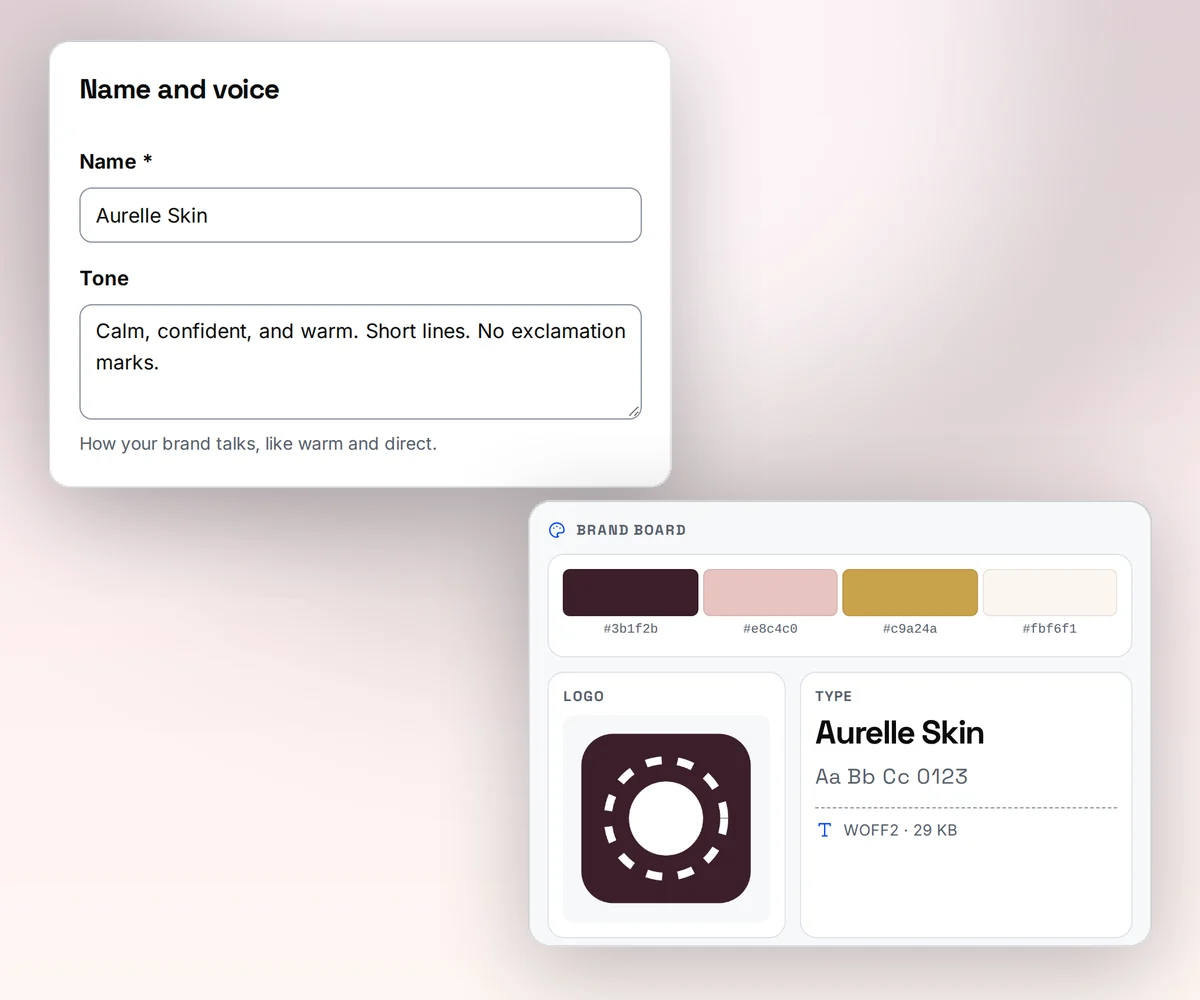
You make a brand kit in the thirds.ai studio from your website address, and it takes about a minute.
- Open Brand kits, type your website address under Your website, and click Import brand.
- In the Check your brand popup, fix a colour or swap the logo if you need to, then click Save brand kit.
- Open the kit to add your fonts and a line on how your brand talks.
- Start a design and pick the kit in the Brand kit field. The editor and the AI chat use it from then on.

- Free
- to make, change, and switch a kit
- 1 click
- moves a design to another kit
- Every file
- comes out in your brand, PDF or image
Colours that fit
Your colours land where they fit, and the words stay easy to read
You get a design in your colours that still reads well, with the headline standing out and the logo showing on every background. Recolouring by hand is slow, and it goes wrong in small ways, like a headline too close to the background colour. Pick your kit on thirds.ai, and the design swaps in your colours but keeps its contrast.
- Your logo gets a small backing shape when it needs one, so it shows on a photo or a dark band.
- Your own fonts, or ones from our list, go into the design with the colours.
One kit per client
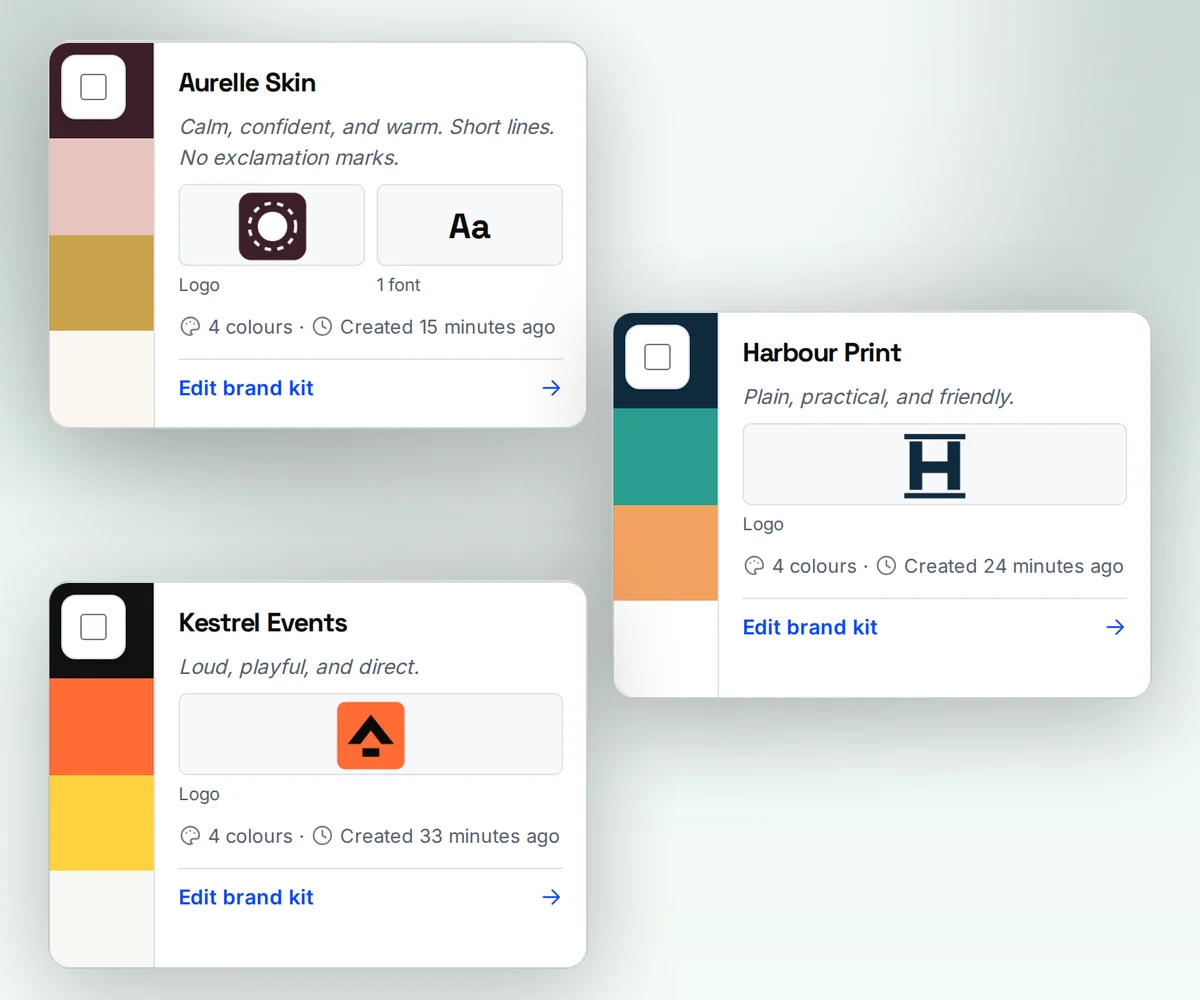
Keep a kit for each client, and switch the whole design in one click
When you work for several clients, or run more than one brand, and rebuild the same report for each by hand, one of them ends up with an old logo or another client's blue. Keep one brand kit per client on thirds.ai instead. Pick a client's kit, and the report comes out with their logo, their colours, and their fonts. Pick the next client, and the same design switches to theirs.
- Set up a new client's kit from their website address.
- Archive a kit when the work ends, and bring it back when the client returns.
From your AI assistant
Set up your kit and get finished files from the AI you already use
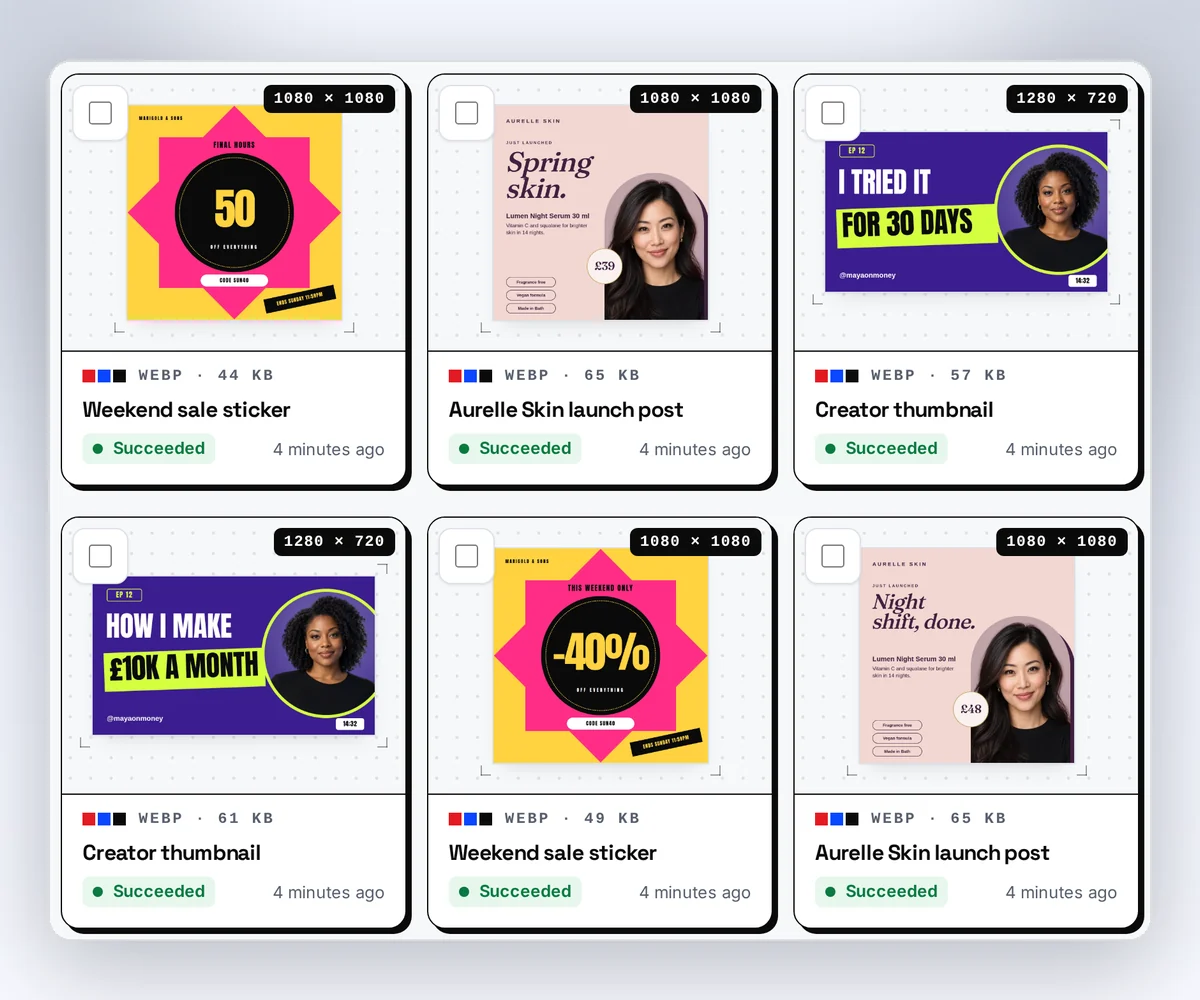
Connect ChatGPT, Claude, Gemini, Grok, or any other AI you use to thirds.ai, and it sets up your brand and makes your files, right from the chat. Give it your logo and your colour codes and ask it to set up your brand kit, and the kit is ready without leaving the chat. Then ask for a poster for the weekend offer or an invoice for a client in plain words. It finds the details and writes the text, and the file comes back in your logo, colours, and fonts. With an AI image generator, someone has to check the logo and the colours on every picture. A file made from a thirds.ai design in your kit can't drift, so it's ready to send.
- Say "Set up a brand kit called Harbour & Pine in these two colours, and add this logo." That's the whole request.
- Connecting takes a couple of minutes, and your assistant can walk you through it.
Brand kit templates
See your brand on a designer-made template before you sign up
On any design in the thirds.ai gallery, click Your brand and type your website address, and the design shows in your colours right there. Copy the one you like for free, and it's yours, whether that's a letterhead for the office or a quote card for your feed.
Letterhead letterPDF · A4 Client invoicePDF · A4 Customer testimonialImage · 1080 × 1080 Shop business cardPDF · 85 × 55 mm
For developers and agents
Manage brand kits through the API or MCP
Create a kit, add a logo or a WOFF2 font with one request, and send brand_kit_id with any PDF or image request to render it in that kit. Your agent gets the same tools through the MCP server. The first block is the create_brand_kit call it sends when you ask it to set up a kit.
{
  "jsonrpc": "2.0",
  "id": 1,
  "method": "tools/call",
  "params": {
    "name": "create_brand_kit",
    "arguments": {
      "name": "Harbour & Pine",
      "colours": ["#0e5c4f", "#e2793d"],
      "tone_guidance": "Warm, direct, practical, and confident. Use plain verbs and name the next step."
    }
  }
}curl --fail-with-body --silent --show-error \
https://thirds.ai/v1/brand-kits/kit_YOUR_KIT/assets \
-H "Authorization: Bearer YOUR_API_KEY" \
-H "Content-Type: image/png" \
--data-binary @logo.png{
"servers": {
"thirds": {
"type": "http",
"url": "https://thirds.ai/mcp",
"headers": {
"Authorization": "Bearer YOUR_API_KEY"
}
}
}
}Questions people ask before they make a brand kit
Try it with your brandWhat is a brand kit?
A brand kit is your logo, your brand colours, and your fonts saved in one place, with a short note on how your brand talks. On thirds.ai, a design reads the kit and puts each part where it belongs, so every PDF and image you make comes out in your brand without anyone looking up a colour code. Learn how to create a brand kit step by step.
What should a brand kit include?
A kit needs your logo, your colours, your fonts, and a line or two on your tone of voice. Put your main colour first, then the colour that goes with it, then the one for highlights. Rules on spacing, photos, and wording belong in a written brand guide.
How much does a brand kit cost?
A brand kit is free on every plan, and so is changing it or uploading logos and fonts. You spend 1 credit for each finished PDF or image you make with it, and a file that fails costs nothing. The free plan gives you 50 credits a month. See the plans and credits.
What's the difference between a brand kit and brand guidelines?
A brand kit is your logo, colours, and fonts, ready to drop into any design. Brand guidelines are a written document that tells people how to use them. You can fill the brand guidelines template in the gallery with your kit's details and send it as a PDF. Open the brand guidelines template.
Which logo and font files can a kit hold?
Logos are PNG, JPEG, or WebP files. Fonts are WOFF2 files, or you pick a font from our list. If your logo is an SVG, turn it into a PNG first with our free converter. Turn an SVG logo into a PNG for free.
Does the AI chat use my brand kit?
Yes. Pick the kit before your first message, and the AI builds the draft with your logo, colours, and fonts, and writes in your tone of voice. The same goes for a design you rebuild from a picture. Describe a design with the AI template generator. Turn a picture into a template in your brand.
What happens when I change a colour in the kit?
Your next file and your next AI message use the new colour. Files you already sent and designs you already saved keep the old one, so nothing changes behind your back.
Brand kits
Save your brand once, and send every file in it
Click Your brand on any gallery design, type your website address, and see it in your own colours before you sign up. When you like what you see, your first brand kit is one click away.