
Gemini MCP server setup: connect Gemini CLI to thirds.ai
To use a Gemini MCP server with thirds.ai, add https://thirds.ai/mcp to your Gemini CLI settings with an API key. thirds.ai is a web app where you save a design once, like an invoice, a report, or a product label, with your logo, colours, and fonts. Once it's connected, Gemini CLI fills a saved design with new details and makes the finished PDF or image from your terminal. Each finished file costs one credit, and a verified free account gets 50 free credits each month. These steps connect Gemini CLI to the thirds.ai MCP server. They don't cover Google's own Gemini Docs MCP server or how to build an MCP server with Gemini.
Give this prompt to your AI agent. The agent does the task for you.
Read https://thirds.ai/docs/mcp/gemini and help me connect Gemini CLI to thirds.ai and check its tools before making a file
With Gemini CLI connected, you ask for the next file in a chat, and you stop copying an old file and fixing it by hand. Every file keeps the same layout and brand, because each one starts from the same saved design.
See the Gemini CLI image generation prompts for designs and prompts to try after setup.
Make it without code
You can make the same images and PDFs in the thirds.ai editor without Gemini CLI or any setup. It takes three steps, and all you need is a free thirds.ai account. The Coffee bag label template is a good first try if you sell products, because you fill it in again for every new batch.
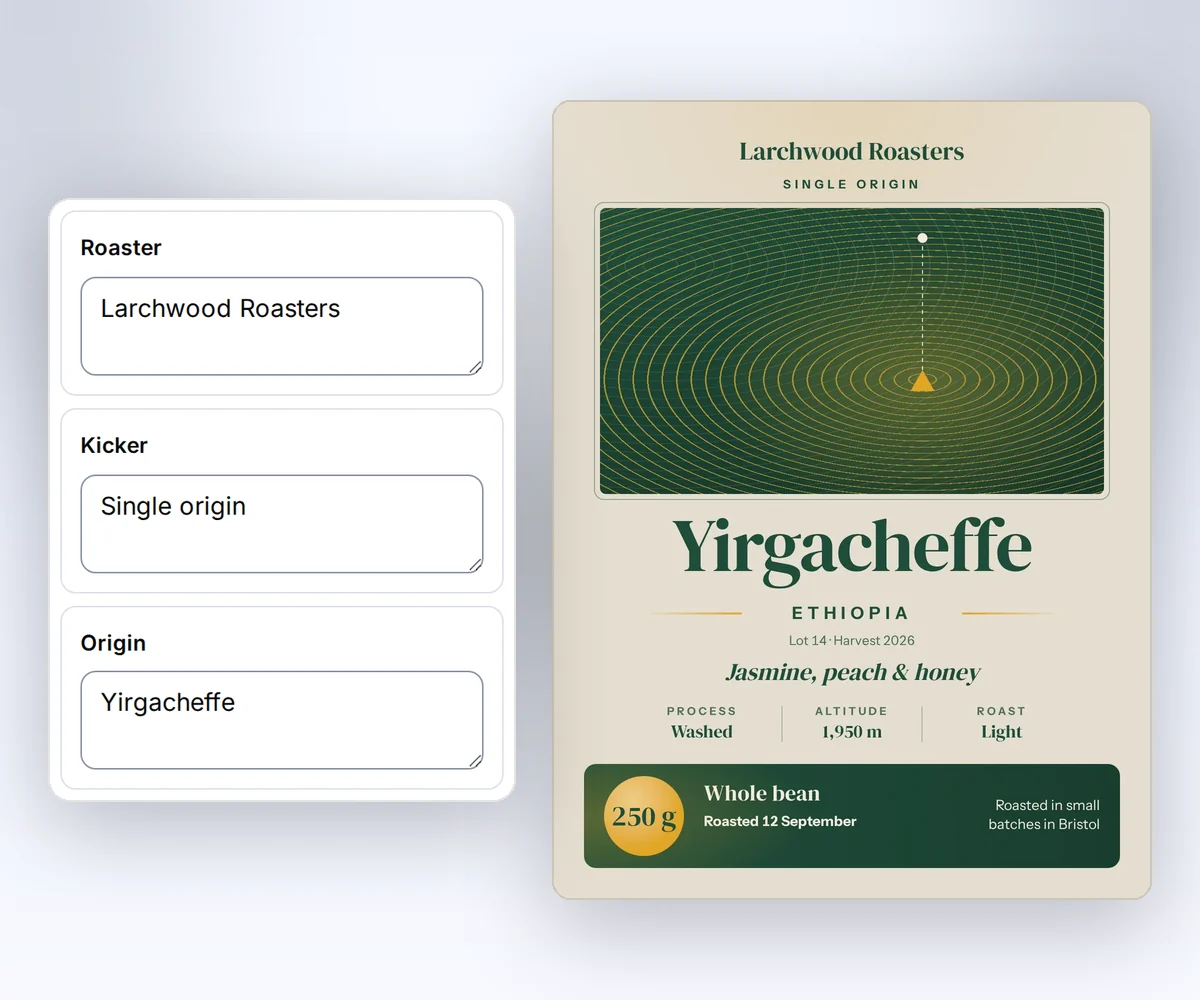
- Open the Coffee bag label template and click Use this template. Sign in and verify your account first if you need to.
- Open the Data tab and type your roaster name, the origin, the tasting notes, and the weight. Then click Preview with data above the canvas to check the label. The preview is free.
- Click Export, then Save and export PNG, and download the image.
To start from your own design instead, follow how to make a template you can reuse. When you'd rather have Gemini CLI fill in the same label for each new coffee, connect it to the thirds.ai MCP server.
Add the thirds.ai MCP server to Gemini CLI
You add the thirds.ai MCP server to Gemini CLI with one entry in a settings file and one private API key. First, create a key on the API keys page. Store it as THIRDS_API_KEY in the environment that starts Gemini CLI. Then add this entry to ~/.gemini/settings.json for all your projects, or to .gemini/settings.json for one project:
{
  "mcpServers": {
    "thirds": {
      "httpUrl": "https://thirds.ai/mcp",
      "headers": {
        "Authorization": "Bearer ${THIRDS_API_KEY}"
      },
      "trust": false
    }
  }
}
Gemini CLI reads ${THIRDS_API_KEY} from your environment when it loads the settings, so the key stays out of the file. Keep the key out of prompts and shared files, too.
Use httpUrl, because it selects the Streamable HTTP transport. The url field selects the older SSE transport. Keep trust set to false, so Gemini CLI asks you before each tool call.
The Gemini CLI MCP guide owns these fields, as checked on 25 September 2026. Its settings guide explains environment variables in settings values.
Check the Gemini CLI MCP connection
You check the Gemini CLI MCP connection in two steps, and you need the settings entry and the THIRDS_API_KEY variable first. Restart Gemini CLI, then run /mcp in a session. Check that thirds shows as connected and lists its tools. Outside a session, gemini mcp list shows each server and its connection status.
Ask Gemini CLI to list your saved designs before you make a file. Read the main MCP guide before your first paid call. It explains credit approval, retries, and status checks.
FAQ
You can set up the thirds.ai MCP server in Gemini CLI by editing the settings file or with the gemini mcp add command.
Can I use gemini mcp add instead of editing the file?
Yes. Run this command to add the thirds.ai server to ~/.gemini/settings.json:
gemini mcp add --scope user --transport http \
  --header 'Authorization: Bearer ${THIRDS_API_KEY}' \
  thirds https://thirds.ai/mcp
The single quotes stop your shell from filling in your key, so the file keeps ${THIRDS_API_KEY}. Gemini CLI then reads the key from your environment when it loads the settings. The Gemini CLI MCP guide lists the --scope, --transport, and --header options (checked 25 September 2026). Without --scope user, the command writes to .gemini/settings.json in the current project.
Why does Gemini CLI get a 401 error?
A 401 error means that thirds.ai got no valid, active API key. Most often, Gemini CLI can't see your key. Start Gemini CLI from a shell that has THIRDS_API_KEY, and restart it after you change the variable. Then check on the API keys page that the key is still active. The error codes page lists the other codes.
Does this setup work in the Gemini app?
No. This page covers Gemini CLI in your terminal. The Gemini app in a browser or on a phone is a different product, and these settings don't apply to it. If you now use Antigravity CLI, follow the Antigravity MCP setup, because it reads a different config file.
Does connecting spend credits?
No. Connecting and listing tools don't spend credits. AI template work and successful files can. Ask Gemini CLI to show the action and the cost before it starts paid work.