
Grok MCP setup for thirds.ai on grok.com
You add an MCP server to Grok on grok.com as a custom connector, and with the thirds.ai server, Grok can make your branded PDFs and images in a chat. With thirds.ai, you save a design once, such as a post image, a sale image, or an invoice. Then you type in new details and get a finished file with your logo, colours, and fonts. Each successful PDF or static image costs one credit, and a verified account gets 50 free credits each month, as the credits and billing page says.
Give this prompt to your AI agent. The agent does the task for you.
Read https://thirds.ai/docs/mcp/grok and help me connect Grok on grok.com to thirds.ai with an API key
Once Grok has the connector, you give it the next headline or offer in a chat, and it fills your saved design. You don't lay out each file by hand, and every file keeps the same look. These steps add a server to Grok. They don't cover MCP servers that let other apps call Grok. See the Grok image examples for designs and prompts to try after setup.
Make it without code
You can make a post image in the thirds.ai editor without Grok or any code. It takes three steps, and you need a free thirds.ai account. Make one image this way first, so you know the design looks right before Grok uses it.
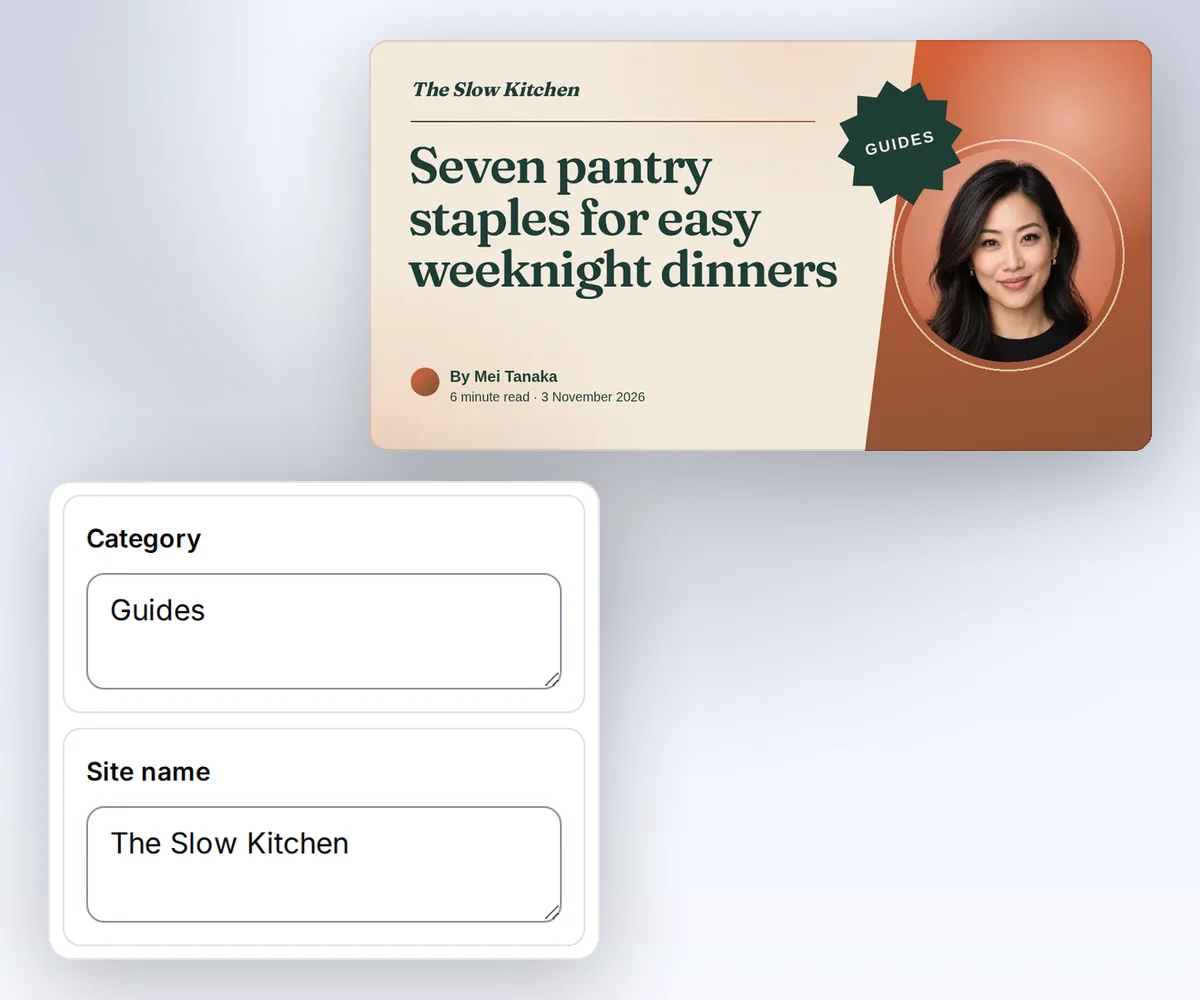
- Open the Article share card template and click Use this template. Sign in and verify your account first if you need to.
- Open the Data tab and type your site name, the title, and the author. Click Preview with data above the canvas to see the card. The preview is free.
- Click Export, then Save and export PNG, and click Download image.
Grok can use the same saved design after you add the thirds.ai connector.
How do I add an MCP server to Grok on grok.com?
You add the thirds.ai MCP server to Grok on grok.com in three steps, and you need a thirds.ai API key first. Create the key on the API keys page. xAI's connectors guide, last updated on 17 July 2026 and read on 25 September 2026, says connectors work for all Grok users. It also says a custom server must be on the public internet, and https://thirds.ai/mcp is.
- Go to grok.com/connectors.
- Click New Connector, then choose Custom.
- Enter these values and save the connector:
| Setting | Value |
|---|---|
| Name | thirds |
| Server URL | https://thirds.ai/mcp |
| Auth header | Authorization: Bearer YOUR_API_KEY |
Replace YOUR_API_KEY with your key. Keep the key out of chat messages and shared screenshots.
On a Grok Business or Enterprise plan, your team admin has to add the connector before you can use it. xAI's connector management guide, read on 25 September 2026, says the admin opens Grok Business, then Connectors, in the xAI console. There, they click + Add Connector, choose Other, and enter https://thirds.ai/mcp. After that, each team member connects on grok.com/connectors with their own key.
What Grok can and can't do with thirds.ai
Grok can make PDFs and images from gallery templates and your saved designs once the thirds.ai connector is on, in your own logo, colours, and fonts. Grok works only with the designs, brand kits, and files in the thirds.ai account that owns your API key, and it spends that account's credits.
Grok can find your designs and brand kits, make a PDF, PNG, JPEG, or WebP, preview a design for free, save a brand kit, and turn HTML, a description, or a picture into a design you can edit. It can also make one file for each row of a list, fit an image design to new sizes, export carousel slides, and make AI pictures for your designs.
Grok can't edit a PDF or Word file you already have. It can't make videos, post to social networks, or send email through thirds.ai. It can't see another person's thirds.ai account.
Check the connection
Grok is connected when it can list the thirds.ai tools. Open a new Grok chat and ask it to list the thirds.ai tools. You should see list_templates, render, and get_status.
Ask Grok to list your saved designs next. Listing is free. Before paid work, ask Grok to show the file count and the credits. Read the main MCP guide before you start paid work. It explains credit approval, retries, and status checks.
Use thirds.ai from Grok Build or the Grok API
You can also use the thirds.ai MCP server from Grok Build in your terminal or from your own code on the Grok API. Both use the same address and the same bearer key as grok.com. xAI's Grok Build MCP guide, read on 25 September 2026, shows how to add a remote server with a header in one command:
grok mcp add --transport http thirds https://thirds.ai/mcp --header 'Authorization: Bearer ${THIRDS_API_KEY}'
Set THIRDS_API_KEY in your environment first. The same guide says Grok Build reads ${VAR} values in headers from your environment, so the key stays out of the config file. Run grok mcp list to see the server, and grok mcp doctor thirds if it doesn't connect.
Grok Build can also skip the key. Run the same command without the --header part. xAI's Grok Build MCP guide says a server that needs OAuth starts a browser sign-in the first time you use it (read on 27 September 2026). When the thirds.ai page opens, sign in if you need to and click Allow. This connection gets every thirds.ai tool except the two AI image tools. To stop it, open your thirds.ai Settings, find the app under Connected apps, and click Disconnect.
For your own code, xAI's remote MCP guide, read on 25 September 2026, says the Grok API takes a server URL and headers, and doesn't support require_approval. So your code must decide which paid calls it allows. The Grok Bot setup has a Python example that starts with a list-only connection.
Privacy, terms, and help
When you add the connector, Grok can make files and read and change your designs and brand kits with your thirds.ai account and credits. Our privacy policy says what we keep and for how long, and the Terms of Service cover your use of thirds.ai through Grok. To cut Grok off, delete its API key on the API keys page. For help with the connector or a failed file, contact support.
FAQ
Why does Grok fail to connect?
Grok fails to connect when the URL or the key is wrong. Check that the URL is exactly https://thirds.ai/mcp and that the header is Authorization: Bearer followed by an active key. The server must be reachable on the public internet. To check the key outside Grok, send one test request with curl as the MCP Streamable HTTP client guide shows.
Does this setup work in Grok Bot?
No. Grok Bot is a separate xAI app, and you add thirds.ai to it by asking your Bot in a chat. Follow the Grok Bot setup.
Does connecting spend credits?
No. Connecting and listing tools don't spend credits. AI template work and successful files can. Ask your agent to show the action and the cost before it starts paid work.