
Move from wkhtmltopdf and map its options
wkhtmltopdf is a free command-line tool that turns HTML into a PDF with an old Qt WebKit engine, and its project is no longer maintained. To move off wkhtmltopdf with thirds.ai, you keep your HTML and data and swap the local command for one request to the HTML to PDF API at POST /v1/pdf. Each PDF that succeeds costs one credit. Start with one document type, such as an invoice, and check the new PDF before you move the next one.
Give this prompt to your AI agent. The agent does the task for you.
Read https://thirds.ai/docs/wkhtmltopdf and map my wkhtmltopdf command to a thirds.ai request and plan checks for layout changes
thirds.ai is a web app for PDFs and images you make again and again. You save a design once, like an invoice, a statement, or a report, with your logo, colours, and fonts. Then you type in new details, or send them from your own code, and get a finished PDF. You stop installing and patching a PDF tool on your own server, and every file keeps the same look. A verified free account gets 50 free credits each month.
Expect some layout differences. Your thirds.ai PDFs come from a pinned Chromium version, while wkhtmltopdf uses Qt WebKit. The engines can wrap text, size fonts, and break pages differently, even when the options match. The guide to HTML page breaks, headers, and fonts shows how to fix each one in Chromium. The thirds.ai docs show the other ways to make files, such as CSV batches and saved designs.
Is wkhtmltopdf still maintained?
No, wkhtmltopdf isn't maintained anymore. When we checked on 25 September 2026, its GitHub project was archived and read-only, and its last release was still 0.12.6, from 10 June 2020. That matters because the tool still runs on an engine that gets no security fixes. The wkhtmltopdf status page says the WebKit inside it hasn't been updated since 2012, and it tells you not to use wkhtmltopdf with any untrusted HTML.
If your PDFs hold text that customers type, such as names, notes, or addresses, that warning applies to you.
Make it without code
You can make a PDF in the thirds.ai editor without writing code or running wkhtmltopdf. It takes three steps, and you need a free thirds.ai account. The steps use the Account statement template, which lists each charge and payment for one client over one period.
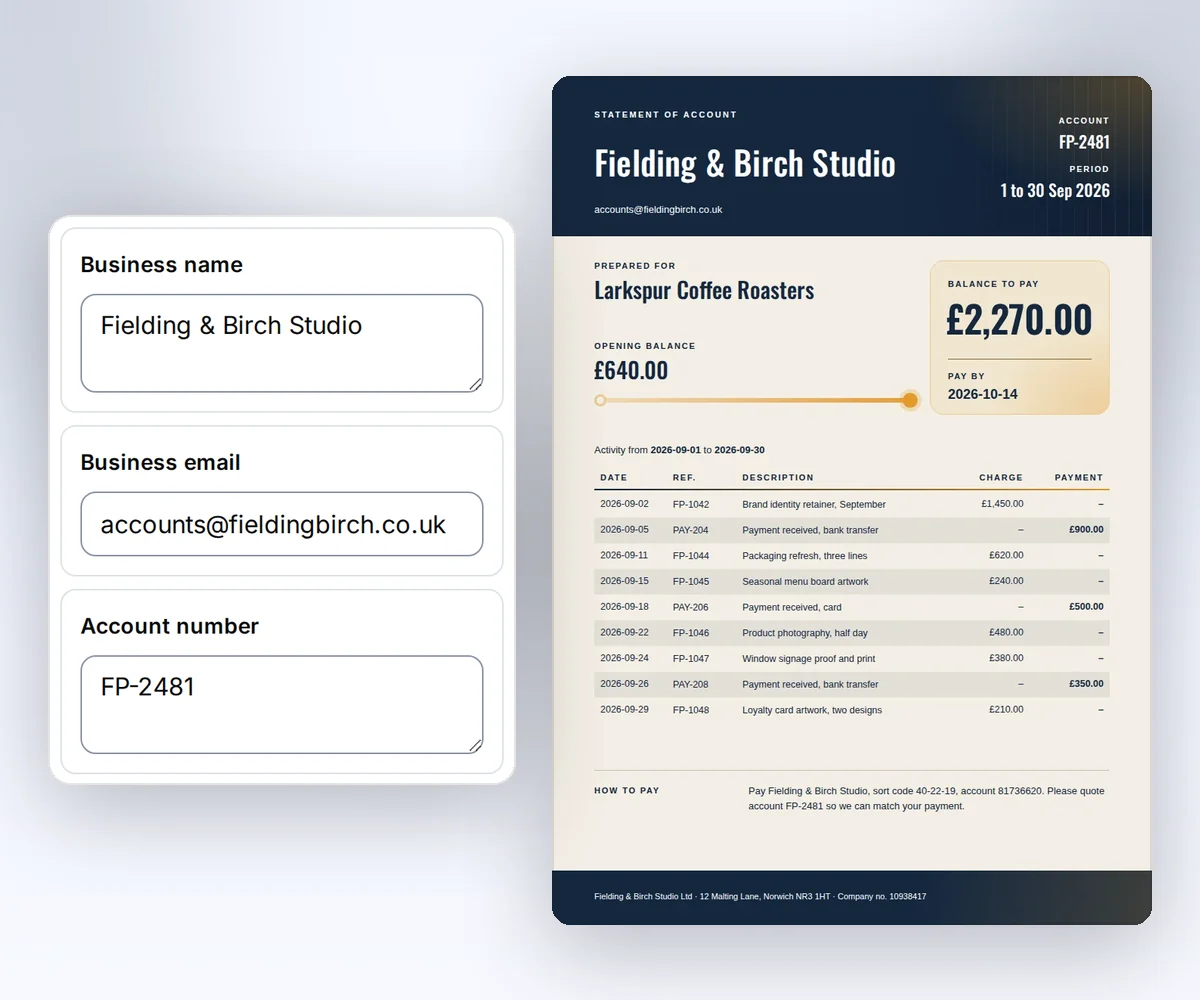
- Open the Account statement template and click Use this template. Sign in first if you need to.
- Open the Data tab and type your details, such as the client, the period, and each charge and payment.
- Click Export, then Save and export PDF, then Download PDF.
To start from the HTML you already give wkhtmltopdf, open Use your HTML instead, paste your source, and export it the same way. How to make a template you can reuse walks through the rest of the editor. When your own app makes the PDFs, follow the code steps on the rest of this page.
Map the wkhtmltopdf options you use
Each common wkhtmltopdf page option, such as page size, margins, orientation, and headers, has a matching setting in a thirds.ai POST /v1/pdf request. Use this table to translate your current command. Option names come from the wkhtmltopdf command reference. Request fields come from the thirds.ai API contract, and the PDF render reference explains each one.
| wkhtmltopdf option or input | thirds.ai request |
|---|---|
| HTML file | Read the file in your app and send its text as html. |
--page-size A4 | pdf.format: "A4" |
--page-width and --page-height | pdf.width and pdf.height, both with units. Omit format. |
--orientation Landscape | pdf.landscape: true |
--margin-top, --margin-right, --margin-bottom, --margin-left | The matching sides in pdf.margins |
--background or --no-background | pdf.print_background: true or false |
--zoom | Start with pdf.scale, from 0.1 to 2, then compare the layout. |
--header-html or --footer-html | Inline HTML in pdf.header_template or pdf.footer_template, with display_header_footer: true |
[page] and [toPage] | Empty spans with pageNumber and totalPages classes |
--disable-javascript | javascript.mode: "disabled", the default |
--enable-javascript | javascript.mode: "enabled", plus the ready marker |
--javascript-delay or --window-status | Replace the wait with the ready marker. |
Review differences before switching
Before you switch from wkhtmltopdf, check four differences in thirds.ai: how you send HTML, print styles, header and footer templates, and the wkhtmltopdf options that have no match. Each one can change a PDF even when your page options match.
Your app must send HTML text. The API doesn't accept a source page URL or log in to your site. It also can't read your local files, take cookies, or accept arbitrary asset request headers. Load private data in your app before you send the HTML. Use permitted public or inline assets and keep credentials out of the source.
PDF output uses print styles. Check any old screen-only styles and remove @media print rules that hide content you need. Set page dimensions and margins in the request. The default API margins are zero, so set the margins from your old command yourself.
Give header and footer templates their own styles. They don't inherit body styles, and their scripts don't run. The PDF layout guide has a two-page request with page numbers. The Playwright PDF reference explains Chromium's print behaviour.
Check unsupported options before you switch. This API has no wkhtmltopdf smart-shrinking switch, outline or table-of-contents option, PDF form option, or multi-input command. It also has no exposed DPI, grayscale, custom proxy, or load-error-ignore option. Put the layout and content you need into one HTML document. If your workflow relies on one of these options, check that you can produce an acceptable PDF before you move it.
Try a fixed-size document
A fixed-size test PDF lets you compare page size, margins, and scale between wkhtmltopdf and thirds.ai before you move real work. The test request uses no remote assets or JavaScript. You need an API key from your account page to send it.
This request makes a small landscape invoice page with 8 mm margins at 80% scale:
{
  "html": "<!doctype html><html lang='en'><head><meta charset='utf-8'><style>body{margin:0;font:16px/1.5 sans-serif}h1{color:#0a46ff}table{width:100%;border-collapse:collapse}td{padding:12px;border-bottom:1px solid #ddd}</style></head><body><h1>Invoice 1042</h1><table><tr><td>Monthly report</td><td>USD 120.00</td></tr></table><p>Total: USD 120.00</p></body></html>",
  "pdf": {
    "width": "180mm",
    "height": "240mm",
    "landscape": true,
    "margins": { "top": "8mm", "right": "8mm", "bottom": "8mm", "left": "8mm" },
    "print_background": true,
    "scale": 0.8
  }
}
Compare page sizes and counts in your own invoices, long documents, headers, footers, fonts, and JavaScript output. Check each finished PDF before you switch that document type.
Compare, switch, and recover
You can move from wkhtmltopdf to thirds.ai in five steps, one document type at a time, with a way back if a layout fails. You need sample inputs and PDFs from your current setup and a thirds.ai API key.
- Save sample inputs and PDFs from your current renderer. Include long names, empty fields, many rows, and every language and font you use.
- Send the same content to thirds.ai. Compare page count, paper size, line wraps, totals, logos, headers, and footer numbers. Check the first and last page of long documents.
- Adjust the HTML or options where the PDF differs. Save a version of the template you accept and keep its sample data.
- Move one document type to thirds.ai. Store each job ID beside your business record. Add retry and download handling before you move more work.
- Keep your previous renderer and accepted template version available during the move. If the new layout fails your checks, stop new requests for that document type and return to the previous renderer. Check thirds.ai jobs that are still running before you create replacements, so customers don't get duplicate documents.
Each successful comparison render uses the normal credit price. Keep the downloaded comparison files in your own storage. Move the next document type after the first one passes your checks.
If you are still choosing a replacement, which wkhtmltopdf alternative to use compares headless Chromium, WeasyPrint, Prince, and hosted PDF services. If you plan to run Chromium yourself, the Puppeteer and PDF API cost guide includes setup time, monthly support, and one invoice recipe so you can compare the same work. The Puppeteer and Playwright comparison lists the browser, security, and upgrade work you take on when you run Chromium yourself. If you're moving from DocRaptor instead, the DocRaptor comparison covers the change from Prince to Chromium. If you send HTML or page URLs to PDFShift today, the PDFShift comparison shows which request fields change. To compare other hosted services before you move, the ranked list of HTML to PDF APIs shows who each one suits. For one tool at a time, the PDF generation tools comparisons put thirds.ai beside each service we checked, with dates.