
Set up thirds.ai in Make: make branded PDFs and images from a scenario
You make a branded PDF or image in Make with the thirds.ai app. Its Make a PDF and Make an image modules fill a design you saved on thirds.ai with the data from each scenario run. thirds.ai is a web app where you pick a designer-made template or make your own, add your logo, colours, and fonts, and send out a beautiful PDF or image. You make and edit the design on thirds.ai, and Make only fills it in. So each new product in your sheet can get a launch post that looks like your brand, and nobody lays it out by hand. Each finished file costs one credit, and a verified free account gets 50 credits a month.
Give this prompt to your AI agent. The agent does the task for you.
Read https://thirds.ai/docs/integrations/make and help me install the thirds.ai app in Make, connect it with an API key, and make one PDF or image from a saved design in a scenario
The thirds.ai app isn't in Make's public app list yet, so you install it from our invite link first. If you want to see the kinds of files a scenario can send out before you set it up, the thirds.ai for Make page shows them. If you'd rather build the request yourself with Make's HTTP app, the API workflow guide shows that way.
Make your launch post design on thirds.ai first
You make the design on thirds.ai first, because the Make app can only fill a design you already saved. It takes three steps in the editor, and you need a free thirds.ai account. The Skincare serum launch template suits a scenario that posts each new product, since every launch then gets the same polished look.
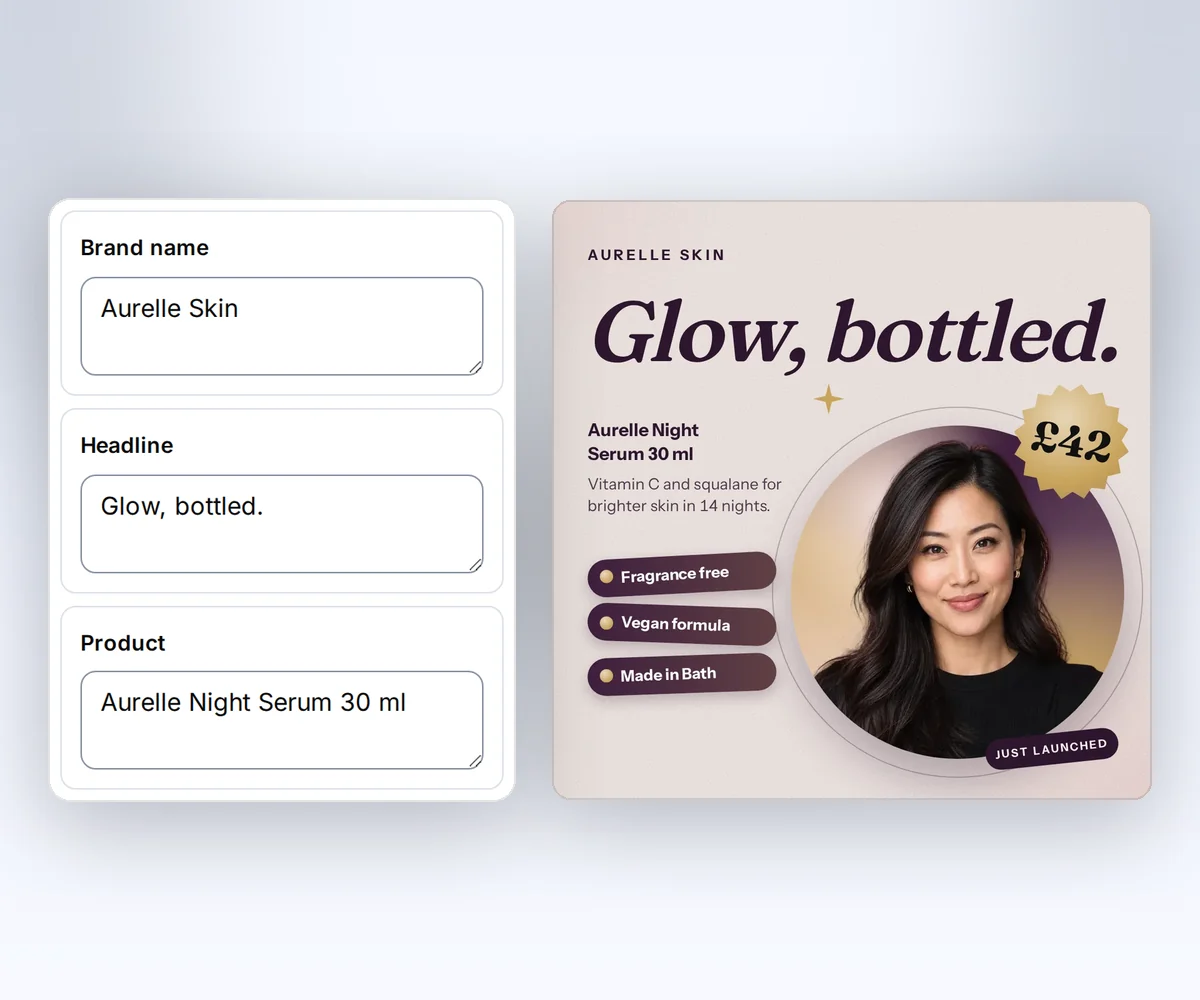
- Open the Skincare serum launch template and click Use this template. Sign in and verify your account first if you need to.
- Make the post yours. Open the Data tab to see each detail that Make will fill in, such as the product, the price, and the headline. Click Preview with data above the canvas to check the post. The preview is free.
- Click Export, then Save and export PNG, and download your first post.
Saving puts the design in your saved templates, where the Make app finds it. When you change the design later and save it again, your next scenario run uses the new version.
What the thirds.ai Make app can and can't do
The thirds.ai Make app can fill one of your saved designs and give you a PDF or image, but it can't make or change a design. It makes one file each time a scenario reaches its module. It has two modules that make files, a Make an API call module for any other thirds.ai API request, and no trigger, so another app, such as your spreadsheet, your shop, or a form, starts the scenario. The app sees only the designs and files in the thirds.ai account that owns your API key.
The app can:
- List your saved designs, so you pick one by name.
- Show one box for each detail your design takes, such as the product name and the price.
- Make a PDF, or a PNG, JPEG, or WebP image.
- Use your newest saved version, or one version you name.
- Hand the finished file and its name to the next module, such as an email or a cloud folder.
The app can't:
- Make or change a design. You do that on thirds.ai.
- Make AI pictures, use the AI chat, or switch to another brand kit.
- Send email, post to social networks, or store your files for good. Other Make apps do those steps.
- Edit a PDF you already have.
Connect thirds.ai to Make
You connect thirds.ai to Make in four steps, and then every scenario in your Make organization can use it. You need a thirds.ai account with a verified email address and a Make account. Make's app visibility guide says any Make user can install a shared app from its invite link, whatever region the organization is in (checked 30 September 2026).
- Open the thirds.ai Make invite link and install the app in your organization.
- On thirds.ai, open API keys, make a key named Make, and copy it. The key starts with
thirds_sk_, and you see the whole key only once. - In your scenario, add a module, search for thirds.ai, and pick Make a PDF or Make an image.
- Create a connection and paste the key into API key. Make checks the key by reading one saved design, and the check spends no credits.
Keep the key out of scenario notes and shared screenshots. If the key leaks, delete it on the API keys page and make a new one.
Make a PDF or image in a scenario
You make a file in a scenario by picking your saved design and mapping its details to values from earlier modules. It takes four steps, and you need the connection and one saved design.
- In Template, pick your saved design. Its details show up below it.
- Map each detail to a value from an earlier module, such as the product name and the price from your sheet. A list, such as invoice rows, takes JSON.
- For Make an image, pick PNG, JPEG, or WebP in Image type. Leave Width in pixels and Height in pixels empty to use your design's own size, so a square post stays square. A width can be 320 to 7680 pixels, and a height can be 200 to 4320.
- Run the module once and open the file from the output.
Turn on the advanced settings to see four more boxes. All details as JSON takes every detail as one JSON object, such as {"client_name": "Rowan Hale"}, and Make then uses it in place of the detail boxes. Template version picks one saved version, and empty means the newest. File name names your file. Retry key stops a double charge when a run repeats.
The module gives the next module these values:
| Value | What it holds |
|---|---|
| File and File name | Your PDF or image, ready to attach to an email or upload to a folder |
| File details | The file type, its size, its checksum, and Kept until, the date thirds.ai deletes its copy |
| Template | The exact design and version the file used |
| PDF ID or Image ID | The file's ID in your thirds.ai history |
Stop a double charge with a retry key
Put a value in Retry key, such as an invoice number, when one record should get one file. If the module runs again with the same key within 24 hours, thirds.ai hands back the file it already made, and you pay once. A file that fails costs nothing. When Retry key is empty, each run makes a new file.
The module checks your file once a second, up to 30 times. If it isn't ready by then, the module stops with an error. Run it again with the same retry key, and you get the same file with no second charge. The retry and download guide explains retry keys in more depth.
How long thirds.ai keeps your files
How long thirds.ai keeps each finished file depends on your plan, and the pricing page shows the time for each plan. The Kept until value in File details tells you the date for each file. To keep a copy for longer, add a module that saves the file to your own storage.
Fix a failed thirds.ai module
A failed thirds.ai module shows a message and an error code that say what to fix, and each message has one fix. Look up any error code in the error list.
| The module says | What to do |
|---|---|
| Your thirds.ai API key doesn't work anymore | Make a new key on the API keys page and paste it into the connection. |
| Add credits in thirds.ai, then run it again | Add credits on the pricing page, then run the scenario again. |
| Some details don't match this template | Fix each detail the message names in "Check these fields". |
| You already used this retry key for different details | Use a new Retry key for the new file. |
| thirds.ai couldn't make this file, so you won't pay for it | Look up the code in the message on the error list, then run it again. |
Privacy, terms, and help
Our privacy policy, Terms of Service, and support page all cover the thirds.ai Make app, including files you make through Make. The app sends thirds.ai only the design you pick and the details you map, and thirds.ai deletes those details when your file is done. The privacy policy says what we keep and for how long. For help with the app, a key, or a failed module, contact support.