
Connect OpenClaw to thirds.ai with MCP
To use thirds.ai through OpenClaw MCP, you save one server entry named thirds with the address https://thirds.ai/mcp and your API key, then check it with openclaw mcp doctor thirds --probe. With thirds.ai, you save a design once, such as an event poster, an invoice, or a social post. Then you type in new details and get a finished PDF or image with your logo, colours, and fonts. Once you connect it, OpenClaw can fill that design for each new event or order. Each finished PDF or image costs one credit, as the pricing page shows.
Give this prompt to your AI agent. The agent does the task for you.
Read https://thirds.ai/docs/mcp/openclaw and help me connect an OpenClaw runtime to thirds.ai and verify its tools before scheduling file creation
You stop redrawing the same poster by hand every week, and every file keeps the same look. A verified account gets 50 free credits each month, as the credits and billing page says, so you can try it before you pay. This setup works in the embedded OpenClaw runtime with its coding or messaging tool profile. Other runtime adapters can support different transports. After setup, the OpenClaw event poster page gives you designs and prompts to try.
Make it without code
You can make an event poster in the thirds.ai editor without OpenClaw or any code. It takes three steps, and you need a free thirds.ai account. Make one poster this way first, so you know the design looks right before OpenClaw uses it.
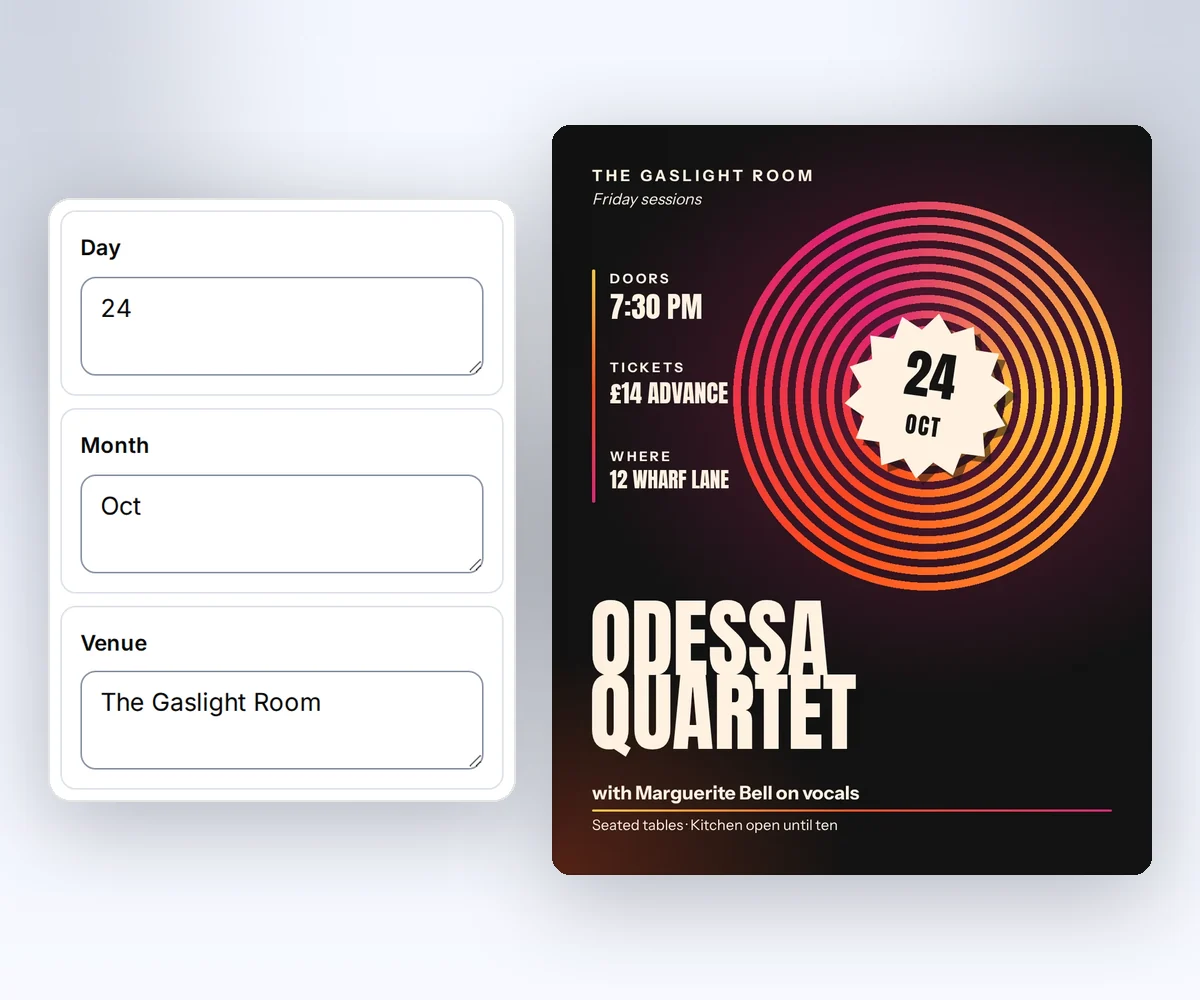
- Open the Live music gig poster template and click Use this template. Sign in and verify your account first if you need to.
- Open the Data tab and type the venue, the artist, the date, the door time, and the ticket price. To see your details on the poster, click Preview with data above the canvas.
- Click Export, then Save and export PNG. When the file is ready, click Download image.
OpenClaw can use the same saved design after you connect it to thirds.ai. To build your own design from scratch, read how to make a template you can reuse.
Add the thirds.ai MCP server to OpenClaw
You add the thirds.ai MCP server to OpenClaw in three steps, and you need a thirds.ai account and access to the OpenClaw configuration. Create an API key on the API keys page. Set it as THIRDS_API_KEY in the environment that starts the OpenClaw Gateway, or in the global ~/.openclaw/.env file. Then add this entry to ~/.openclaw/openclaw.json:
{
  "mcp": {
    "servers": {
      "thirds": {
        "url": "https://thirds.ai/mcp",
        "transport": "streamable-http",
        "headers": {
          "Authorization": "Bearer ${THIRDS_API_KEY}"
        }
      }
    }
  }
}
OpenClaw fills in ${THIRDS_API_KEY} from the environment, so your key never goes in the file. OpenClaw's environment guide documents this substitution and recommends the global .env file for API keys (checked 25 September 2026). If you leave out transport, OpenClaw uses the SSE transport, so keep "streamable-http".
Leave auth unset in this entry. OpenClaw's transport settings say it ignores a static Authorization header while auth: "oauth" is on (checked 27 September 2026).
You can also add the server in a browser. In the OpenClaw Control UI, open Settings, then MCP, and click Add server. Choose Streamable HTTP and enter https://thirds.ai/mcp. Then add the Authorization header in the config editor on the same page, as OpenClaw's MCP connection guide shows (checked 25 September 2026).
Connect with only the URL
You can skip the key and sign in on a thirds.ai page. In the entry, replace the headers block with "auth": "oauth". Then run openclaw mcp login thirds. OpenClaw's transport settings say this command prints a sign-in link and waits for the answer on your computer (checked 27 September 2026). Open the link, sign in to thirds.ai if you need to, and click Allow.
This connection gets every thirds.ai tool except the two AI image tools. Use the API key setup when you need those. To stop the connection, open your thirds.ai Settings, find the app under Connected apps, and click Disconnect.
Check the OpenClaw MCP connection
You check the OpenClaw MCP connection with one command that connects to thirds.ai and lists its tools. Saving the entry alone doesn't prove that OpenClaw can reach the server. Run:
openclaw mcp doctor thirds --probe
The probe must connect and show the thirds.ai tools, such as list_templates, render, and get_status. If it fails, check that THIRDS_API_KEY is set in the Gateway's environment and that the URL is exactly https://thirds.ai/mcp.
OpenClaw's MCP connection guide says that with Gateway hot reload on, the next turn uses a changed server entry, so you don't need a restart (checked 25 September 2026). Then ask your agent to list your saved thirds.ai designs. Listing is free. The minimal tool profile hides MCP tools, so use coding or messaging. The OpenClaw registry guide explains runtime support and tool filters.
Schedule posters and other files
You schedule thirds.ai files in OpenClaw after one approved test run, and OpenClaw starts each run while thirds.ai makes the files. Before you schedule anything, ask OpenClaw to make one file from your saved design and check it.
- Ask OpenClaw to make one poster from your saved design and show you the credit cost first.
- Check the finished file.
- Set the schedule and the listing source in OpenClaw.
Each run then sends the new listings to thirds.ai and gets one file back for each event. To make many files from one list at once, read how to make files from a list. Read MCP costs and retries before you let OpenClaw run on its own.
FAQ
Does OpenClaw support remote MCP servers?
Yes, OpenClaw supports remote MCP servers over Streamable HTTP and SSE, and local servers over stdio. OpenClaw's MCP connection guide says so and saves each server under mcp.servers (checked 25 September 2026). thirds.ai is a Streamable HTTP server at https://thirds.ai/mcp.
Why does OpenClaw show no thirds.ai tools?
OpenClaw shows no thirds.ai tools when the key is missing, the tool profile is minimal, or a tool filter hides them. Run openclaw mcp doctor thirds --probe and read its report. Check toolFilter and tools.deny in your configuration too.
Can I put the API key straight in openclaw.json?
OpenClaw accepts a literal header, but openclaw mcp doctor warns about literal secrets in headers. Use ${THIRDS_API_KEY} and keep the configuration file out of source control.
Does connecting spend credits?
No. Connecting and listing tools don't spend credits. AI template work and successful files can. Ask your agent to show the action and the cost before it starts paid work.