
Free PNG to PDF converter
Put your PNG and JPG pictures into one PDF, one on each page.
Runs in your browser
Free tool
Drop in your PDF, pick how sharp you want the pictures, and download one page or all of them as PNG files. Your PDF turns into PNGs right in your browser, so it never leaves your computer, and it costs nothing. At 150 DPI small print stays clear on a slide or in a post, and 300 DPI is sharp enough to print. When you need pages of your own, thirds.ai makes them in your brand, as a PDF or a PNG.
A PDF up to 10 MB. The file stays on your computer.
Watch how
Want to convert a PDF to PNG? Right in your browser, every page comes out as its own sharp picture.
Drop your PDF onto the tool, and you see every page. Nothing uploads, so a private report stays private.
Now pick how sharp you want it. 150 DPI is plenty for a slide or an email, and 300 is the one for print.
Got small print, like this table? At 72 DPI the numbers go soft, but at 150 they stay clear on a slide.
Click PNG to save just one page, or Download all to get the whole report. Each file name ends with its page number.
And if this report comes round every month, upload page one to thirds.ai. It comes back as a design in your own colours, so next month you just type the new numbers.
Make next month's report on thirds.ai.
Before and after
A screenshot of a PDF page goes soft the moment you make it bigger, and the small print turns to mush on a slide. In this PDF to PNG example, a one-page monthly report comes out as a 1241 × 1756 PNG at 150 DPI, about twice the width of the page at 72 DPI, so you can still read every number in the table.
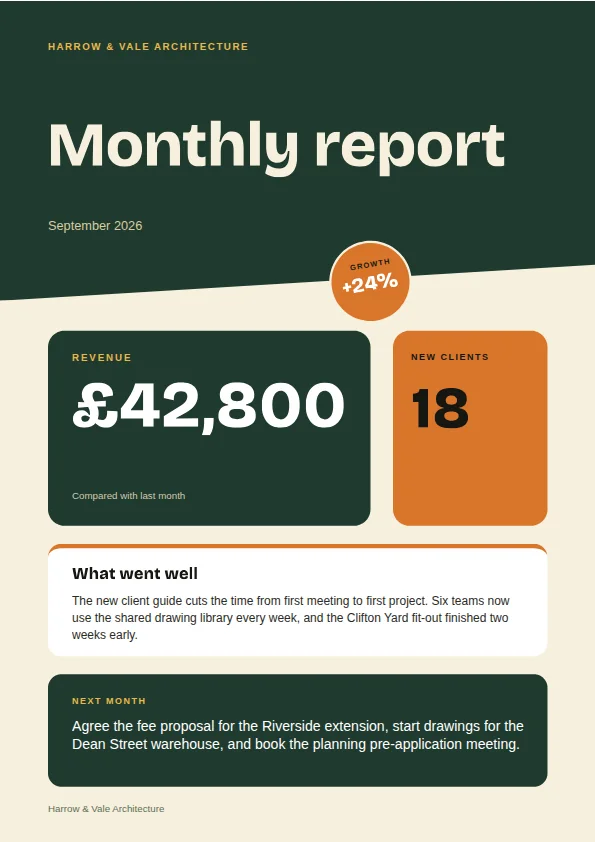 595 × 842
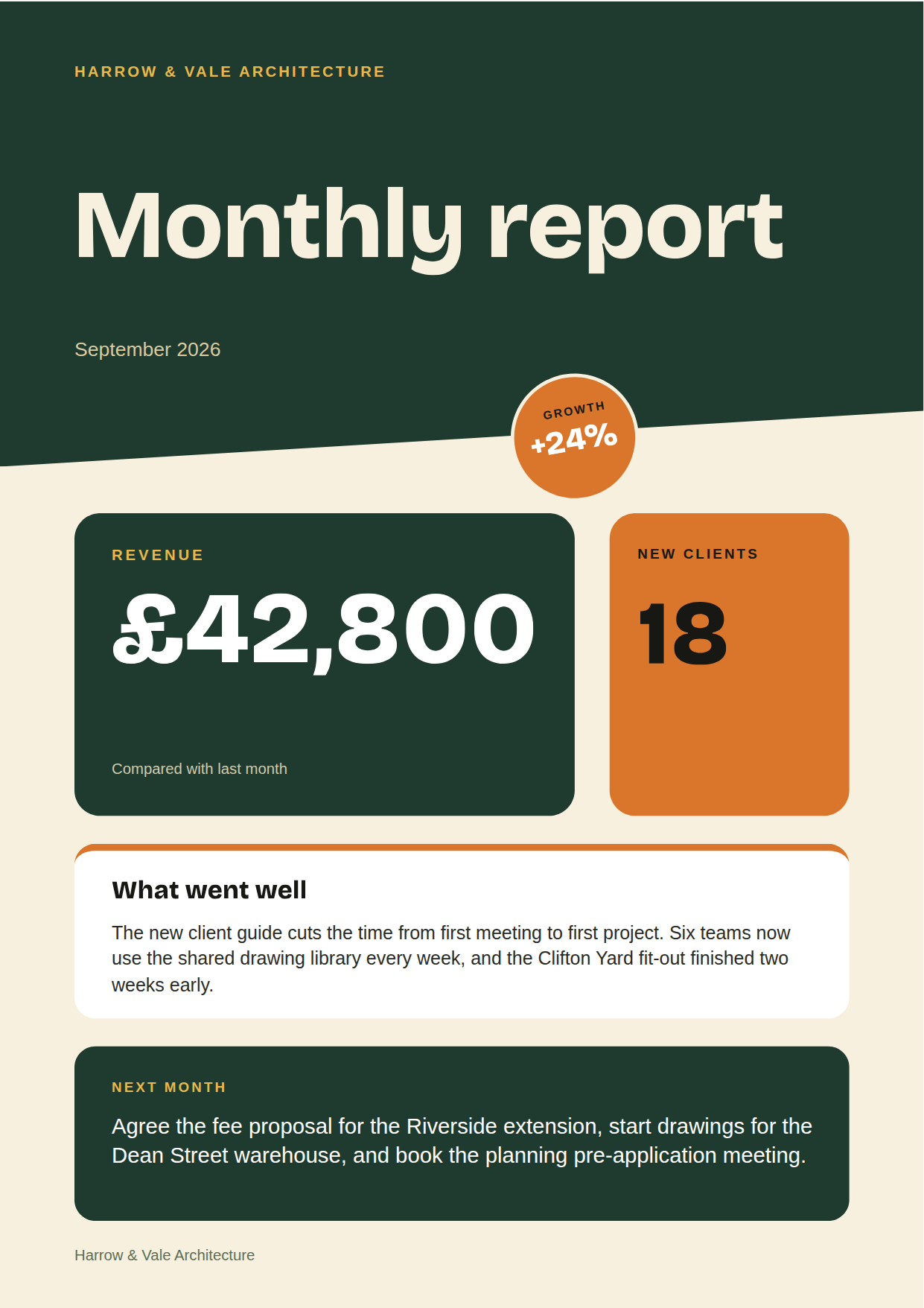 1241 × 1756
How it works
Drag your PDF onto the box, or click Choose a file.
Click 72 DPI, 150 DPI, or 300 DPI. The higher the number, the sharper and bigger the PNG.
Click PNG under a page to save just that one, or click the Download all button with the page count to save every page. Each file name ends with its page number, such as report-page-2.png.
Do more with thirds.ai
A free tool does one job on one file. thirds.ai makes the finished file for you, in a design that's yours, as many times as you need it.
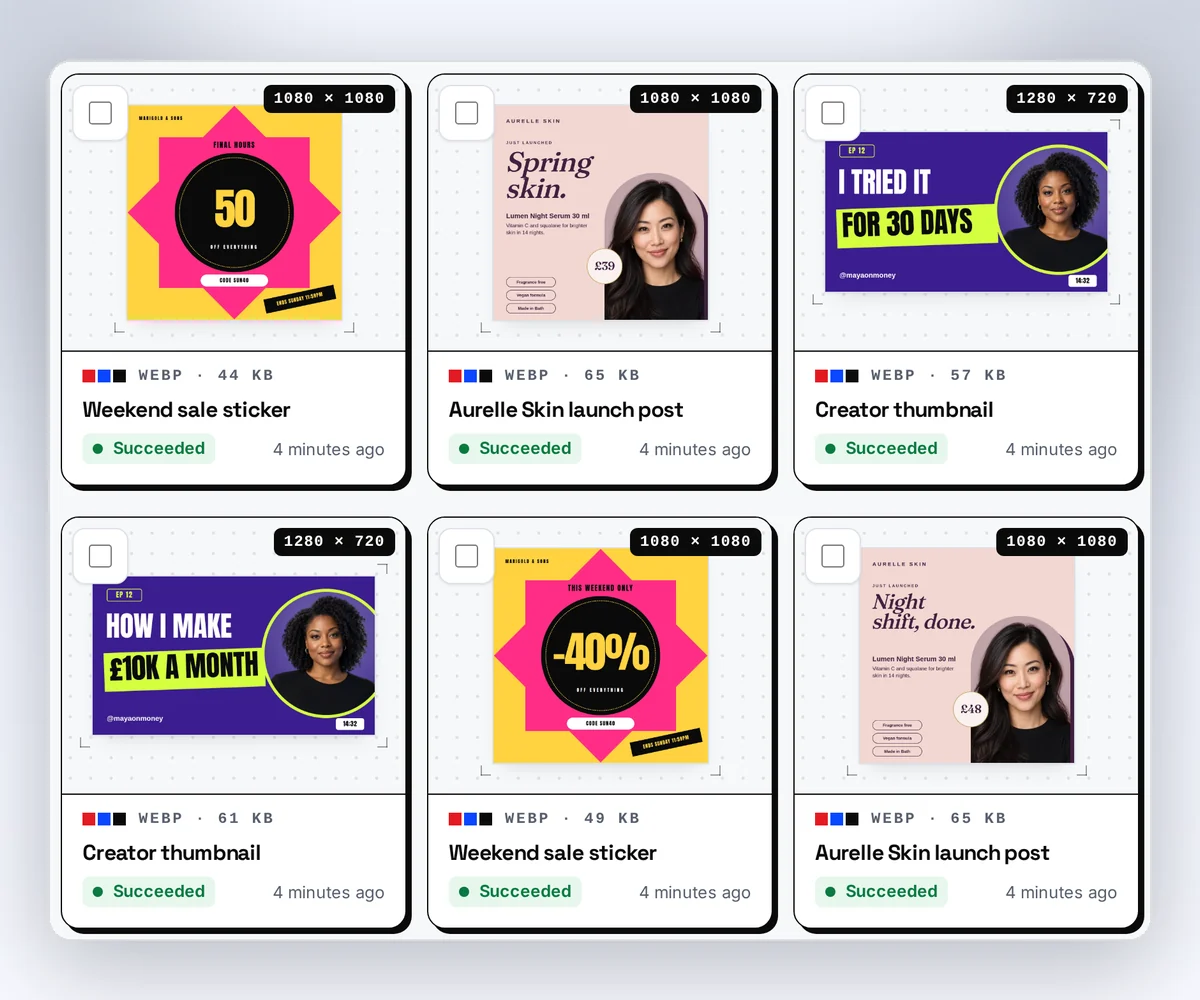
Choose a template from the gallery, or ask your AI assistant to draw one for you. Put your logo, colours, and fonts on it once, and every file after that comes out looking like your business made it.
Set up your brandTell it what you need in plain words, and the finished PDF or picture lands in the chat, in your design and ready to send.
Connect your AIGot a list? Upload a spreadsheet, and each row comes back as its own finished file in your design, all of them in one ZIP.
Make a batchNo. Your PDF opens inside your browser, and the PNG files are made there too. We never see the file.
Pick 150 DPI for a slide, a post, or an email, and 300 DPI to print. 72 DPI gives you a small preview. A higher DPI means more pixels and a bigger file, and the size under each page shows what you'll get.
Yes. Click the Download all button with the page count, and each page saves as its own PNG. Your browser may ask once if it's OK to save several files.
Not with the password on it. Open the PDF with its password, save a copy without one, and drop in that copy.
Up to 10 MB, and you get its first 50 pages as PNG files.
No. Each page comes out on a white sheet, the same as in a PDF reader.
Yes. Save the page as a PNG here, then upload it to thirds.ai. It comes back as a design you can edit, in your logo, colours, and fonts, and every file you make from it comes out as a PDF or a PNG. The rebuild costs 50 credits, and you get 50 free every month. See how a picture becomes a template.
Yes. The download from this page costs nothing. A file from a saved template still costs one credit.
Free tools
If you turn the same report into a picture every month, upload one page to thirds.ai. It comes back as a design in your logo, colours, and fonts, and every new page comes out on-brand as a PNG for a post or a PDF for an email.