
Online template editor for PDFs and images
Open a designer-made template in the thirds.ai editor and mark the parts that change each time, like the name and the price. They become boxes that a teammate, a spreadsheet, or ChatGPT fills in while the layout stays put, so the design is done once and every file after it looks designed. An AI chat sits beside the canvas for the changes you'd rather describe than make, and smart resize turns one image into every size you post. Preview with real data, then download the PDF or the image.
Free to start, and you don't need a card.
Template editor
Online template editor: one design in every size
Read the transcript
Make your campaign in the thirds.ai editor, from the first picture to every size!
No picture yet? Draw a space, describe it, and AI makes one right inside your design!
Add shapes, blend your own colours, and change the headline, right on the canvas.
Stories and banners too? But hey, Smart resize makes them for free, and you can still fix anything.
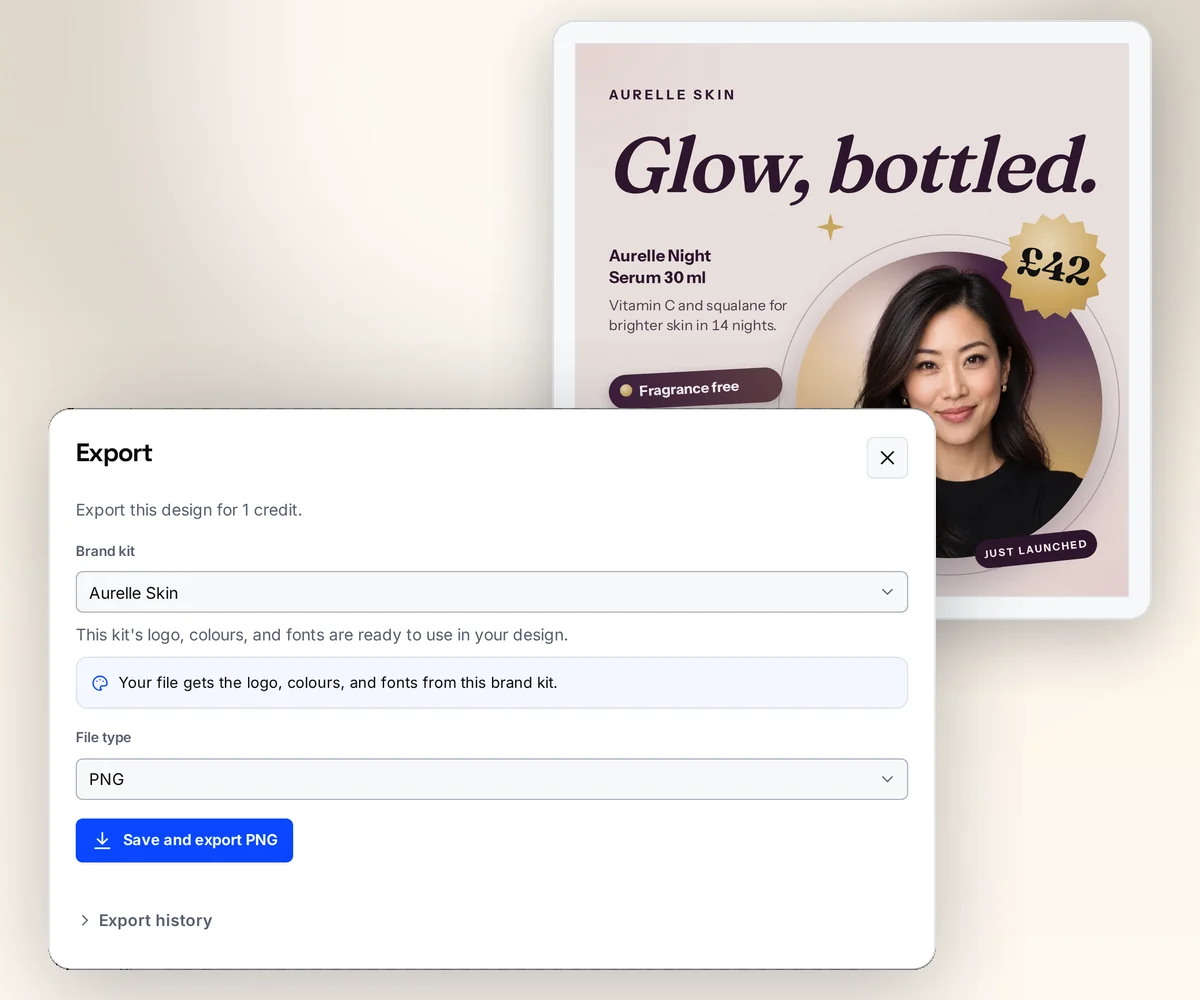
Save it, then download all your sizes together. Each finished image costs one credit.
Start free at thirds.ai!
How it works
How do I edit a template online?
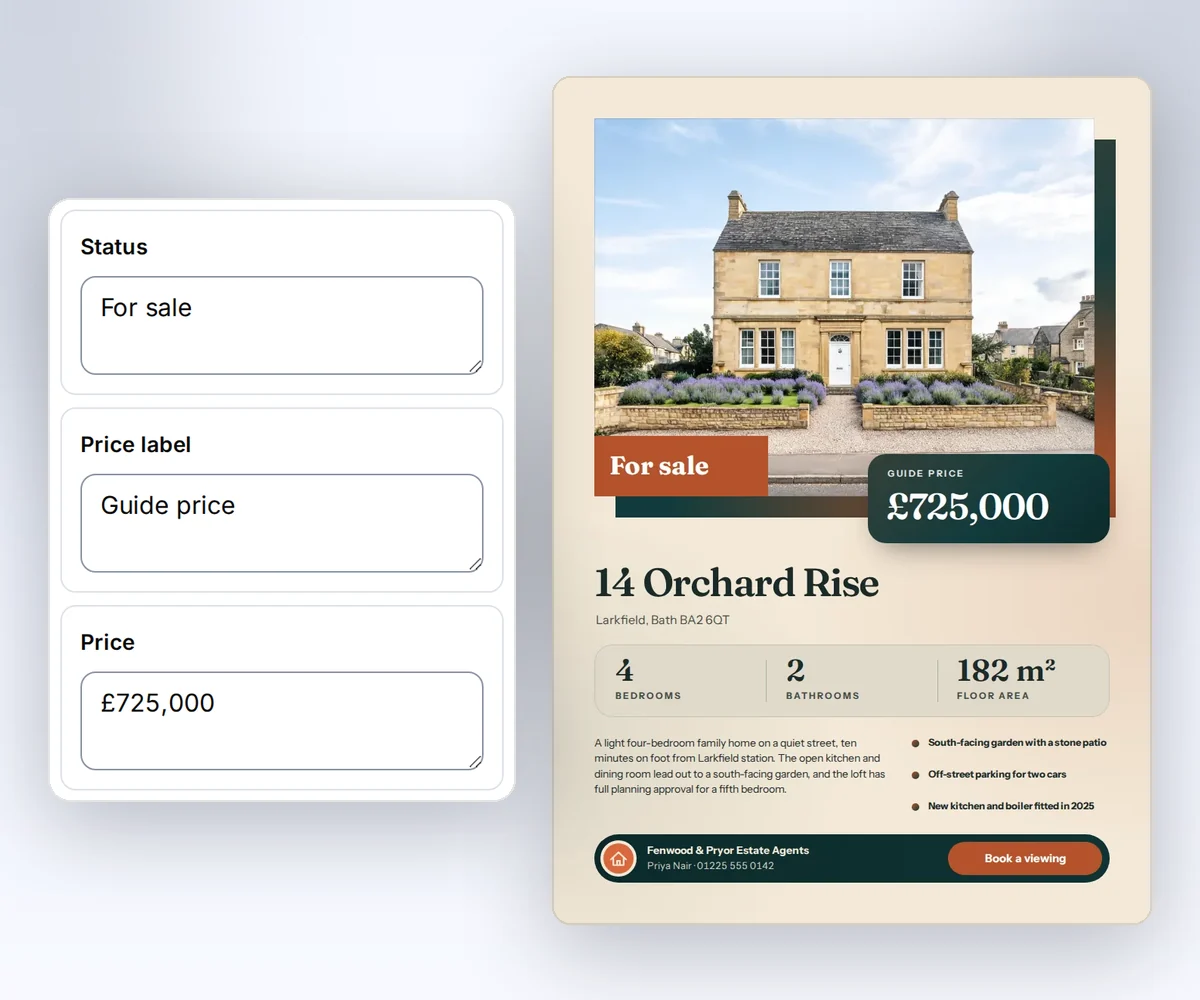
Pick a design in the thirds.ai gallery, and the design work is done. You change the words and pictures, mark what changes from file to file, and export. Say an agency makes a flyer for each home it lists: the agency name and the logo stay the same, while the price, the address, and the number of bedrooms change each time. Here is how that goes.
- Pick a design in the gallery and click Use this template.
- Click any text on the canvas and type over it. Select a photo and click Upload image to swap it, or give a shape one of your brand colours in Properties.
- Select the price, switch it from Same every time to Changes each time, and give it a name. It now shows as a box in the Data tab.
- Open the Data tab, type a real listing, and click Preview with data to see the page laid out as it will print.
- Click Save, then Export, and download the finished PDF or image.
- Free
- to edit, preview, and save a design
- 65
- fonts, plus the ones in your brand kit
- 1 credit
- for each finished PDF or image
Canvas and chat
Change it by hand on the canvas, or tell the chat what you want
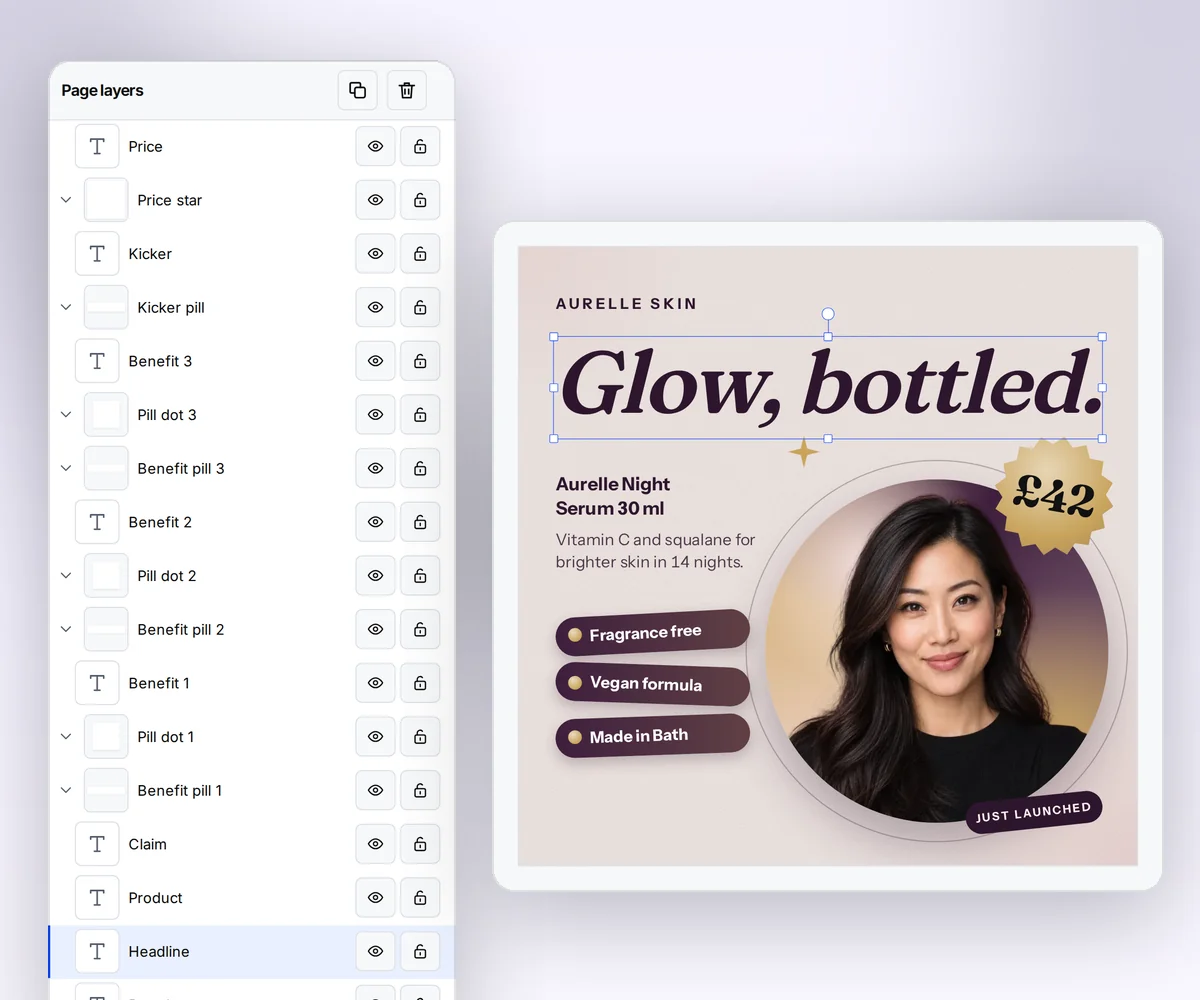
Every part of the design is a layer you can type over, move, recolour, lock, or hide, and the Data group adds a bar, line, or pie chart or a table with your own numbers. For the changes you'd rather describe, the AI chat sits beside the canvas: ask for a warmer palette or a second page for the terms, and it shows its draft as Before and After. Click Apply changes to take it, or Discard to keep what you had. Your brand kit does the biggest change in one step, and puts your logo, colours, and fonts on the whole design at once.
- Lock your logo so nobody on the team moves it by mistake.
Fields
Mark what changes once, and it becomes a box anyone can fill
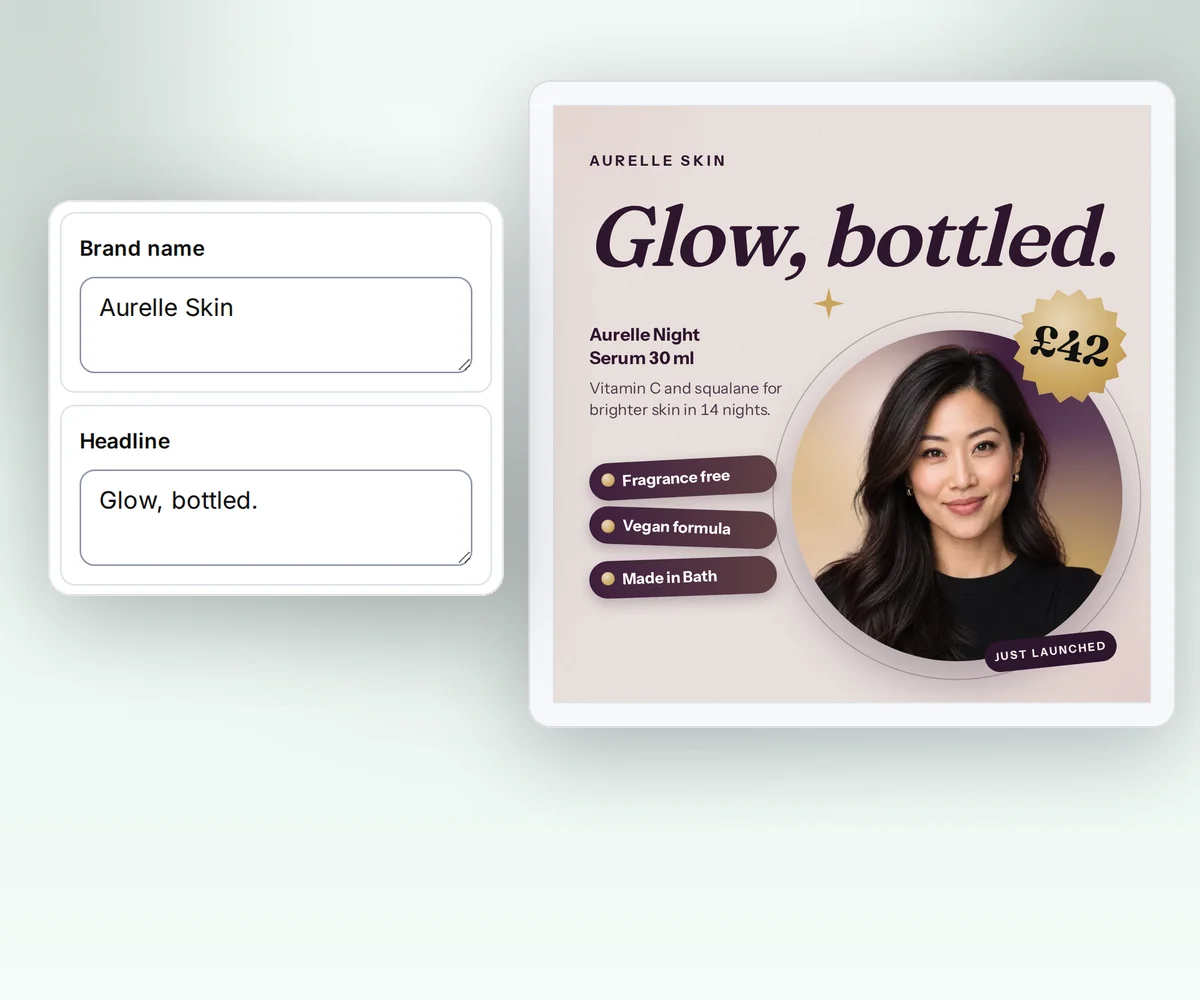
Select a layer, and Properties asks one question: does this change in each file? Same every time keeps the value. Changes each time asks for a name, like price or customer, and from then on the Data tab shows a box for it instead of the design. A field can be text, a colour, a picture, a number, or a yes-or-no switch, and a list grows with the order, so every item gets its own row. Hand the saved design to a teammate, and they fill the boxes without touching the layout.
- Point at a field in the Data tab, and its layers light up on the canvas.
- A visibility rule shows a layer only when a value is set, so an empty discount line disappears instead of printing blank.
AI images
Get the picture your design is missing
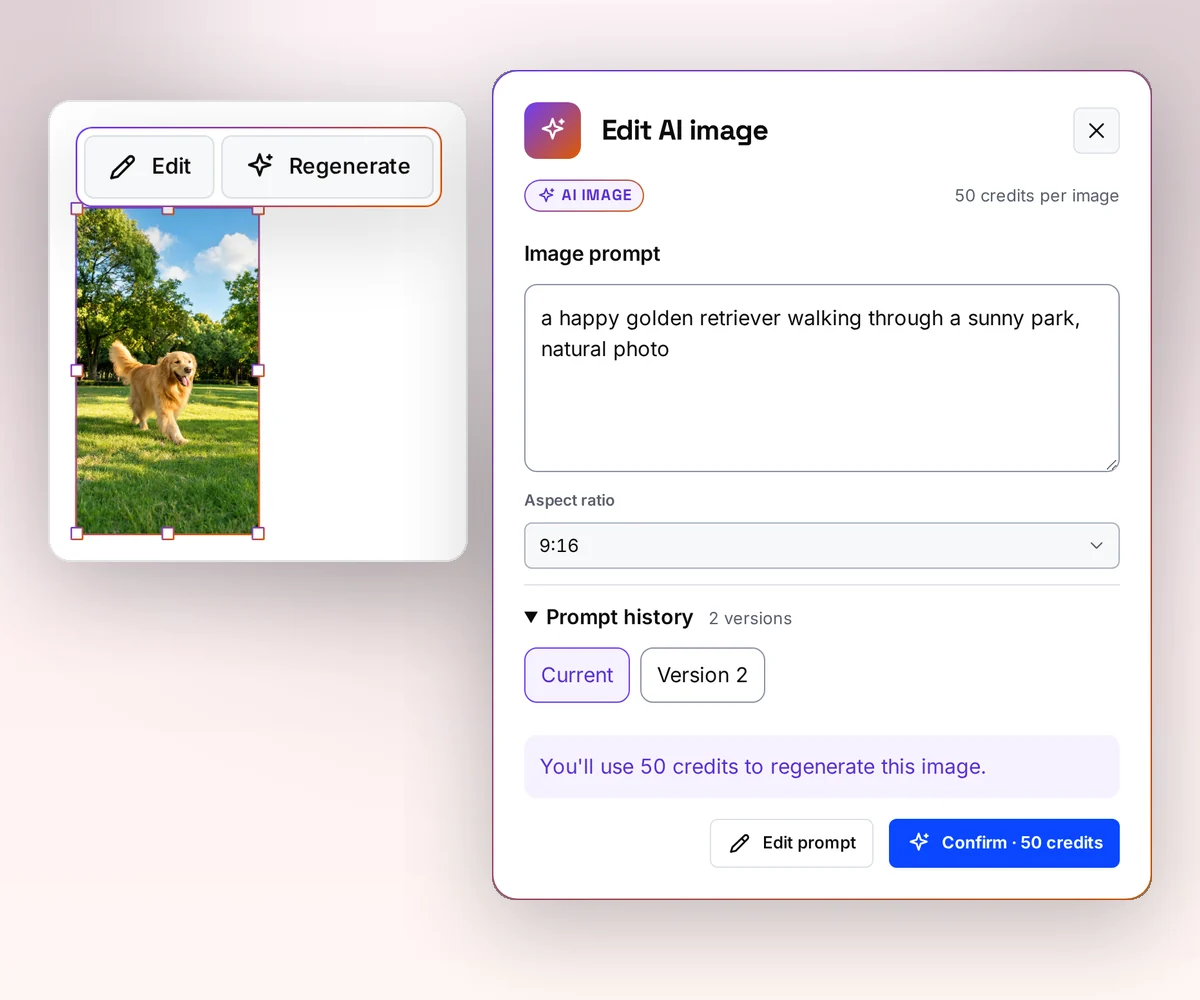
Draw a frame on the page, describe the picture you want, and the AI makes it right inside your design, in the shape of the frame. Change your description and get another one until it's the picture you had in mind. The AI chat beside the canvas can also propose a picture for an empty frame, and nothing is made until you confirm the price.
- Bring back an earlier picture for free.
Save and download
Save once, then download every size from it
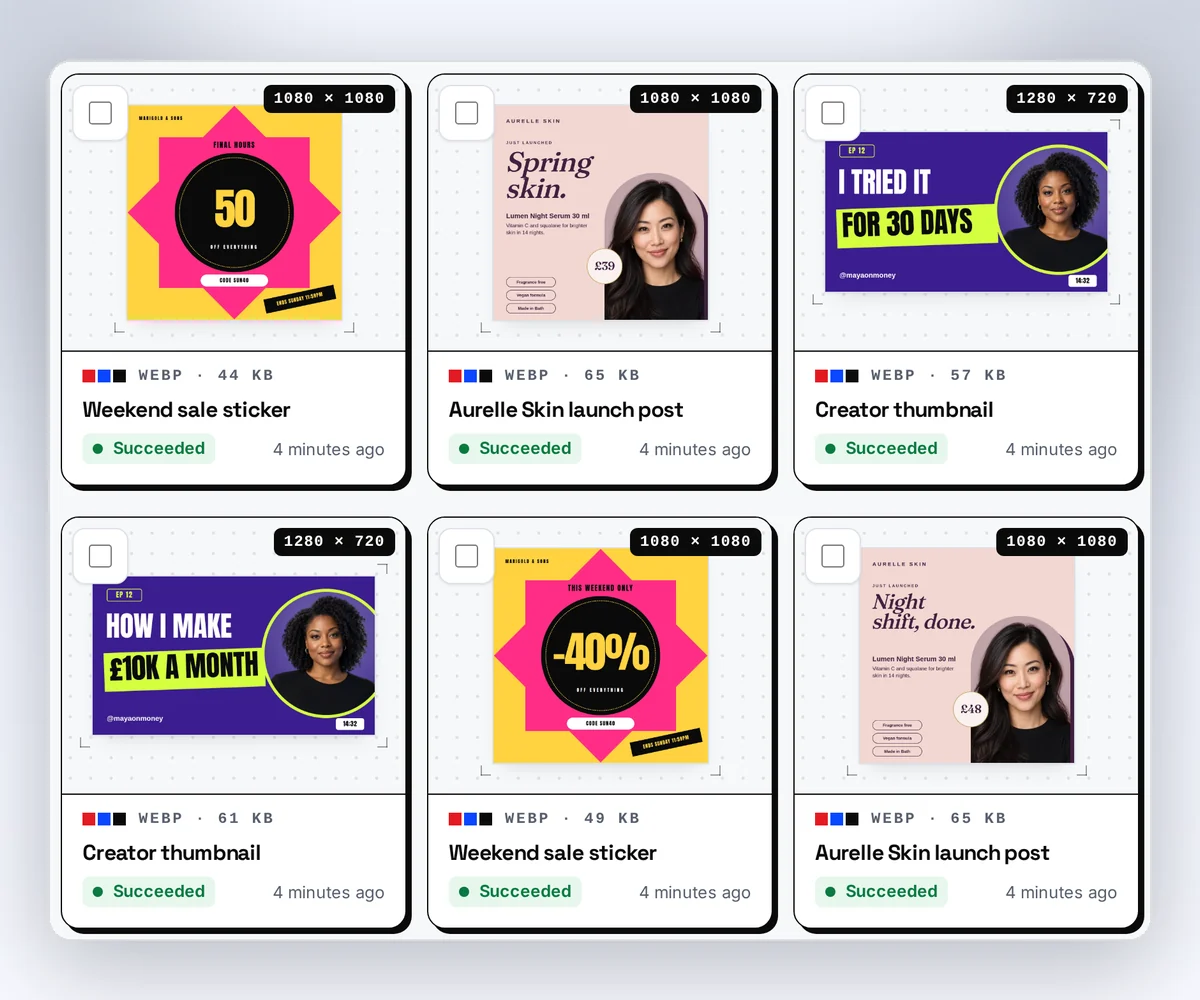
Click Save, and the design is kept. The Template menu lists each earlier save too, so you can bring last month's flyer back as the newest. On an image, click Smart resize: the story, the banner, and the square come from the same layout, you fix any one of them by hand, and the whole set downloads as one ZIP.
- A PDF downloads as one file. An image downloads as a PNG, JPEG, or WebP.
- A PDF with several pages can download as one file or as one image per page.
From your AI assistant
Let ChatGPT or Claude fill the boxes you marked
Every design you save in the editor is there for ChatGPT, Claude, Gemini, Grok, or any other AI you've connected to thirds.ai. The fields you marked are what it fills: ask for this week's price list or an invoice for a client, and it writes the text, puts each value in its box, and hands you the finished file in the design you made.
- The same boxes take a spreadsheet, so a hundred listings become a hundred flyers in one go.
Template gallery
What can I edit in the template editor?
Any design in the thirds.ai gallery, from an invoice and a menu to a certificate and a sale post, opens in the editor as your own copy, free, with its fields already marked. Designers made every one, so you start from a finished layout instead of a blank page.
Client invoicePDF · A4 Restaurant menuPDF · A4 Portrait course certificatePDF · A4 Seasonal offerImage · 1200 × 1200
For developers and agents
Make files from a saved template through the API or MCP
Every save in the editor is a numbered version with an ID, and the fields you marked are the keys of the data object. Your code sends the data to a version and gets a finished PDF or image back. Omit the version to use the newest saved one, or pin it so your team's later saves don't change what your code makes. From ChatGPT, Claude, or your own agent, the render tool on the MCP server takes the same template ID and data. Copy the ID from the Template menu in the editor.
curl --fail-with-body --silent --show-error \
  https://thirds.ai/v1/pdf \
  -H "Authorization: Bearer YOUR_API_KEY" \
  -H "Content-Type: application/json" \
  -H "Idempotency-Key: packing-slip-HG-2048" \
  --data '{
    "template_id": "tpl_YOUR_PACKING_SLIP",
    "version": 1,
    "data": {
      "business_name": "Harbour Goods",
      "order_number": "HG-2048",
      "order_date": "4 September 2026",
      "customer": "Sam Rivera",
      "address": "12 Meadow Lane, Bristol, BS1 2AB",
      "items": [
        {"name": "Everyday notebook · Ocean blue", "quantity": 2},
        {"name": "Weekly planner · Warm grey", "quantity": 1}
      ],
      "note": "Thank you for choosing Harbour Goods."
    }
}'{
"servers": {
"thirds": {
"type": "http",
"url": "https://thirds.ai/mcp",
"headers": {
"Authorization": "Bearer YOUR_API_KEY"
}
}
}
}Questions people ask before they open the editor
Make a sample imageCan I edit a PDF I already have?
Save the page as a picture and upload it, and the AI rebuilds it as a design you can edit in your brand. You can also paste your HTML or start from a gallery template. The editor does not open a finished PDF file as it is. Save a PDF page as a PNG with the free converter. Turn a picture into a template.
Is the template editor free?
Editing, previews, and saving are free, and each finished PDF or image costs 1 credit. A free account gets 50 credits every month without a card. Making a picture with AI costs 50 credits, and a message to the AI chat costs 25, or 50 when you add a new picture. Work that fails costs nothing.
Can someone else fill in my template without breaking it?
Yes. Mark the parts that change as fields, and a teammate opens the design, types into the boxes in the Data tab, and exports. The layout, the fonts, and the logo are not in those boxes, so they stay as you left them. Lock the logo and any other layer you want left alone. See how fields and data work.
Can I make the same design in several sizes?
Yes. Open an image design, click Smart resize, and add the sizes you need. The layout fits each one for free, and you download them all together. Make static ads from one design. Make social images from one design.
Do my changes stay after I close the editor?
Yes. Click Save, and your design is there when you come back. Each save keeps the earlier design too, so you can open Template, then Versions, and restore an earlier one as the newest. If you leave with unsaved edits, the browser offers to restore them when you return.
Does the AI change my template on its own?
No. It proposes, and you decide. Its draft waits as Before and After until you click Apply changes, and Apply keeps the earlier design too, so you can always go back.
Can I use the template editor on my phone?
Yes. The editor works in your phone's browser with the same tools as on a laptop. The panels open over the canvas one at a time, so the design keeps the screen.
Can I start from my own design instead of a gallery template?
Yes. Upload a picture of your design, paste your HTML, or describe it to the AI chat. They all open in the same editor. Describe a design with the AI template generator. See every way to start a template.
Template editor
Your first designer-made file is a few minutes away
Start free, pick a template, and change the words, the picture, and the colours. Your first PDF or image in your own brand is ready to send.