
You can create a branded report PDF in Power Automate or Make every week. Your flow pulls this week's numbers and sends them to a report design you saved in thirds.ai, and a finished PDF or image comes back in your logo, colours, and fonts, with nobody opening a document by hand. There's no Power Automate connector for thirds.ai, so this guide sends the numbers with each tool's own HTTP step. In Make, you can also use the thirds.ai app, which you install from an invite link, as the Make guide shows.


Read the setup prompt
Help me follow https://thirds.ai/blog/make-com-power-automate-branded-weekly-reports in ChatGPT or Claude. Read its linked thirds.ai docs before giving steps. Keep API keys and webhook secrets out of chat. Set up a weekly report PDF in Make or Power Automate. Ask which service I use and where my numbers come from. Map one sample record to the Campaign report design and check one PDF before I turn on the flow. Before spending credits, tell me the cost and wait for my approval.
The design comes from our gallery, so each report looks designer-made, and thirds.ai makes the file on our servers, so your flow never runs a browser or a document app of its own. If ChatGPT or Claude writes each client's summary, the flow drops it straight into the report.
The API workflow guide covers the same request for n8n, Zapier, and other workflow tools. To see how thirds.ai compares with other report tools, read our APITemplate.io and Placid comparisons. If an AI agent runs your schedule instead, the Hermes Agent use cases include a prompt for a report PDF for each client, and the Hermes Agent MCP setup shows how to connect it.
Make it without code
You can create your first weekly report in the thirds.ai editor without a flow or any code. It takes three steps, and you need a free thirds.ai account. Making one report by hand shows you how your numbers fit the design before Power Automate or Make sends them every week.
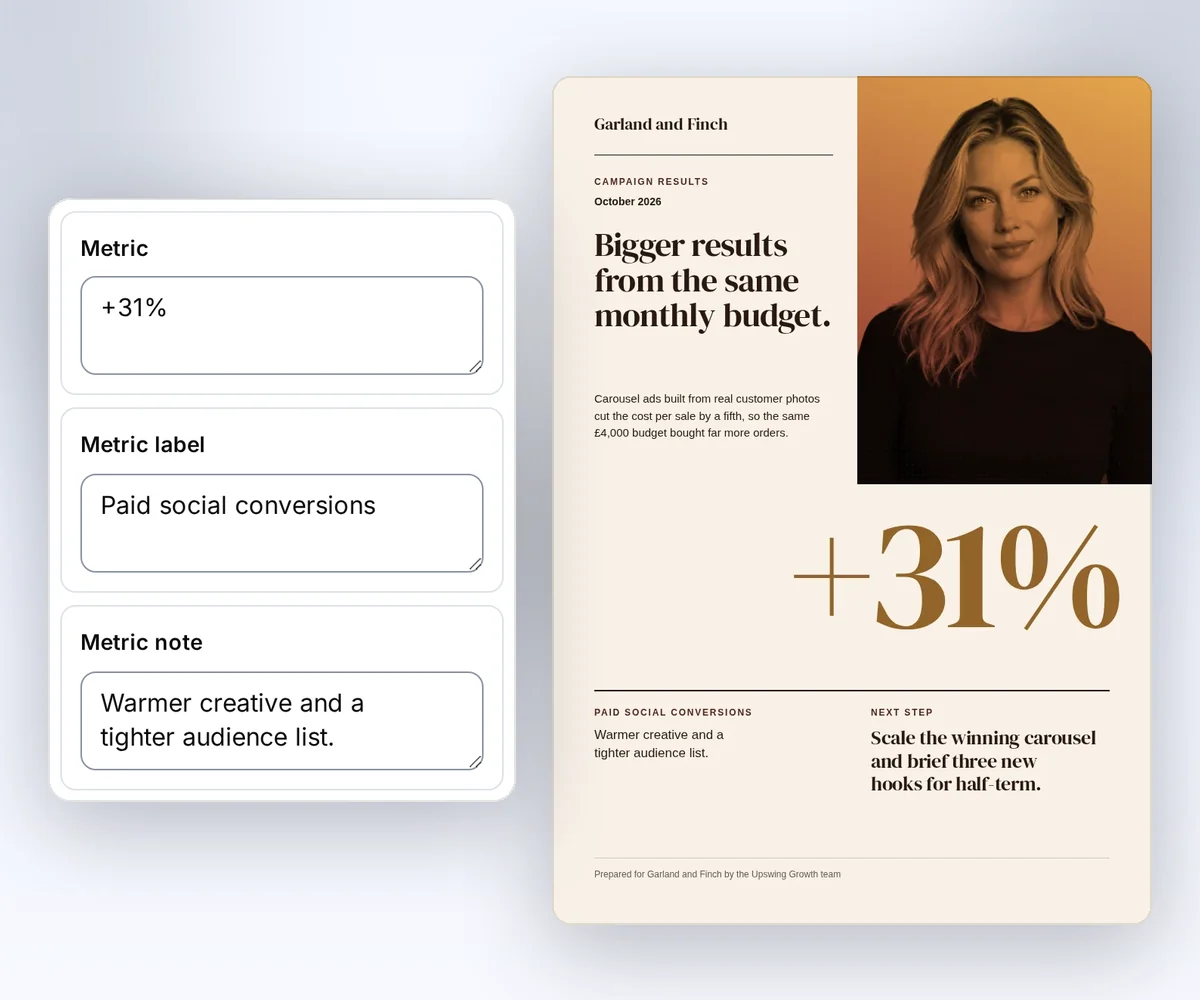
- Open the Campaign report template and click Use this template. Sign in first if you need to.
- Open Data and type this week's period, title, summary, headline number, and next step. Pick your kit under Brand kit to put your logo, colours, and fonts on it in one step, and save your design.
- Click Export, then Export PDF, and download the file. Open it and check your numbers before you share it.
Try your longest title and note first, because a long line can need more room in the design. How to make a template you can reuse walks through the rest of the editor.
Connect Make or Power Automate to the API
You connect Power Automate or Make to thirds.ai with one HTTP step that sends your API key and this week's numbers to thirds.ai. Each tool takes three steps, and you need an API key first. Create a key on the API keys page and send it as Authorization: Bearer YOUR_API_KEY. The key signs in as you, so keep it out of any scenario or flow you export or share. We checked each tool's labels on its own help pages on 13 October 2026: Make's HTTP app and scenario schedule pages, and Microsoft's scheduled flow and HTTP action pages.
Both examples below build the Idempotency-Key from the run date. A retried run on the same day sends the same key, so thirds.ai returns the file it already made instead of a second one.
Make: HTTP module
- Click Every 15 minutes on the scenario toolbar, choose Weekly, and pick Monday and a morning time.
- Add a module that reads this week's numbers from your CRM, spreadsheet, or database.
- Add an HTTP > Make a request module:
- URL:
https://thirds.ai/v1/pdffor a document, orhttps://thirds.ai/v1/imagefor a picture. - Method:
POST. - Headers:
AuthorizationasBearer YOUR_API_KEY, andIdempotency-Keyasweekly-report-{{formatDate(now; "YYYY-MM-DD")}}. - Body content type:
application/JSON. Body input method: JSON string. - The JSON body from Fill a saved report design below, with your own values mapped in from the previous module.
- URL:
Power Automate: HTTP action
- Add a Recurrence trigger. Set Interval to 1 and Frequency to Week, then pick Monday under On these days and a morning time under At these hours.
- Add an action that reads this week's numbers from your CRM, spreadsheet, or database.
- Add an HTTP action:
- Method:
POST. - URI:
https://thirds.ai/v1/pdforhttps://thirds.ai/v1/image. - Headers:
AuthorizationasBearer YOUR_API_KEY,Content-Typeasapplication/json, andIdempotency-Keyasweekly-report-@{utcNow('yyyy-MM-dd')}. - Body: the JSON body below, with your own values in place of the sample ones.
- Method:
Fill a saved report design
You fill a saved report design by sending its template ID, its version, and this week's values in the request body. Two gallery report designs fit a weekly update, and you need your own saved copy of one first. Open either design and click Use this template to save your copy. Your copy opens in the editor. To get its template ID, open the Template menu and click Copy beside Template ID.
One metric and a next step
The Campaign report template design leads with one number, a short note on what moved it, and one action for next week. Every field is optional, but a field you leave out shows the design's sample text, so send every one your report shows.

| Field | Holds |
|---|---|
period | The week or reporting range |
title, summary | The report heading and a short summary |
metric_label, metric, metric_note | The headline number, its label, and why it moved |
next_step | The one thing to do next |
footer | Who prepared the report |
primary_colour | Your brand colour for the metric card |
curl --fail-with-body --silent --show-error https://thirds.ai/v1/pdf \
  -H 'Authorization: Bearer YOUR_API_KEY' \
  -H 'Content-Type: application/json' \
  -H 'Idempotency-Key: weekly-report-2026-09-14' \
  --data '{
    "template_id": "tpl_00000000000000000000000000000000",
    "version": 1,
    "data": {
      "period": "Week 38, 2026",
      "title": "Revenue pipeline expanded across inbound tiers.",
      "summary": "Weekly inbound pipeline and conversion summary for the RevOps team.",
      "metric_label": "Weekly conversion rate",
      "metric": "+31%",
      "metric_note": "Refined landing copy and a faster lead response time.",
      "next_step": "Review mid-funnel drop-off with the outbound team on Tuesday.",
      "footer": "Prepared by RevOps",
      "primary_colour": "#E2A73A"
    }
}'const response = await fetch("https://thirds.ai/v1/pdf", {
method: "POST",
headers: {
"Authorization": "Bearer YOUR_API_KEY",
"Content-Type": "application/json",
"Idempotency-Key": "weekly-report-2026-09-14"
},
body: JSON.stringify({
"template_id": "tpl_00000000000000000000000000000000",
"version": 1,
"data": {
"period": "Week 38, 2026",
"title": "Revenue pipeline expanded across inbound tiers.",
"summary": "Weekly inbound pipeline and conversion summary for the RevOps team.",
"metric_label": "Weekly conversion rate",
"metric": "+31%",
"metric_note": "Refined landing copy and a faster lead response time.",
"next_step": "Review mid-funnel drop-off with the outbound team on Tuesday.",
"footer": "Prepared by RevOps",
"primary_colour": "#E2A73A"
}
}),
redirect: "error",
signal: AbortSignal.timeout(30000),
});
if (!response.ok) throw new Error(`HTTP ${response.status}; Retry-After: ${response.headers.get("retry-after") ?? "none"}`);
console.log(await response.text());import json
from urllib.error import HTTPError
from urllib.request import HTTPRedirectHandler, Request, build_opener
class NoRedirect(HTTPRedirectHandler):
def redirect_request(self, req, fp, code, msg, headers, newurl):
return None
request = Request("https://thirds.ai/v1/pdf",
method="POST",
headers={
"Authorization": "Bearer YOUR_API_KEY",
"Content-Type": "application/json",
"Idempotency-Key": "weekly-report-2026-09-14"
},
data=json.dumps({
"template_id": "tpl_00000000000000000000000000000000",
"version": 1,
"data": {
"period": "Week 38, 2026",
"title": "Revenue pipeline expanded across inbound tiers.",
"summary": "Weekly inbound pipeline and conversion summary for the RevOps team.",
"metric_label": "Weekly conversion rate",
"metric": "+31%",
"metric_note": "Refined landing copy and a faster lead response time.",
"next_step": "Review mid-funnel drop-off with the outbound team on Tuesday.",
"footer": "Prepared by RevOps",
"primary_colour": "#E2A73A"
}
}).encode("utf-8"),
)
try:
with build_opener(NoRedirect()).open(request, timeout=30) as response:
print(response.read().decode("utf-8"))
except HTTPError as error:
retry = error.headers.get("Retry-After", "none")
raise RuntimeError(f"HTTP {error.code}; Retry-After: {retry}") from NoneRevenue, clients, and growth in one page
The Monthly report template design fits a fuller update with the revenue in huge figures, the new clients and growth below it, and a short plan for next period. Its schema requires every field below and rejects extra ones.

| Field | Holds |
|---|---|
business_name | The team or company issuing the report |
period | The reporting range |
revenue | The headline revenue figure, already formatted |
clients | The new-clients count |
growth | The growth figure for the badge |
highlights | What went well, in a sentence or two |
next_steps | The plan for next period |
Send this body to the same /v1/pdf request, with template_id and version set to your saved copy of Monthly report.
Download the finished report
You download the finished report from the download.url in the response, either at once or after a short wait. The API returns 200 with a terminal status when the file is ready inside the request's short wait, or 202 while the job is still queued or running. A 200 response can still carry succeeded, failed, or cancelled, so read status either way.
- If
statusissucceeded, copydownload.urlfrom the response. It is a relative path, so addhttps://thirds.aiin front of it before you use it. - If the response is
202, the job is still running. ItsLocationheader holds the job's status URL,/v1/pdf/{id}or/v1/image/{id}, andRetry-Aftersays how many seconds to wait before you read it. After that wait, send a second HTTP request with the same API key tohttps://thirds.aiplus that URL. In Power Automate, put a Delay and that request in a Do until loop. In Make, add a second HTTP > Make a request module. Repeat untilstatusissucceeded,failed, orcancelled. - The signed download link lasts 15 minutes. Free accounts keep the file for 30 days, and paid plans keep it for up to a year (the exact rules). Add a step after the download to save it straight to SharePoint, Google Drive, or S3, or to send it as an email or Teams attachment, so the report lands where your team already looks, long after the download link ends.
curl --fail-with-body --silent --show-error \
  https://thirds.ai/v1/pdf/pdf_00000000000000000000000000000000 \
-H 'Authorization: Bearer YOUR_API_KEY'const response = await fetch("https://thirds.ai/v1/pdf/pdf_00000000000000000000000000000000", {
method: "GET",
headers: {
"Authorization": "Bearer YOUR_API_KEY"
},
redirect: "error",
signal: AbortSignal.timeout(30000),
});
if (!response.ok) throw new Error(`HTTP ${response.status}; Retry-After: ${response.headers.get("retry-after") ?? "none"}`);
console.log(await response.text());import json
from urllib.error import HTTPError
from urllib.request import HTTPRedirectHandler, Request, build_opener
class NoRedirect(HTTPRedirectHandler):
def redirect_request(self, req, fp, code, msg, headers, newurl):
return None
request = Request("https://thirds.ai/v1/pdf/pdf_00000000000000000000000000000000",
method="GET",
headers={
"Authorization": "Bearer YOUR_API_KEY"
},
)
try:
with build_opener(NoRedirect()).open(request, timeout=30) as response:
print(response.read().decode("utf-8"))
except HTTPError as error:
retry = error.headers.get("Retry-After", "none")
raise RuntimeError(f"HTTP {error.code}; Retry-After: {retry}") from NoneSave the job ID next to the week it covers in your own workflow history. If a run times out or a step fails after the create request, run the same step again with the same Idempotency-Key and body within 24 hours. You get the same file back and pay for it once. Read retry and download recovery for the full contract.
Sending the same report to many clients each week? A batch fills one saved design once for each row you send and gives you every file in one ZIP, so your flow only needs to build one list with a row for each client.
What this costs each week
One finished file costs one credit, and a failed file costs nothing. A weekly report for ten clients makes about 40 files a month, so it uses about 40 credits. A verified free account starts with 50 credits a month with no card, and Starter gives you 2,500 credits a month for $29, or $290 a year.
Fix the common failures
A failed run answers with an error code that names the fix. If you hit a rate limit or run out of credits, wait or top up, then send the step again with the same Idempotency-Key. If the data is wrong, fix it and send the step again. Either way you get one file for that week. These are the codes a weekly flow meets most often.
| What you see | What it means and what to do |
|---|---|
400 template_data_invalid | The data fails the saved design's schema. Fix the listed fields and send the step again. |
template_missing_data | The saved design reads a field the request didn't include. Send every required field. |
402 insufficient_credits | Add credits or wait for next month's grant, then retry with the same key. |
409 idempotency_conflict | The same key was used with different data. Give this week's run its own key. |
429 rate_limited | Wait for Retry-After, then retry with the same key. |
Job category renderer_failure | Internal recovery ended. Start a new job with a retry limit, or contact support with the job ID. |
Read next
- The HTTP request guide for n8n, Zapier, and Make covers the full request and response contract this recipe reuses.
- Use templates with your data explains fields, schemas, and saved versions.
- PDF mail merge from a CSV sends one saved design to many rows in a single run.
- The reports use case shows the whole job, from the design to a finished file.
- Register a webhook instead of polling, and let thirds.ai tell your flow when a report is ready.
Sign in to copy a report template and send your first request with the free monthly credits.


