
A bulk certificate generator turns one certificate design and your class list into a separate PDF for every learner. With thirds.ai, you start from the designer-made portrait course certificate, put your logo, colours, and fonts on it with your brand kit in one step, and check one learner in the editor. Then you upload a CSV with a row for each person, click one button, and download a ZIP with every certificate inside. Or connect ChatGPT or Claude and ask it for the whole class, or send each learner's details from your own code.


Read the setup prompt
First read https://thirds.ai/blog/certificates-pdf-from-template-data, https://thirds.ai/docs/mcp, and the setup guide for ChatGPT or Claude, whichever I use. Guide me through the connection controls and browser sign-in. Never ask me to paste an API key into chat. Make a certificate for every learner. Start from the Portrait course certificate template; ask for the course details and one sample class row, then check one PDF. Before spending credits, tell me the cost and wait for my approval.
Next term, your AI assistant or your script sends the new class list, and the certificates arrive with no one at the screen.

Read the transcript
Here’s how to use a certificate generator API to make a PDF certificate for every learner — one saved design, your JSON data, and no copy and paste.
Typing names into certificates by hand gets old fast. So start with one design. Copy the portrait course certificate, put in your details, change the colours, and save it.
Each certificate needs four details — the issuer, the learner, the course, and the date. Those are the keys in your JSON.
Now send one request to the PDF endpoint. Use your template ID and version, that learner’s data, and a new idempotency key.
Keep the job ID, and check it until it says succeeded. Then download the file. There’s Alex’s certificate!
For the next learner, send the same request with new data and a new key. Theo gets his own certificate.
Tip: if the network drops and you don’t know if it worked, send it again with the same key. You get the same job back — so nobody gets two certificates, and you don’t pay twice.
But hey, got a whole class? Send every learner as JSON rows to the batches endpoint, and download one ZIP. Ten learners, ten certificates, ten credits.
And next term, your script just sends the new class list. The design stays the same, and a verified free account gets fifty credits a month.
Copy the portrait course certificate, and make your first one at thirds.ai!
The four details on each certificate
Each certificate from the portrait course certificate template needs four details: the issuer, the learner, the course, and the date. The design uses nothing else, so each row of your class list fills those four spots.
| Detail | What to type |
|---|---|
issuer | Your school, studio, or training team |
learner | The person who completed the training |
course | The course or workshop name |
date | The date as you want it to appear, such as "4 September 2026" |
Your logo comes from your brand kit, not from a column. The shared design has no spot for a grade, a signature, or a certificate number. You can add one in your own copy of the design, and the Batches page then shows a column for it too.
Make it without code
Check one learner in the thirds.ai editor before you make the whole class. It takes three steps and a free thirds.ai account.
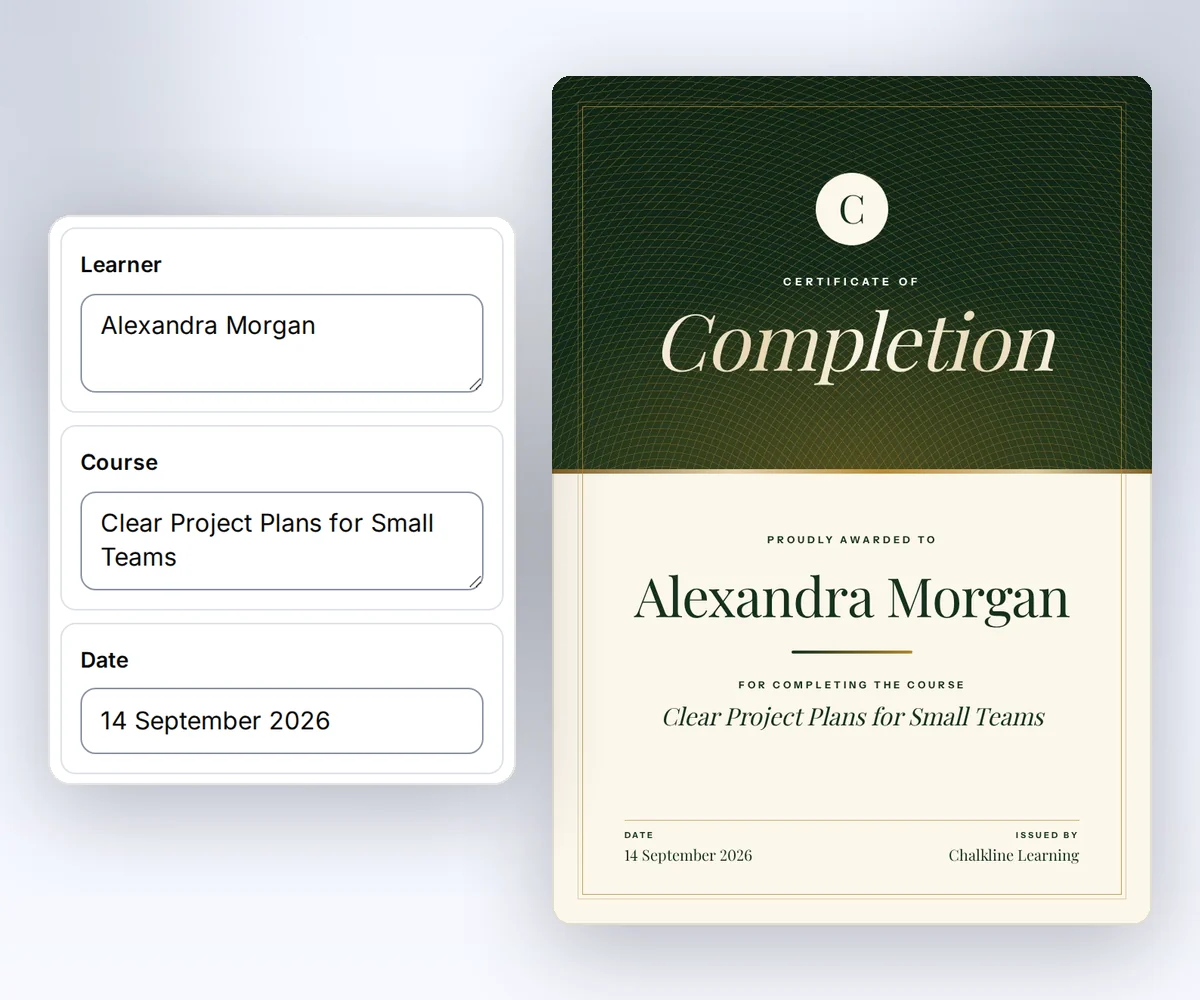
- Open the portrait course certificate and click Use this template. Sign in first if you need to.
- Open Data and type the issuer, the learner, the course, and the date. The certificate changes as you type. Pick your kit under Brand kit to put your logo, colours, and fonts on it in one step, then click Save.
- Click Export and download the PDF. Check the spelling and the layout in the file itself.
Try your longest learner name and course name before you make the whole set, because a long name can need more room in the design. How to make a template you can reuse walks through the rest of the editor.
How do I make certificates in bulk from a spreadsheet?
You make certificates in bulk by uploading your class list as a CSV to Batches, and you get one PDF for each row in a single ZIP. You need your saved copy of the certificate design and a spreadsheet with one row for each learner. The Batches page already has a column for each of the four details, so you only add the rows.
issuer,learner,course,date
Fieldnote Learning,Alex Morgan,A practical guide to clear project plans,4 September 2026
Fieldnote Learning,Theo Lee,A practical guide to clear project plans,4 September 2026
- Open Batches and choose your certificate. Click Download a starter CSV if you want a file that already has the right first row.
- Fill in one row for each learner, save the list as a CSV, and drop it on the page. You can also type in the table or paste the cells straight from your spreadsheet.
- Check the rows and the cost on the page, then click Make 2 files. The number on the button matches your rows.
- Download the ZIP when the files are ready. The files follow your row order, such as
001.pdf.
Your plan sets how many rows fit in one batch: 10 on Free and on credit packs with no plan, 50 on Starter, 100 on Growth, and 200 on Scale. For a bigger class, split your list into more than one CSV. You can retry failed rows without paying again for the certificates that worked. Download the ZIP within 30 days on a free account, or up to a year on a paid plan. PDF mail merge from a CSV has the full details.
How do I generate certificates in bulk with a certificate generator API?
You generate certificates in bulk from your own code by sending one request per learner to POST /v1/pdf, each with the same template_id and version and that learner's own data. You need an API key and the ID of your saved certificate design. Put a different Idempotency-Key on every request, so a retry never makes a second file for the same person. Each save creates a new version, so select the version that has your approved design. The example below uses version 1, so replace it if you save a later version.
This request uses the certificate's 794 by 1123 px page size. If you change its size in your own design, change the PDF settings to match. See PDF and image options.
Replace the API key and template ID before you send this request:
curl https://thirds.ai/v1/pdf \
  -H "Authorization: Bearer YOUR_API_KEY" \
  -H "Content-Type: application/json" \
  -H "Idempotency-Key: certificate-alex-2026-09-04-v1" \
  --data '{
    "template_id": "tpl_00000000000000000000000000000000",
    "version": 1,
    "data": {
      "issuer": "Fieldnote Learning",
      "learner": "Alex Morgan",
      "course": "A practical guide to clear project plans",
      "date": "4 September 2026"
    },
    "pdf": {"width": "794px", "height": "1123px"},
    "wait": false
}'const response = await fetch("https://thirds.ai/v1/pdf", {
method: "POST",
headers: {
"Authorization": "Bearer YOUR_API_KEY",
"Content-Type": "application/json",
"Idempotency-Key": "certificate-alex-2026-09-04-v1"
},
body: JSON.stringify({
"template_id": "tpl_00000000000000000000000000000000",
"version": 1,
"data": {
"issuer": "Fieldnote Learning",
"learner": "Alex Morgan",
"course": "A practical guide to clear project plans",
"date": "4 September 2026"
},
"pdf": {
"width": "794px",
"height": "1123px"
},
"wait": false
}),
redirect: "error",
signal: AbortSignal.timeout(30000),
});
if (!response.ok) throw new Error(`HTTP ${response.status}; Retry-After: ${response.headers.get("retry-after") ?? "none"}`);
console.log(await response.text());import json
from urllib.error import HTTPError
from urllib.request import HTTPRedirectHandler, Request, build_opener
class NoRedirect(HTTPRedirectHandler):
def redirect_request(self, req, fp, code, msg, headers, newurl):
return None
request = Request("https://thirds.ai/v1/pdf",
method="POST",
headers={
"Authorization": "Bearer YOUR_API_KEY",
"Content-Type": "application/json",
"Idempotency-Key": "certificate-alex-2026-09-04-v1"
},
data=json.dumps({
"template_id": "tpl_00000000000000000000000000000000",
"version": 1,
"data": {
"issuer": "Fieldnote Learning",
"learner": "Alex Morgan",
"course": "A practical guide to clear project plans",
"date": "4 September 2026"
},
"pdf": {
"width": "794px",
"height": "1123px"
},
"wait": False
}).encode("utf-8"),
)
try:
with build_opener(NoRedirect()).open(request, timeout=30) as response:
print(response.read().decode("utf-8"))
except HTTPError as error:
retry = error.headers.get("Retry-After", "none")
raise RuntimeError(f"HTTP {error.code}; Retry-After: {retry}") from NoneKeep the job ID from the reply. Poll GET /v1/pdf/{id} under a time deadline, and follow Retry-After when the response supplies it. On succeeded, use the download link in the response to save the PDF. Stop on failed or cancelled and inspect the error. A deadline doesn't cancel the job, so keep its ID and check it later. To skip polling, a webhook receiver on your server hears when each certificate is ready.
If a network error leaves the result unknown, retry with the same key and the same request data. Don't make a new key just because a reply is missing. The retry and download guide explains how to keep retries from creating duplicate work.
Start with a few learners, check their PDFs, then send the rest. Use templates with your data covers saved versions and data checks.
To send a whole class in one request, post the rows as JSON to POST /v1/batches and download one ZIP when it's done. The batches reference lists every option. A coding assistant can fill the saved design for you through the MCP server, so you never write the request by hand: add the thirds.ai MCP server to Codex or to Kimi Code, then start from the certificate prompt on the Kimi Code page.
What it costs
Each certificate PDF that works costs one credit, so a class of 30 learners costs 30 credits, and a certificate that fails costs nothing. A verified account on the Free plan gets 50 credits a month. Asking the AI chat to change the design costs 25 or 50 credits a message, and your free monthly credits can pay for it. Plans and pricing lists the bigger monthly amounts. If you're also looking at Templated for certificates, our Templated comparison puts its prices beside ours.
Sign in to copy the portrait course certificate and make your first certificate with the free monthly credits. Or connect ChatGPT or Claude and ask it for the whole class.


