
A tour itinerary template is a saved trip layout that you fill with each guest's name, dates, route, daily plan, and places to stay. With thirds.ai, you fill the Travel itinerary template in the editor and download a branded PDF, or you make one for every guest on a tour from a spreadsheet or from your own booking data. Each itinerary PDF costs one credit, and a free account gets 50 credits a month, as the pricing page shows. Your booking system still takes care of bookings and payments.
Your guests judge the whole trip by the first document you send them. A copied Word file with last season's hotel or the wrong date makes a well-run tour look careless, and a guest who reads the wrong stay will call you from the road. thirds.ai lets you save a design once with your logo, colours, and fonts. Then you type in the next guest's trip and get a finished PDF in minutes, so every guest gets the same clean itinerary with their own details on it.

What should a tour itinerary include?
A tour itinerary should include the trip's name, the guest's name, the start and end dates, the route, and a plan for each day with the town and the place to stay that night. It also needs the travel notes a guest must not miss and an emergency contact they can call on the road. The Travel itinerary template holds all of these on one printed page, plus a footer line for your small print, such as "All times are local."
The template fits a trip of up to six days. Each day's plan can be up to 120 characters, and each stay up to 80, so write one clear line per day, such as the morning ride, the lunch stop, and the evening plan. A longer trip needs a design with room for more days, and you can ask the AI chat in the editor to change the layout for you.
Make it without code
You can make your first tour itinerary in the thirds.ai editor without writing any code. It takes three steps, and you need a free thirds.ai account. Fill in one real guest's trip first, so you can check that your longest town names and plans fit the page.
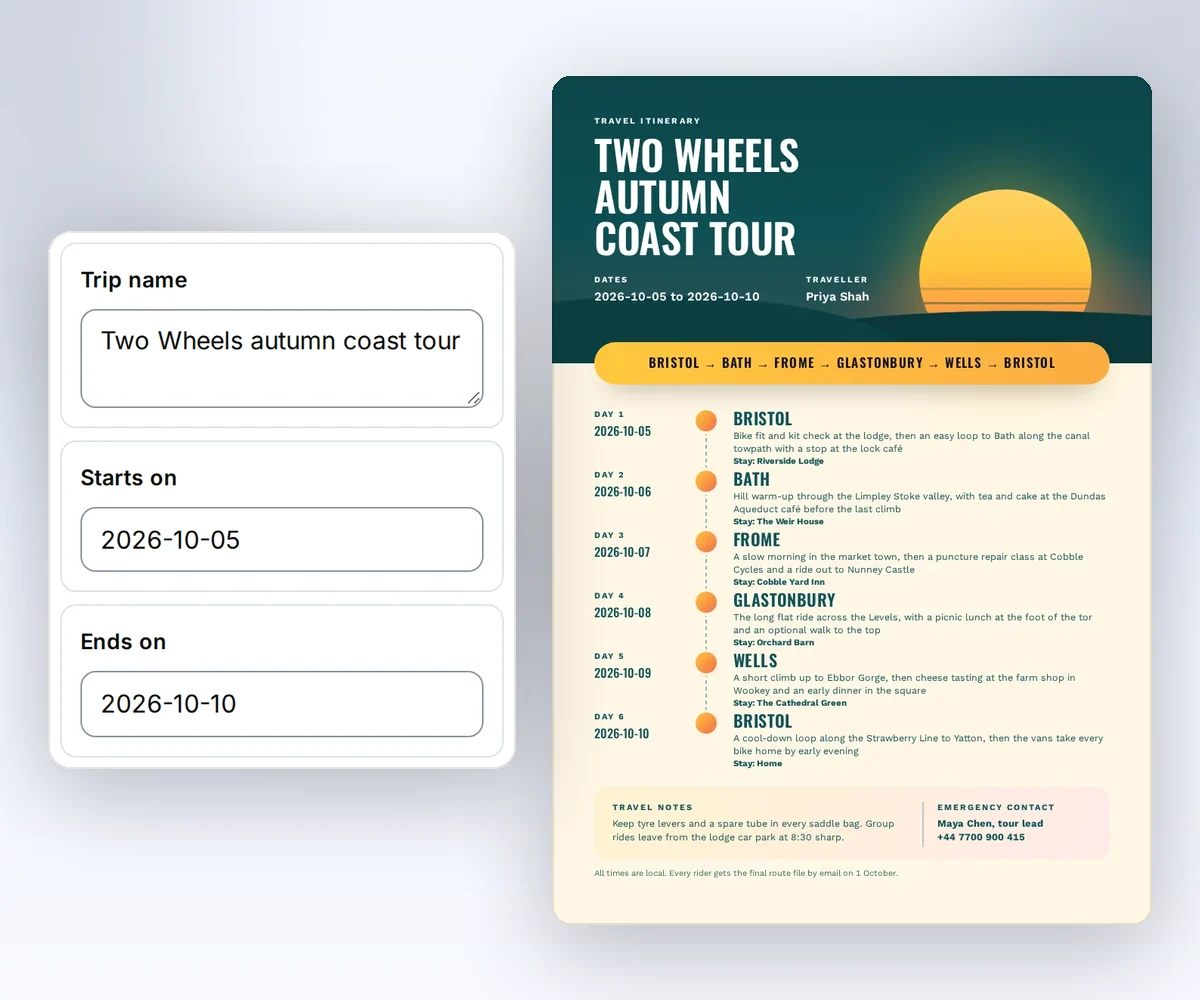
- Open the Travel itinerary template and click Use this template. Sign in first if you need to.
- Open Data and type your trip's name, the guest's name, the dates, and the route. Then type each day's town, plan, and stay. Click Preview with data above the canvas to see the guest's itinerary on the page.
- Click Export, then Save and export PDF, then Download PDF. Open the file and check the dates, the hotels, and the emergency phone number before you send it.
Hand edits and the live preview cost no credits. How to make a template you can reuse walks you through the rest of the editor.
How do I make an itinerary for every guest on a tour?
You make an itinerary for every guest on a tour by filling a spreadsheet with one row per guest on the Batches page, and you get one PDF per guest in a single ZIP. You need your saved copy of the Travel itinerary design. The Batches page already has a column for each part of the itinerary, so you only add the rows.
- Open Batches and choose your itinerary design. The first row already holds the sample trip, with the whole day-by-day plan in one cell.
- Change that first row to your tour's dates, route, towns, plans, and stays, and type your first guest's name.
- Copy the row down for every other guest on the same tour, then change each guest's name. You can type in the table, paste cells from your spreadsheet, or drop a CSV file on the page. Click Download a starter CSV if you'd rather fill the rows in your spreadsheet first.
- Check the rows and the cost on the page, then click Make 12 files. The number on the button matches your rows. Click Download ZIP when the files are ready.
Your plan sets how many rows fit in one batch: 10 on Free and on credit packs with no plan, 50 on Starter, 100 on Growth, and 200 on Scale. PDF mail merge from a CSV has the full details, including how to retry a row that failed.
How do I make a travel itinerary PDF from my booking data?
You make a travel itinerary PDF from your booking data by sending each confirmed booking from your own code to your saved itinerary design, then downloading the PDF. The recipe has three steps: a small script turns the booking into the template's details, one request makes the file, and a download step checks it. This section is for developers. You need Python 3, curl, an API key, and the ID and version of your saved copy of the Travel itinerary template.
The example runs on macOS or Linux, and the script uses only the Python standard library. Set THIRDS_API_KEY through your secret store, and set THIRDS_TEMPLATE_ID and THIRDS_TEMPLATE_VERSION to your saved copy of the Travel itinerary template.
Prepare the booking record
Your booking system's export or webhook must supply the shape below. Save it as booking.json in a private folder and set THIRDS_WORK to that folder. This booking is a shorter trip on the same tour, for a different guest.
{
  "booking_ref": "TW-2611-0087",
  "tour_name": "Two Wheels autumn coast tour",
  "lead_guest": { "first_name": "Daniel", "last_name": "Okafor" },
  "legs": [
    {
      "date": "2026-10-07",
      "town": "Frome",
      "activity": "Puncture repair class at Cobble Cycles, then a ride out to Nunney Castle",
      "hotel": "Cobble Yard Inn"
    },
    {
      "date": "2026-10-08",
      "town": "Glastonbury",
      "activity": "Flat ride across the Levels with a picnic lunch at the foot of the tor",
      "hotel": "Orchard Barn"
    },
    {
      "date": "2026-10-09",
      "town": "Wells",
      "activity": "Climb to Ebbor Gorge, then cheese tasting at the farm shop in Wookey",
      "hotel": "The Cathedral Green"
    }
  ],
  "guest_notes": "Bring a spare tube. Group rides leave from the inn car park at 8:30.",
  "emergency": "Maya Chen, tour lead\n+44 7700 900 415",
  "small_print": "All times are local. Your guide brings printed copies on day one."
}
Save this script as prepare-itinerary.py. It checks each detail against the template's own limits before it writes a request, so a bad export fails here instead of at the API.
"""Map one booking record to the saved Travel itinerary template."""
import json
import sys
from datetime import date
from pathlib import Path

LIMITS = {"trip_name": 110, "traveler": 80, "route": 140, "travel_notes": 180,
          "emergency_contact": 120, "footer": 180}
DAY_LIMITS = {"city": 60, "plan": 120, "stay": 80}

booking_path, template_id, version, output_path = sys.argv[1:]
try:
    booking = json.loads(Path(booking_path).read_text())
    legs = sorted(booking["legs"], key=lambda leg: leg["date"])
    if not 1 <= len(legs) <= 6:
        raise SystemExit("too_many_days")
    days = [{"date": date.fromisoformat(leg["date"]).isoformat(), "city": leg["town"],
             "plan": leg["activity"], "stay": leg["hotel"]} for leg in legs]
    guest = booking["lead_guest"]
    data = {
        "trip_name": booking["tour_name"],
        "traveler": f"{guest['first_name']} {guest['last_name']}".strip(),
        "starts_on": days[0]["date"],
        "ends_on": days[-1]["date"],
        "route": " → ".join(day["city"] for day in days),
        "days": days,
        "travel_notes": booking["guest_notes"],
        "emergency_contact": booking["emergency"],
        "footer": booking["small_print"],
    }
    for name, limit in LIMITS.items():
        if not 1 <= len(data[name]) <= limit:
            raise SystemExit(f"field_too_long: {name}")
    for day in days:
        for name, limit in DAY_LIMITS.items():
            if not 1 <= len(day[name]) <= limit:
                raise SystemExit(f"field_too_long: days.{name}")
    request = {"template_id": template_id, "version": int(version),
               "data": data, "wait": False}
    Path(output_path).write_text(json.dumps(request, indent=2, ensure_ascii=False) + "\n")
except (KeyError, TypeError, ValueError, OSError):
    raise SystemExit("invalid_input") from None
Make the file
The mapping command writes a local request. The first curl command creates one PDF and costs one credit on success. Use the booking reference as the Idempotency-Key, so a repeated webhook delivery never makes a second itinerary:
umask 077
python3 "$THIRDS_WORK/prepare-itinerary.py" \
  "$THIRDS_WORK/booking.json" \
  "$THIRDS_TEMPLATE_ID" "$THIRDS_TEMPLATE_VERSION" \
  "$THIRDS_WORK/request.json"
curl --fail-with-body --silent --show-error https://thirds.ai/v1/pdf \
  -H "Authorization: Bearer $THIRDS_API_KEY" \
  -H 'Content-Type: application/json' \
  -H 'Idempotency-Key: itinerary-TW-2611-0087' \
  --data @"$THIRDS_WORK/request.json"
Save the id from the response with your booking. Read the job until status is succeeded. Replace the sample ID with yours.
curl --fail-with-body --silent --show-error \
  https://thirds.ai/v1/pdf/pdf_00000000000000000000000000000000 \
  -H "Authorization: Bearer $THIRDS_API_KEY"
Copy download.url from that response and add https://thirds.ai before it. The download needs no API key.
curl --fail --silent --show-error \
  'https://thirds.ai/v1/downloads/YOUR_SIGNED_DOWNLOAD_TOKEN' \
  --output "$THIRDS_WORK/itinerary.pdf"
shasum -a 256 "$THIRDS_WORK/itinerary.pdf"
The hash must match artifact.sha256 in the job, and the file size must match artifact.byte_size. Open itinerary.pdf and check the dates and hotels before you email it to the guest.
When a booking changes, such as a new hotel on day two, make a new itinerary with a new key, such as itinerary-TW-2611-0087-r2. The old key always gives back the old file.
Resolve errors
| Code or state | Next step |
|---|---|
too_many_days | Split the trip, or use a design with room for more days. |
field_too_long | Shorten the booking detail named in the error before you retry. |
invalid_input | Check the booking record for a missing or malformed detail. |
template_data_invalid | Check the detail names and limits against your saved template version. |
idempotency_conflict | Use the original request with its key. A changed booking needs a new key. |
For polling deadlines, download links, and file retention, read Retry requests and download files. To hear when each itinerary is ready without polling, build a webhook receiver.
Put your tour brand on every itinerary
You put your tour brand on every itinerary by changing your own copy of the Travel itinerary template once, and every itinerary you make after that uses it. The gallery original stays as it is. It takes four steps in the editor.
- Open the Travel itinerary template and click Use this template to save a copy to your account.
- In the editor, change the colours, fonts, and wording to match your tours.
- To use your logo, colours, and fonts on itineraries, invoices, and booking confirmations alike, choose a saved brand kit.
- Click Save.
Do you also send a ticket or a pass for each guest? Create event tickets from your registration data uses the same steps for a ticket with its own QR code.


