
To make a slideshow on TikTok, you design your photo slides at 1080 × 1920 pixels, download them as images in order, and add them to a photo post in the TikTok app. You can make the slides in thirds.ai from a ready-made slideshow template. Each finished slide image costs 1 credit, and a verified free account gets 50 credits a month, as the pricing page shows.
Here, a slideshow means a TikTok photo post, where people swipe through your pictures one at a time. You'll make the slides in thirds.ai, then add music and a caption and publish the post in TikTok.
Most of the time a slideshow takes goes into lining up text and resizing photos by hand. In thirds.ai, a tool for pictures and PDFs you make again and again, you save a slide design once. Then you type in new words and get finished slides with your logo, colours, and fonts. Each new slideshow matches the last one, so people know your posts at a glance.
Read the transcript
Here’s how to make a slideshow on TikTok, without designing every slide from scratch!
Pick a slideshow template. You get five matching slides in TikTok’s size!
Change the words, add your photos, pick your colours. Next time, open it again and tell a new story!
Keep your words clear of TikTok’s buttons and captions. Our free safe-zone guide shows you where!
Export your slides as images, in order. Then add them to a TikTok photo post!
Pick a template and make your first set. Start free at thirds.ai!
Make it without code
You can make a TikTok slideshow in the thirds.ai editor without writing any code. It takes three steps, and you need a free thirds.ai account. The TikTok morning planner template gives you five matching slides at 1080 × 1920 pixels.
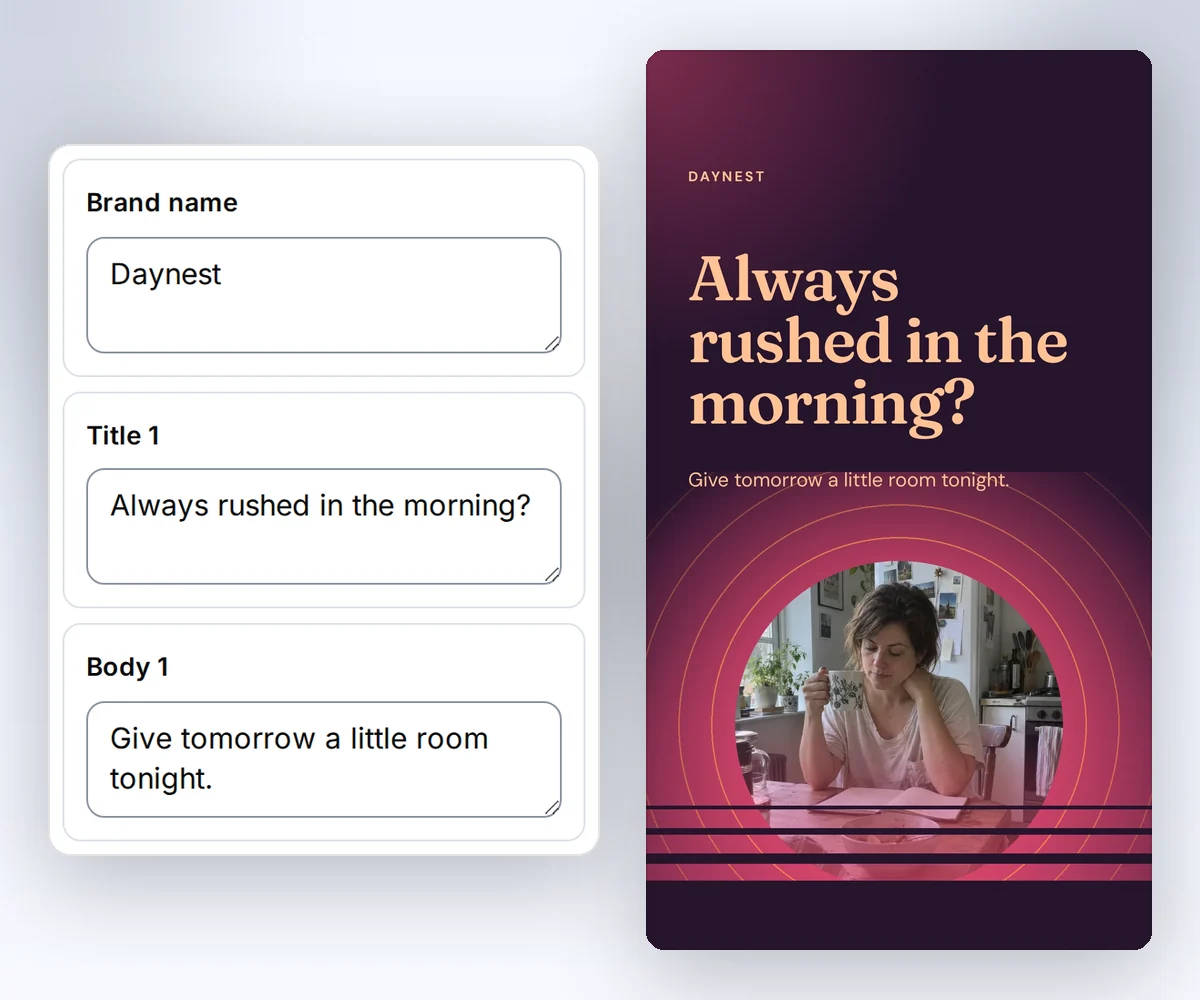
- Open the TikTok morning planner template and click Use this template. Sign in first if you need to.
- Open the Data tab and type your brand name, then a heading and a short line for each of the five slides. The slides change as you type.
- Click Export, choose Images ZIP, and download your slides as PNG or JPEG images.
Start with one useful idea
A TikTok slideshow works best when every slide serves one idea, so decide what you want people to learn or do before you design anything. You need that one idea and a rough order for your slides.
Give your story a clear order:
- Open with a question, useful tip, or result.
- Use the middle slides to explain it with words and pictures.
- Finish with a next step, such as saving the post or trying your idea.
For example, a morning routine post could start with “Always rushed in the morning?” The next slides can share changes to try tomorrow.
Pick a slideshow template that fits your story
Pick the TikTok slideshow template whose look is closest to your story, because a template gives you a full set of slides that already match. Your type, colours, and photo style then stay the same from the first slide to the last. Browse the TikTok slideshow templates to compare them.

Open your chosen design in the editor. Change the words and add your pictures. You can also change the layout, colours, and fonts.
Keep the same type style and photo treatment across the set. A new slide can change its layout while still looking like part of the same story.
Check the words at phone size
You check the words on a TikTok slide by zooming out until the slide looks about the size of a phone screen, then reading it without leaning closer. Check the longest heading and any small details this way.
Start with a short heading on each slide. Put any extra detail below it, where it's easy to scan. If you need a long paragraph, split the idea or cut the parts that don't help.
Make the important part of a screenshot large enough to see. A close crop of three tasks is more useful than a tiny picture of your entire app.
Keep important details away from the controls
TikTok puts its caption, buttons, and profile picture on top of your slides, so keep words, faces, and the key part of each screenshot away from the edges. Use the free TikTok safe-zone template to check your layout, and keep those details inside its suggested area.
The guide is our suggestion, and TikTok doesn't publish one safe area for every post. TikTok's ad safe-zone guidance, checked on 24 September 2026, says ad safe zones depend on the format, caption length, and added controls. Device previews can also differ.
A photo post and an ad with a download button can cover different areas. Check the actual post with its caption before publishing. Remove the guide from your final images.
Export the images in order
You export TikTok slides from the thirds.ai editor as one ZIP of images in the order of your pages. You need your finished slides open in the editor, and each slide image costs 1 credit.
In the editor, click Export and choose Images ZIP. Leave every slide checked to keep your story order, or clear the ones you don't want. Choose PNG or JPEG for the photo post.
Check the cost on the button before you click it. Editing and previews are free, and failed images cost nothing.
Download the ZIP and unpack it. Open each image to check its text, photos, and edges. Keep the file order when you move the images to your phone. The carousel export guide covers slide selection and downloads.
How to post a slideshow on TikTok
You post a slideshow on TikTok by adding your slide images to a photo post in the TikTok app, in the order you want people to swipe. It takes six steps on your phone, and you need your slide images saved on the phone first.
- Open TikTok and tap the + button at the bottom of the screen.
- Tap Upload, then pick your slide images in story order. The order you pick them in is the order people see.
- If your slides play like a video, switch on the Photo toggle so people can swipe through them.
- Tap Add sound to choose music. If you post for a business, pick a song from TikTok's Commercial Music Library.
- Tap Next, then write your caption and add any hashtags.
- Swipe through the preview, then post.
These steps and button names come from Shopify's TikTok slideshow guide, dated 10 September 2026. The same guide says one slideshow can hold up to 35 photos. Your app may show slightly different button names.
Before you publish, check three things:
- The opening slide says what the reader gets.
- The controls don't cover key words or faces.
- The final slide gives one useful next step.
Keep a copy of the finished images. For your next post, open the saved design and change the story.
Why can't I make a slideshow on TikTok?
If you can't make a slideshow on TikTok, your app is usually out of date, or photo posts haven't reached your account yet. Shopify's guide, dated 10 September 2026, says TikTok rolls out new tools slowly, so they can differ by account, device, and region.
Try the fix that matches what you see:
- You can't find photo posts. Update TikTok from your app store, then open it again.
- Your slides look blurry. Shopify's guide says TikTok recommends images of at least 1080 × 1920 pixels for a full-screen slideshow. Your thirds.ai slides already use that size. Choose PNG when small words look soft in JPEG.
- Your post plays like a video. Switch on the Photo toggle before you post, so people can swipe.
- The caption covers your words. Move the words inside the safe-zone guide and export the slide again.
Find more TikTok slideshow ideas
Browse templates to get you started. If you promote an app, try the app marketing ideas guide for your next post.


