
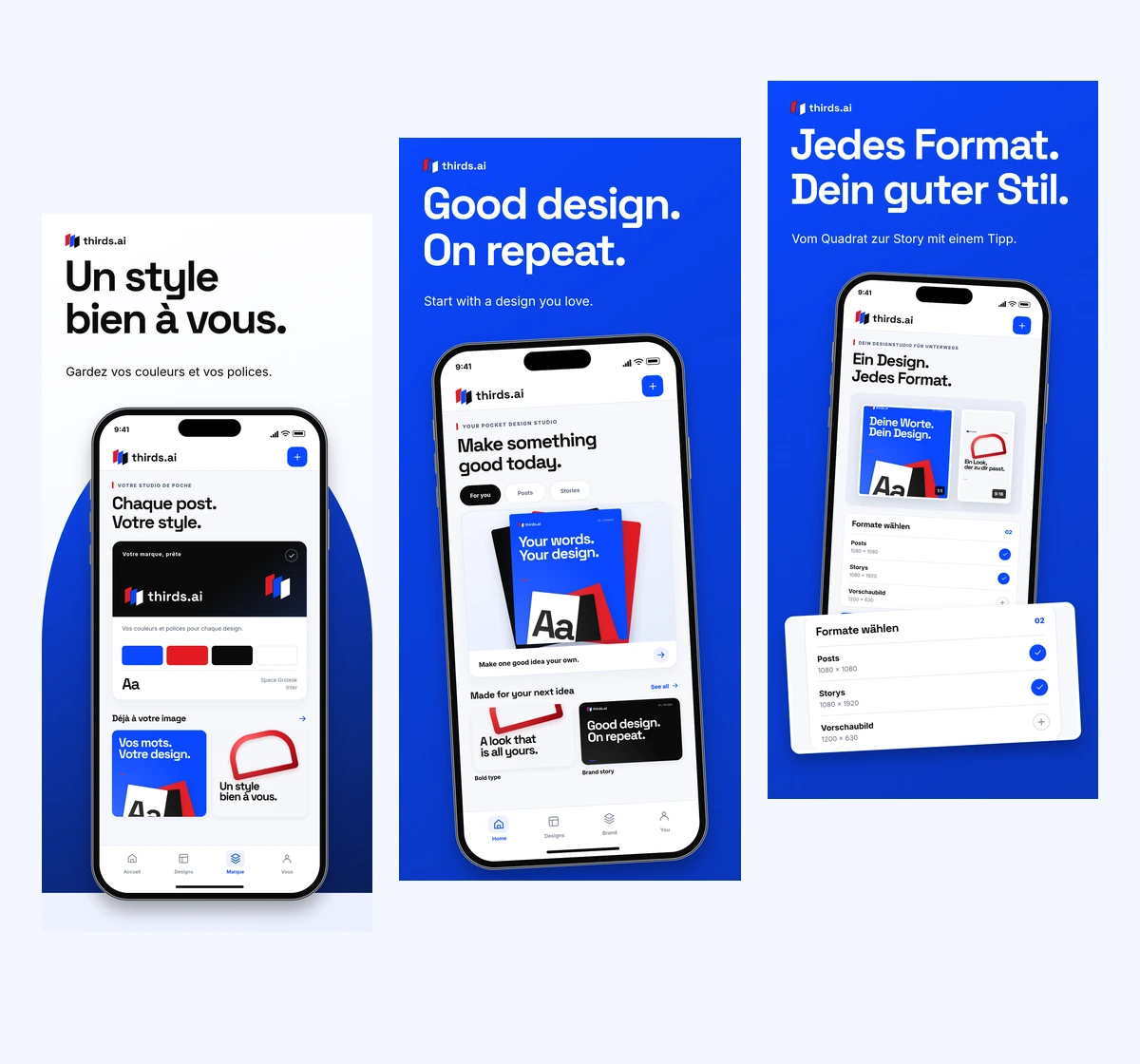
App Store localization means adapting your listing, screenshots, and app for each market. For the screenshots, keep one good design and change the words and app captures for each language. thirds.ai turns those inputs into matching PNGs, and ChatGPT or Claude can make the requests for you.


Read the setup prompt
Walk me through making and localizing my App Store screenshot pack with thirds.ai. Read https://thirds.ai/blog/app-store-localization and https://thirds.ai/docs/mcp first. Start by asking what my app helps people do, which real screens I have, and which languages it supports. Help me create a thirds.ai account and connect this assistant; I will complete sign-in myself. Never ask me to paste an API key into chat. Plan five benefit-led screenshots with the strongest promise first. Use a thirds.ai App Store template with my own colours, logo, and captured app screens. Confirm the Apple device size, file count, and cost before making files. Make one PNG for review, count it in the final pack, and wait for approval before making the rest. Then help me approve translated copy and use matching localized app captures. Keep the same design and screen order in each language. Return real download links and reusable data. Guide me one step at a time and ask for missing inputs.
We made the pack below for an imagined thirds.ai iPhone app, using our logo, colours, and fonts. These are concept screens, not an available iPhone app; the finished screenshot files are real thirds.ai output. You can download all 50 screenshots and the source files.
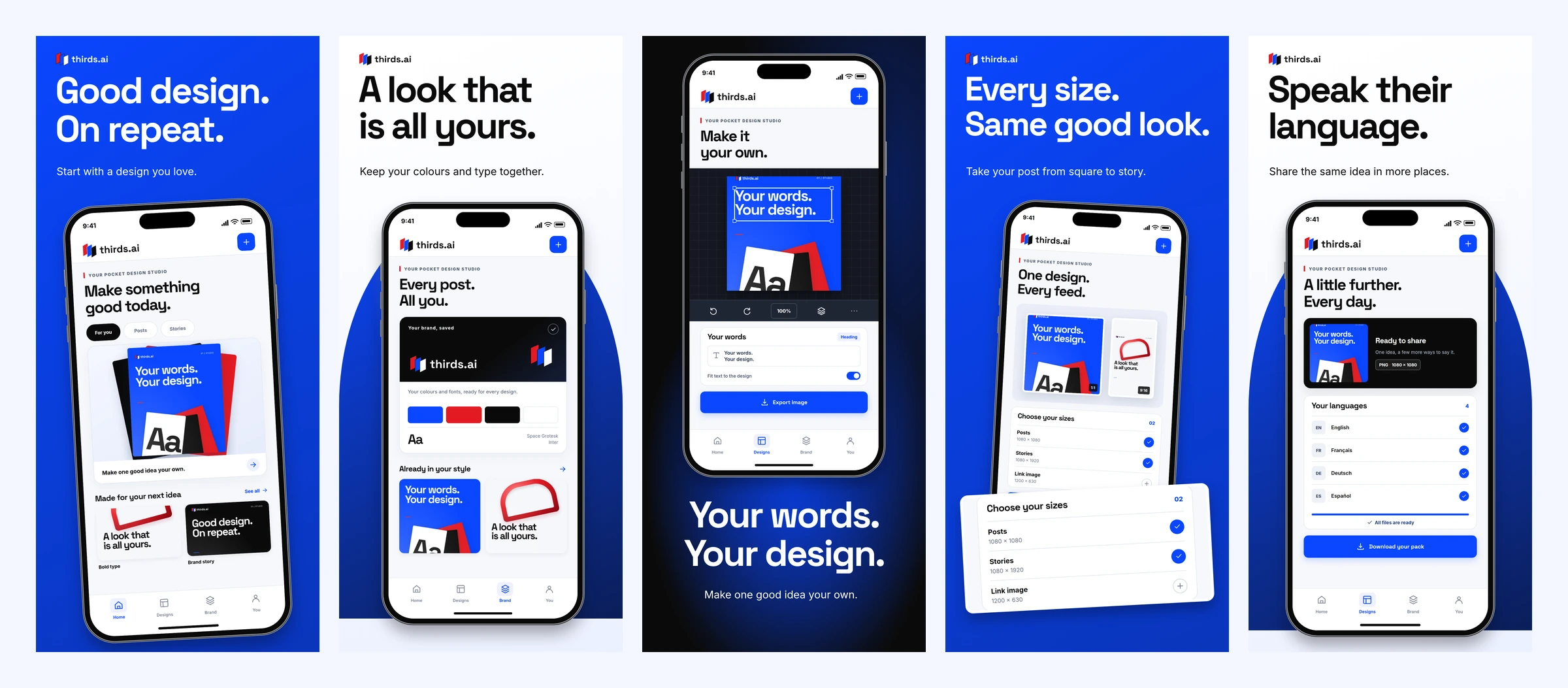
Choose five screenshots that sell the result
Your first screenshot has the biggest job: make someone want the result your app gives them. Apple says the first one to three screenshots can appear in search results when there is no app preview, depending on their shape. Put the strongest promise first, with a screen that proves it. Apple's product page guide, checked 7 October 2026.
For our thirds.ai concept, “Good design. On repeat.” gives someone a reason to care about a template library. Each later screen answers another buying question.
| Screenshot | What the reader gets | What the app shows |
|---|---|---|
| 1 | A beautiful post without starting from scratch | A finished design and the library |
| 2 | A look that feels like their business | Saved colours and fonts |
| 3 | Their own message in the design | The text editor |
| 4 | The same post ready for another feed | Square and story sizes |
| 5 | Content for people in another language | Translated files ready to download |
Use short headlines, keep the app large, and check the row at phone size. Give every image a new reason to download. A settings screen rarely earns a place unless it shows a benefit people buy.
Plan my five screenshot headlines
Help me plan five App Store screenshots for my app. Ask who it helps, what they want to achieve, and which real screens I can show. Lead with the strongest user benefit. For each screenshot, give me a short headline, one supporting sentence, and the screen that proves the claim. Make each image answer a different buying question. Do not invent features, ratings, reviews, or results. Show me the plan before making files.
Connect thirds.ai to ChatGPT or Claude
A connected assistant can fill the same screenshot template each time you ship an update. Start by creating your thirds.ai account, then connect the assistant you use.
- For API access, open API keys, click Create a key, give it a name, and click Create key. Keep it in your tool's secret settings.
- For ChatGPT or Claude, add
https://thirds.ai/mcpusing the ChatGPT setup guide or Claude setup guide. These connections can use browser sign-in instead of an API key. - Ask the assistant to check the connection and find the colour App Store screenshot set. If you work in code, follow the Claude Code or Codex guide.
The prompt can walk you through setup; you still complete the sign-in and connection screens. Never paste your API key into the chat.
Help me connect my AI assistant
Help me connect thirds.ai to this assistant. Read https://thirds.ai/docs/mcp and the guide for the assistant I am using. Use the server URL https://thirds.ai/mcp. Walk me through the connection controls and browser sign-in. If my setup needs an API key, explain where to save it securely; do not ask me to paste it into chat. Once connected, check access with a read-only call and find https://thirds.ai/gallery/app-store-colour-set. Do not spend credits yet.
Make your App Store screenshot pack
Once your screens and copy are ready, give them to your assistant with the template link. Our concept combines the colour, light interface, and dark templates with thirds.ai’s blue, red, ink, and white palette. Each screenshot keeps its layout in every language.
You can also use the free App Store screenshot generator: click Upload app screens, choose a style, add each headline, and download the pack. Start with the light interface set, dark set, colour set, photo set, or large-screen set.
For repeat updates, have the assistant keep the template and your approved copy. Your next pack only needs the changed screens and words.
Make my screenshot pack with thirds.ai
Use thirds.ai and the design at https://thirds.ai/gallery/app-store-colour-set to make my five App Store screenshots. Read the template source and complete sample data first. Use my attached app captures and approved headline plan; ask for either if missing. Keep my screenshots intact. Use my colours, or my saved thirds.ai brand kit if I name one. Ask which Apple device size I need. Make the first PNG for review and count it as part of the final pack. Show the total file count and cost before creating it, then wait for approval before making the remaining files. For individual image requests, send one slide at a time with the matching canvas size. Keep a stable retry key per file. Return actual download links and the reusable data. Do not substitute AI-generated pictures for my app screens.
Localize the screenshots with another request
Screenshot localization changes two things: the headline around the phone and the app UI inside it. Ask your assistant to translate the copy for a specific locale, then supply captures from that version of your app. Keep the template and change the text and image data. Your assistant can send the requests through MCP or the API.
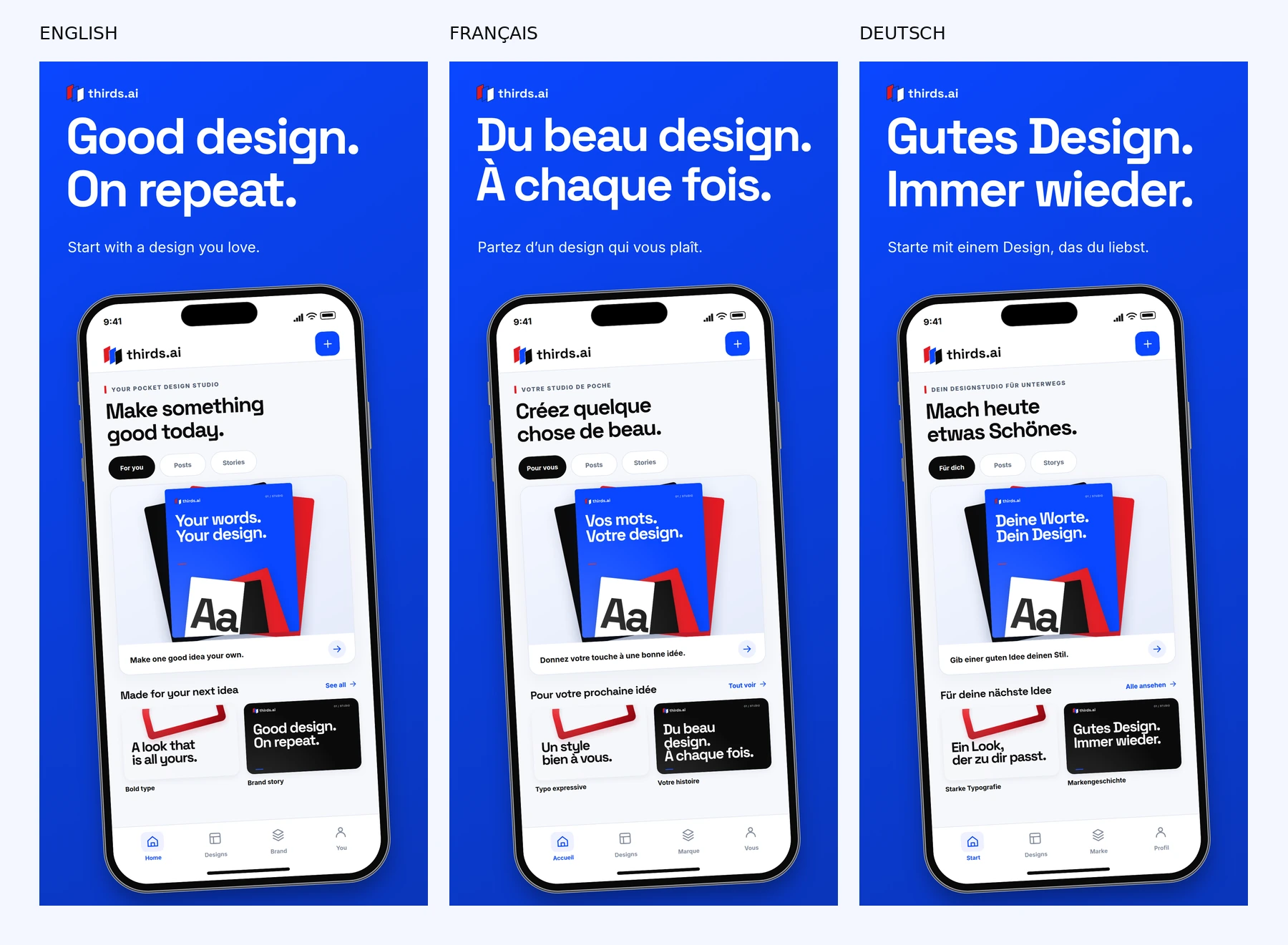
Here is the first thirds.ai concept screenshot in English, French, and German. Both the headline and the screen change. We made five screenshots in each of ten languages, including English, at 1320 × 2868 pixels. Keep the first pack and add nine more languages to make 50 files.
Localize my approved screenshot pack
Localize my approved five-screen pack into the locales I name. Count the starting language in the total and reuse its approved files; ten languages means the original plus nine more. First ask which languages my app actually supports and request the matching app captures. Translate each headline for its meaning and benefit, keeping product names consistent. Show a table of source and translated copy for approval. Then reuse the same thirds.ai template with the approved text and matching capture for each locale. Check longer text, accents, and line breaks in the finished PNGs. Keep the approved screen order and put each locale in its own folder. Show the total file count and cost before making files. Do not translate the pixels of a captured UI or claim the app supports a language it does not.
Check every finished image for cut-off words and unreadably small type. Have a fluent speaker review the copy before release. In the free tool, add translated text and captures under Languages; it holds five languages per draft, so make ten in two passes.
Five screenshots, ten languages, free every month
For the individual-image API or MCP workflow, 5 screenshots × 10 languages × 1 device size = 50 images. Each successful image costs one credit, and a verified Free account gets 50 credits every month, with no trial end date. That covers your five-screen, ten-language pack each month, free forever. See the Free plan.
Use an existing template and your own captured screens for that budget. Extra sizes, extra exports, and thirds.ai AI template work use more credits; your AI assistant may have its own plan cost.
Can you do it in 15 minutes?
Budget about 15 minutes from ready screens and approved copy to a first screenshot pack. That covers connecting your account, choosing a starting design, making the files, and checking them. Writing the app, choosing the message, and reviewing ten translations take their own time.
For this example, we kept the design, screen order, and colours fixed across all 50 files. You can open the downloads and compare each language yourself.
What about the listing and in-app strings?
Your screenshot pack is one part of App Store localization. Translate the app name, subtitle, description, and keywords in App Store Connect too. Choose markets your app can serve, and use the terms people search for there. Apple's localization guide explains how to add a language; a new locale starts with the primary language's screenshots until you replace them. Checked 7 October 2026.
For in-app strings, ask your coding assistant to work with your app's translation files, preserve placeholders and plural rules, then run the app in each language and capture it. thirds.ai makes the store artwork from those captures.
Apple accepts one to ten screenshots per device size, but the required sizes depend on your app. Our example uses an accepted large iPhone size; check the slots in App Store Connect against Apple's current screenshot sizes before uploading. Checked 7 October 2026.
Ready to make your own? Open the free App Store screenshot generator with your five best screens.


