
The Open Graph image size to use is 1200 × 630 pixels, a ratio of 1.91 to 1, in a file under 8 MB. That one file works on the big social and chat apps, and the table below gives each one's own rule. An Open Graph image is the picture people see under your link when they share your page. Point the og:image tag at the picture's full HTTPS address, and keep your title and logo away from the edges, because some apps crop the card.


Read the setup prompt
First read https://thirds.ai/blog/open-graph-images-complete-guide, https://thirds.ai/docs/mcp, and the setup guide for ChatGPT or Claude, whichever I use. Guide me through the connection controls and browser sign-in. Never ask me to paste an API key into chat. Set up Open Graph images for my site. Ask which pages need cards and where my site sets og:image. Start from the Open Graph card template, then check one card and its crop. Before spending credits, tell me the cost and wait for my approval.
thirds.ai gives every page you publish a link card that looks designer-made, because designers drew the cards in our gallery. Put your logo, colours, and fonts on one with a brand kit, then ask ChatGPT or Claude for a card for every page on your site, or let your build make one each time a page goes live.
What size should an Open Graph image be?
Facebook's image guide for link shares asks for at least 1200 × 630 pixels, a ratio as close to 1.91 to 1 as you can, and a file under 8 MB (read on 2 October 2026), and that is the size to use. The Open Graph protocol itself sets no size. It only lets you state the width and height of the file, so the rules come from the platforms that show your link, and Facebook's rule is the one most guides quote.
People often ask whether 1920 × 1080 works. That size is 16 to 9, the shape of a video or a slide. Facebook crops it to 1.91 to 1, so you lose a band at the top and the bottom, and your title can go with it. Make a separate 1200 × 630 file for the link preview. If you already have the picture, the free social image resizer crops it to 1200 × 630 in your browser.

Open Graph image sizes for each platform
Use 1200 × 630 pixels on Facebook, X, WhatsApp, Slack, Discord, and iMessage, and 1200 × 627 pixels on LinkedIn. The size matters because a platform shrinks or crops a file with the wrong shape, and skips a file that is too small or too heavy.
| Platform | Size to use | Ratio | Smallest size | Largest file | Source |
|---|---|---|---|---|---|
| 1200 × 630 | 1.91 to 1 | 200 × 200, or 600 × 315 for the large layout | 8 MB | Facebook image guide for link shares, read 2 October 2026 | |
| 1200 × 627 | 1.91 to 1 | 1200 × 627 | 5 MB | LinkedIn help on link previews, read 2 October 2026 | |
| X | 1200 × 630 with summary_large_image | wide card | no public rule | no public rule | Krumzi's guide, updated 30 September 2026 |
| WhatsApp, iMessage, Slack, Discord | 1200 × 630 | 1.91 to 1 | no public rule | no public rule | Krumzi's guide, updated 30 September 2026 |
X's developer pages for cards weren't open to the public when we checked on 2 October 2026, so we can't quote a pixel rule for it. Krumzi's guide suggests 1200 × 675 for X's large card and says 1200 × 630 also works. The chat apps read the same og:image tag as everyone else, and the same guide says WhatsApp compresses the picture hard, so it suggests a file under 300 KB there.
Where to keep text so it isn't cropped
Keep your title and logo at least 60 pixels from every edge, so a crop still shows them. On a 1200 × 630 card that leaves a box of 1080 × 510 pixels for everything that matters. The 60 pixel margin is our own rule of thumb for the gallery card, and it keeps the text clear of every crop in the table.
We set the title at 40 pixels or more, so it still reads when a chat app shows the card small. Then look at the card at half size. If a word touches the edge of the box, shorten the title or drop the description line.
Facebook shows a picture under 600 × 315 pixels as a small square thumbnail next to the link, as its image guide above says, and other apps use a square thumbnail in their compact layouts too. A square crop keeps the middle of the picture and cuts both sides, so put the title in the middle third and keep the logo close to them.
Which og:image tags do you need?
You need og:image with its width, height, and alt tags beside it, plus the title, description, address, and type tags for the page. Put all eight in the <head> of every page. The og:image address must be the full address with https:// and your domain, because a crawler won't work out a relative path.
<meta property="og:title" content="Plan a client launch in one afternoon" />
<meta
  property="og:description"
  content="A practical workshop for small teams that want one clear story."
/>
<meta property="og:url" content="https://example.com/workshop" />
<meta property="og:type" content="article" />
<meta property="og:image" content="https://example.com/cards/workshop.png" />
<meta property="og:image:width" content="1200" />
<meta property="og:image:height" content="630" />
<meta property="og:image:alt" content="Workshop card with the date and title" />
The width and height tags tell the platform the file's size in pixels before it downloads the picture, and the alt tag describes what's in it. The Open Graph protocol defines each one.
X needs two more tags for the wide card. Set twitter:card to summary_large_image, and give twitter:image the same address as og:image.
<meta name="twitter:card" content="summary_large_image" />
<meta name="twitter:image" content="https://example.com/cards/workshop.png" />
Why your new card doesn't show
Platforms keep a copy of your old tags and your old picture, and they show that copy until they fetch your page again. Give every changed picture a new address, such as workshop-v2.png, and update og:image to match. Then ask the platform to fetch the page again with its own preview tool, where it has one, and share the link once to see the real card.
Serve the picture from your own domain or your own storage, at an address that doesn't expire. A card that points at a link with an end date breaks the moment the link does.
How to make it
Start from one of our link preview templates, such as the Open Graph card, the Editorial link card, or the Product link card, or ask ChatGPT or Claude to make one in your brand. Each one is already 1200 × 630 with the text inside the safe zone, and it's ready for your page details.
The fastest way is to let your AI assistant do the whole job. Connect thirds.ai to ChatGPT or Claude, then give it your logo and colours, the list of page titles and addresses from your sitemap, and one line on the look you want. Ask for a card for every page, such as "Make an Open Graph card for each of these 40 posts in our brand," and you get 40 cards that all match. The assistant can write the description lines too.
To make one card yourself, use the editor.
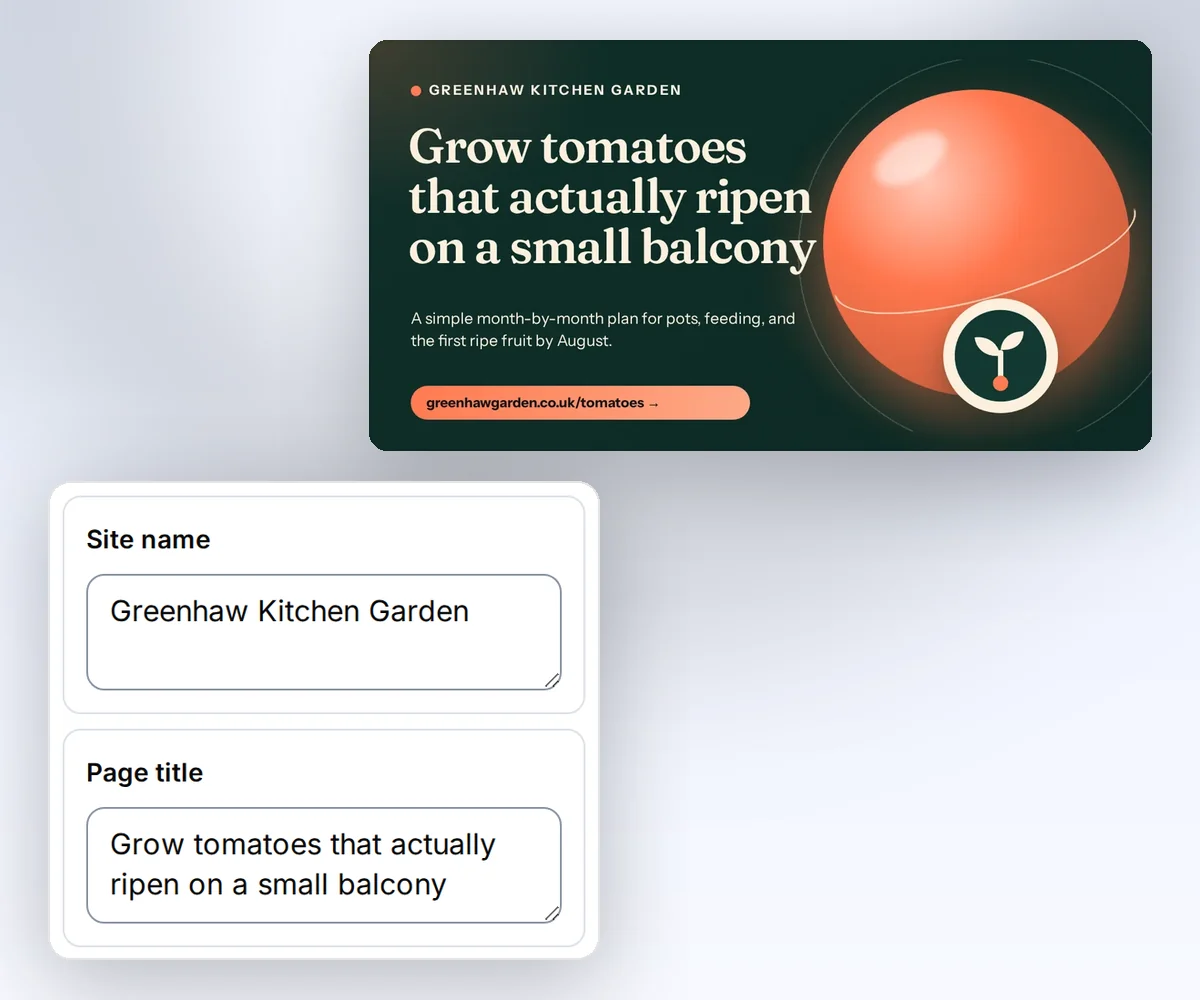
- Open the Open Graph card template and click Use this template.
- Open the Data tab and type your site name, the page title, and a short description.
- Click Export, then Save and export PNG, and download the file. Upload it to your site and point
og:imageat it.
Add your logo and colours on the canvas and click Save, and the design is ready for the next page. Each card uses one credit, and you can start free.
When your page titles sit in a spreadsheet, make all the cards at once. Open Batches, choose your saved card design, and paste your rows or load a CSV file. Download a starter CSV gives you a file with the right column names. Here are three rows for a made-up garden blog.
site_name,page_title,description,site_url
Greenhaw Kitchen Garden,Grow tomatoes that ripen on a small balcony,A month-by-month plan for pots and feeding.,greenhawgarden.co.uk/tomatoes
Greenhaw Kitchen Garden,Three herbs that survive a shady yard,What to plant when the sun never reaches the wall.,greenhawgarden.co.uk/shade-herbs
Greenhaw Kitchen Garden,Compost in a flat without the smell,A small bin and a weekly routine that works indoors.,greenhawgarden.co.uk/compost
Check the rows and click Make 3 files. Download the ZIP when the cards are ready. The batch guide shows how to load a long list and retry a row.
For developers, make the card in the same step that publishes the page, so every new page gets its picture without anyone opening a design tool. Use templates with your data shows the request that sends a page's title and description to your saved card, and Make Open Graph images from HTML makes the same card from your own HTML without saving a template.
Sign in, pick a card, and your first page has its picture in a few minutes. The free monthly credits cover your first cards.
Common Open Graph image mistakes
Most broken link previews come down to one of these, and each has a short fix.
- A relative
og:imagepath. Use the full HTTPS address. - A picture behind a login. The crawler can't fetch it, so serve it from a public address.
- The same file name after a change. Give the new picture a new name, so the platform fetches it.
- No
twitter:cardtag. X shows a small card or none, so set it tosummary_large_image. - A card that holds the whole first paragraph. Keep the title short enough to read in a small preview, and put the rest in the description.
Want your link cards to match your posts and ads? The social images use case shows the same brand kit on all of them, and the HTML to image page lists the sizes and formats you can make. If your logo is an SVG, the free SVG to PNG converter turns it into a PNG the card can use.


