
Free Open Graph image generator
Type your page title, and download a link preview image.
Free to try
Make matching App Store screenshots for iPhone and iPad. Add your screens, mix layouts, and download PNG sets in your chosen sizes and languages.
Choose a style
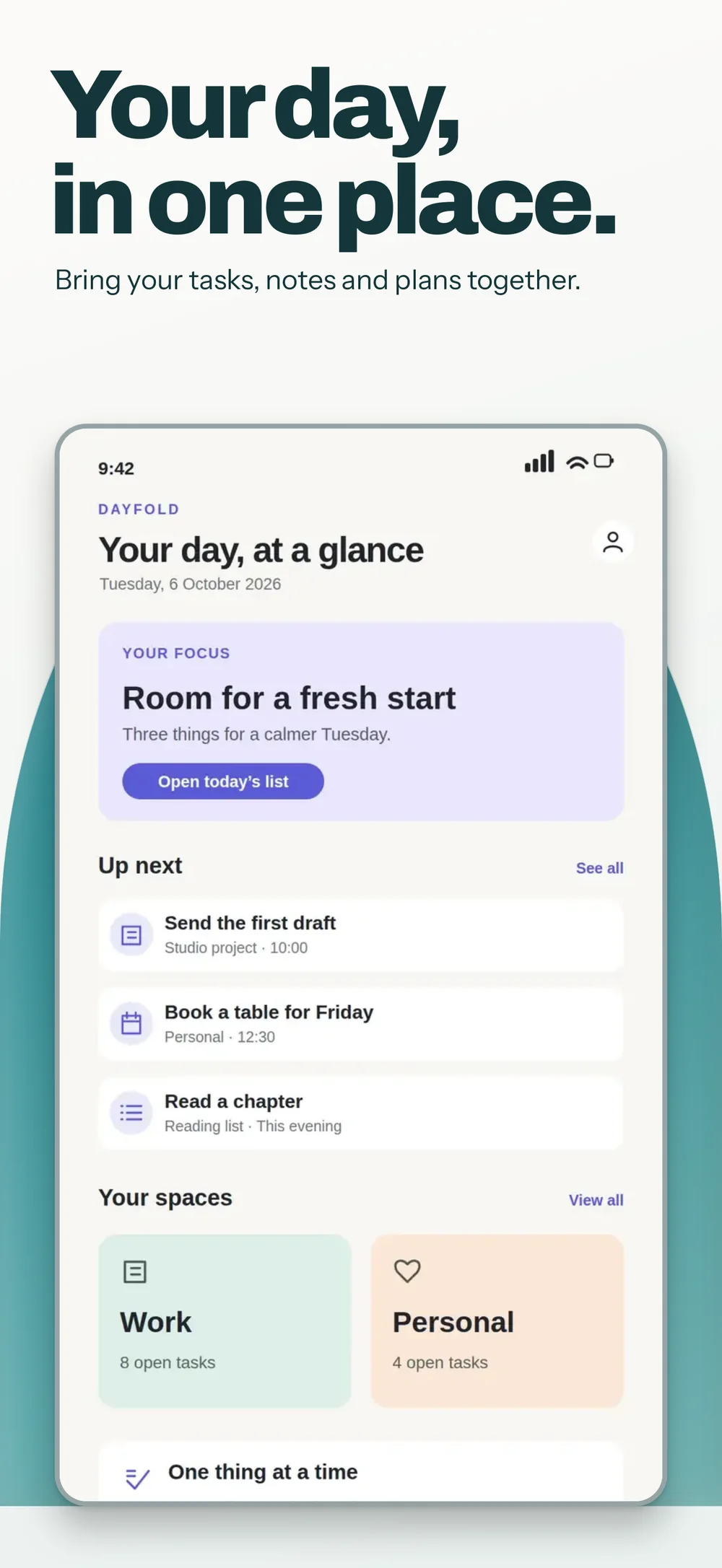
Each size and language uses one of your 5 free sets a day. PNG files in one ZIP.
Each language has its own words and pictures.
See a sample
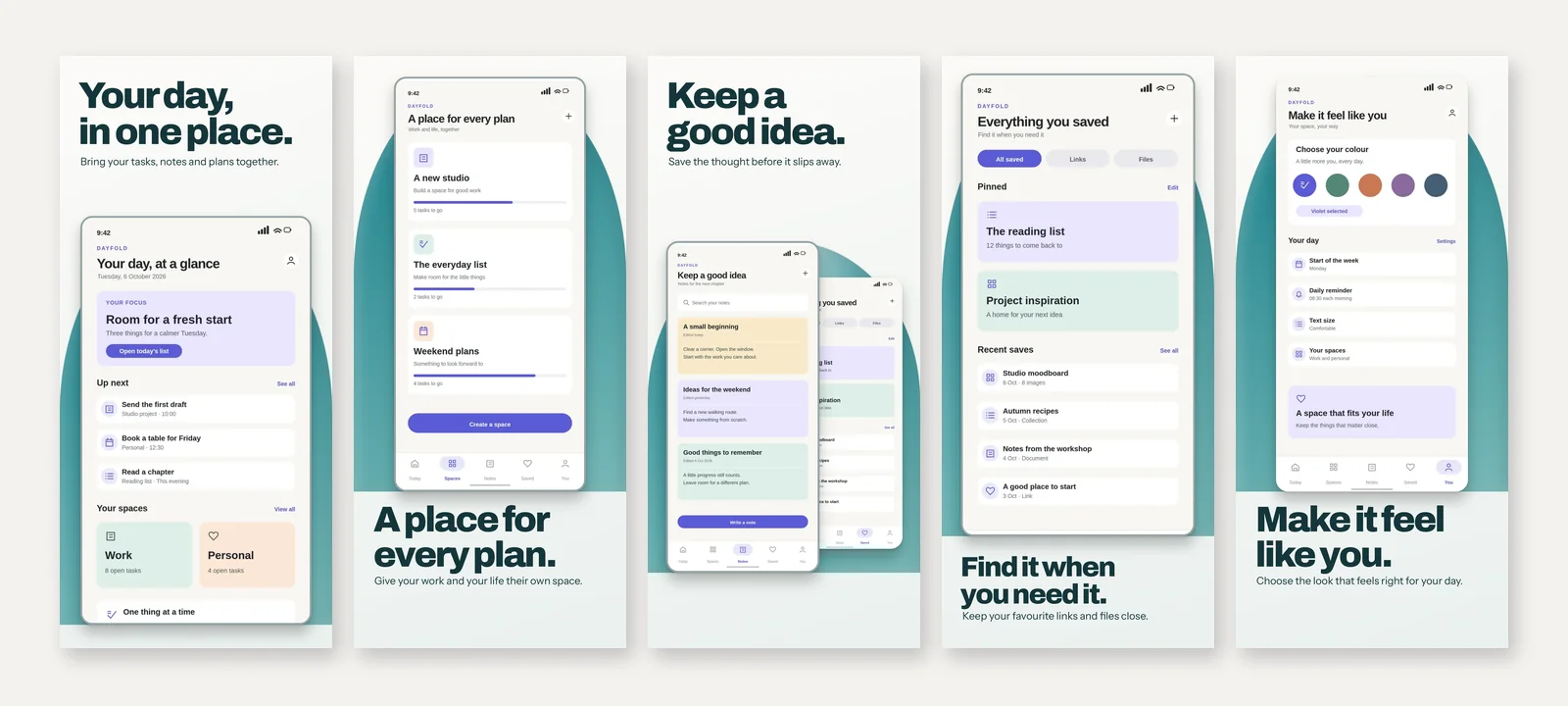
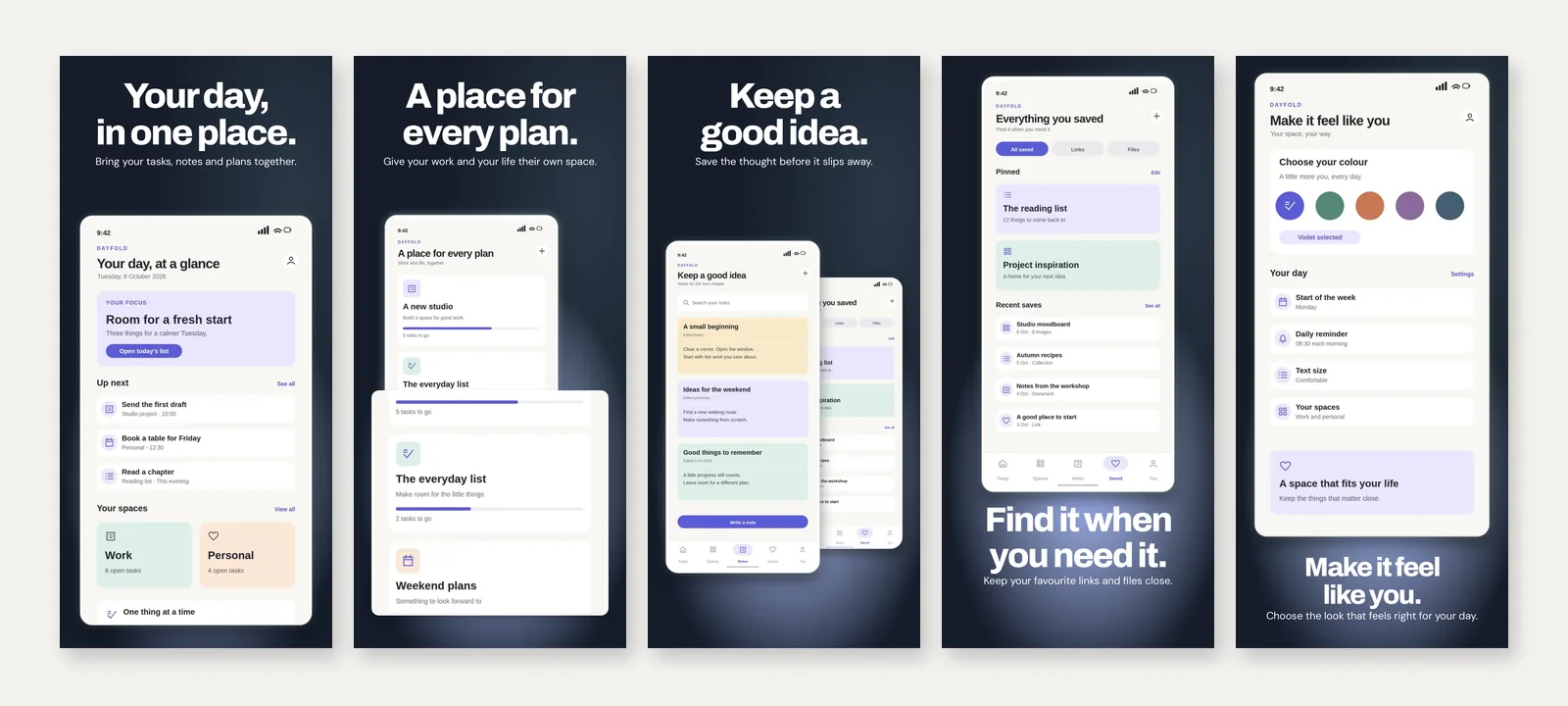
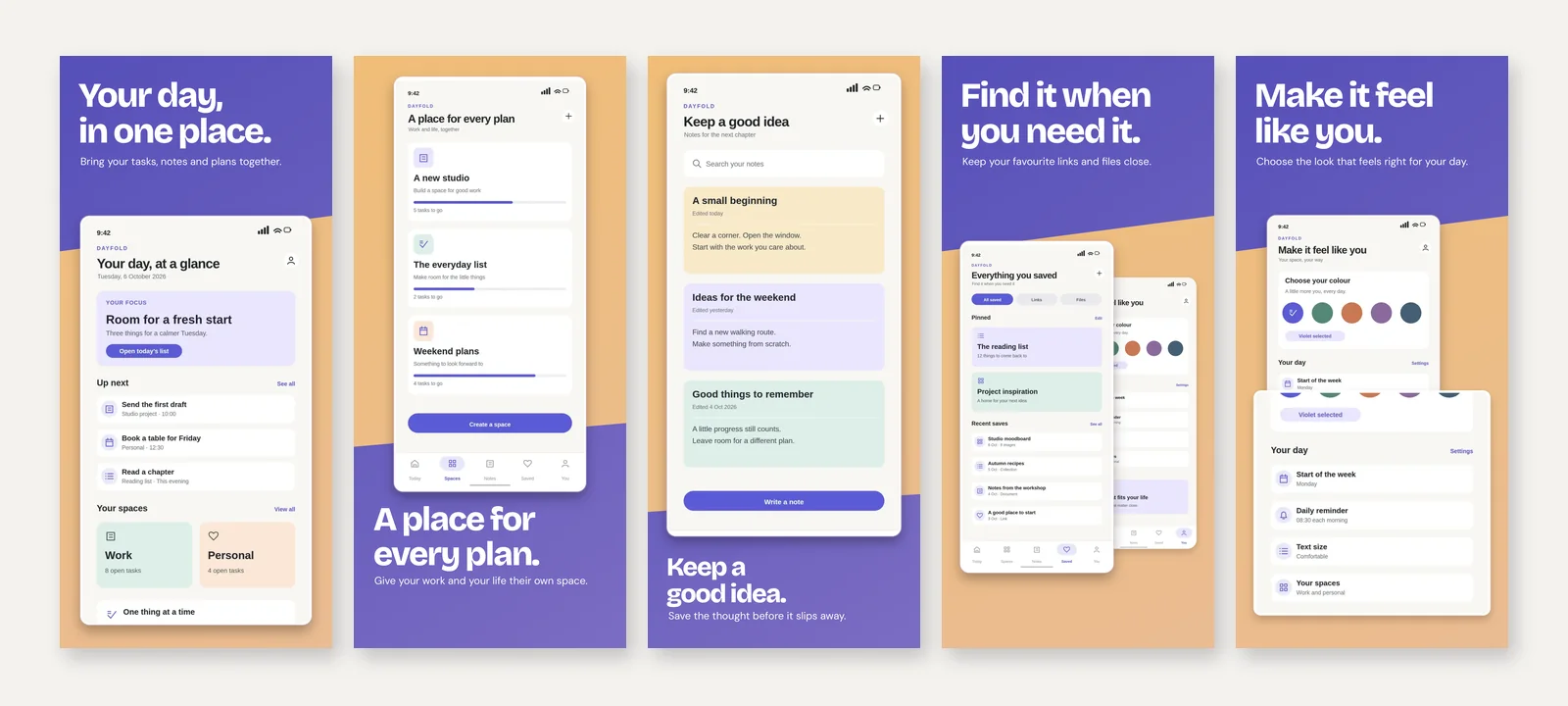
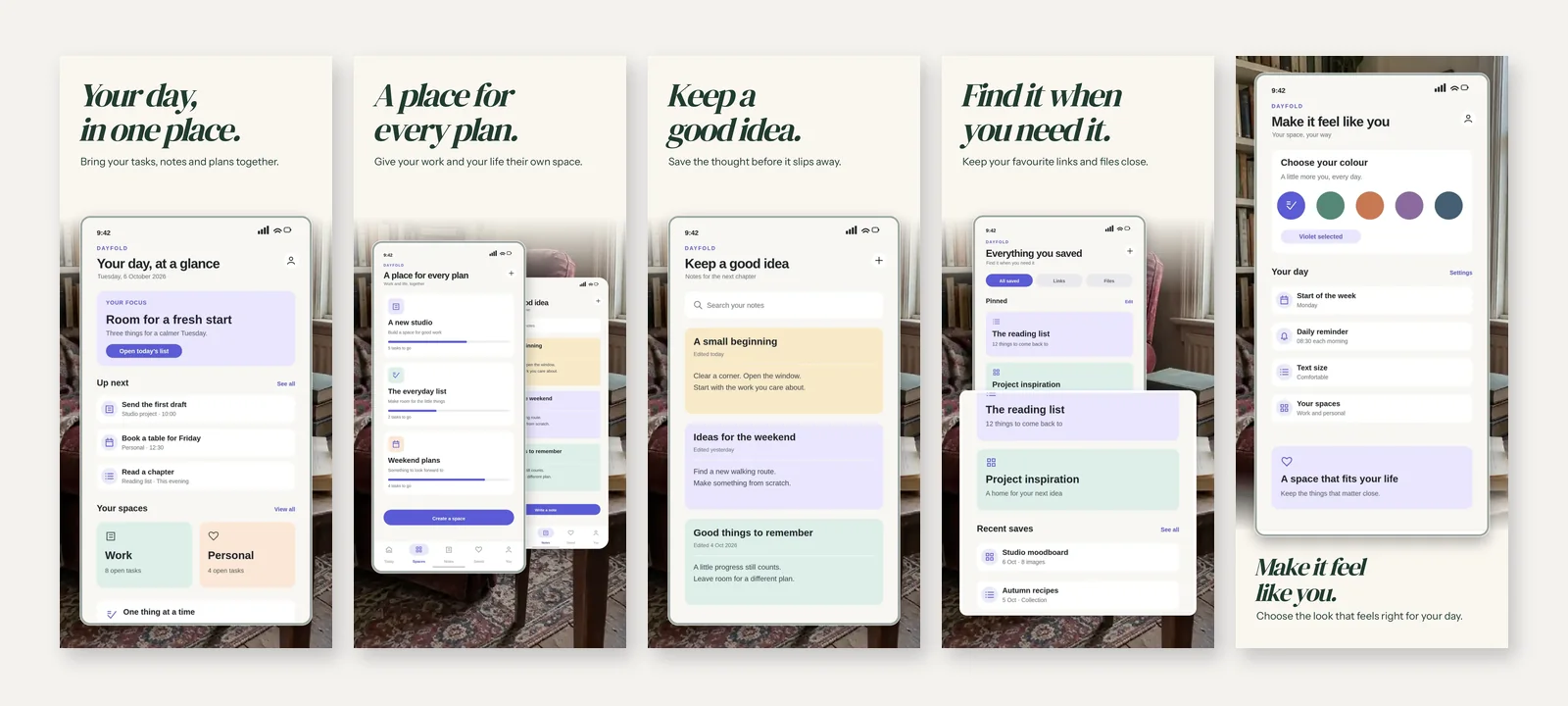
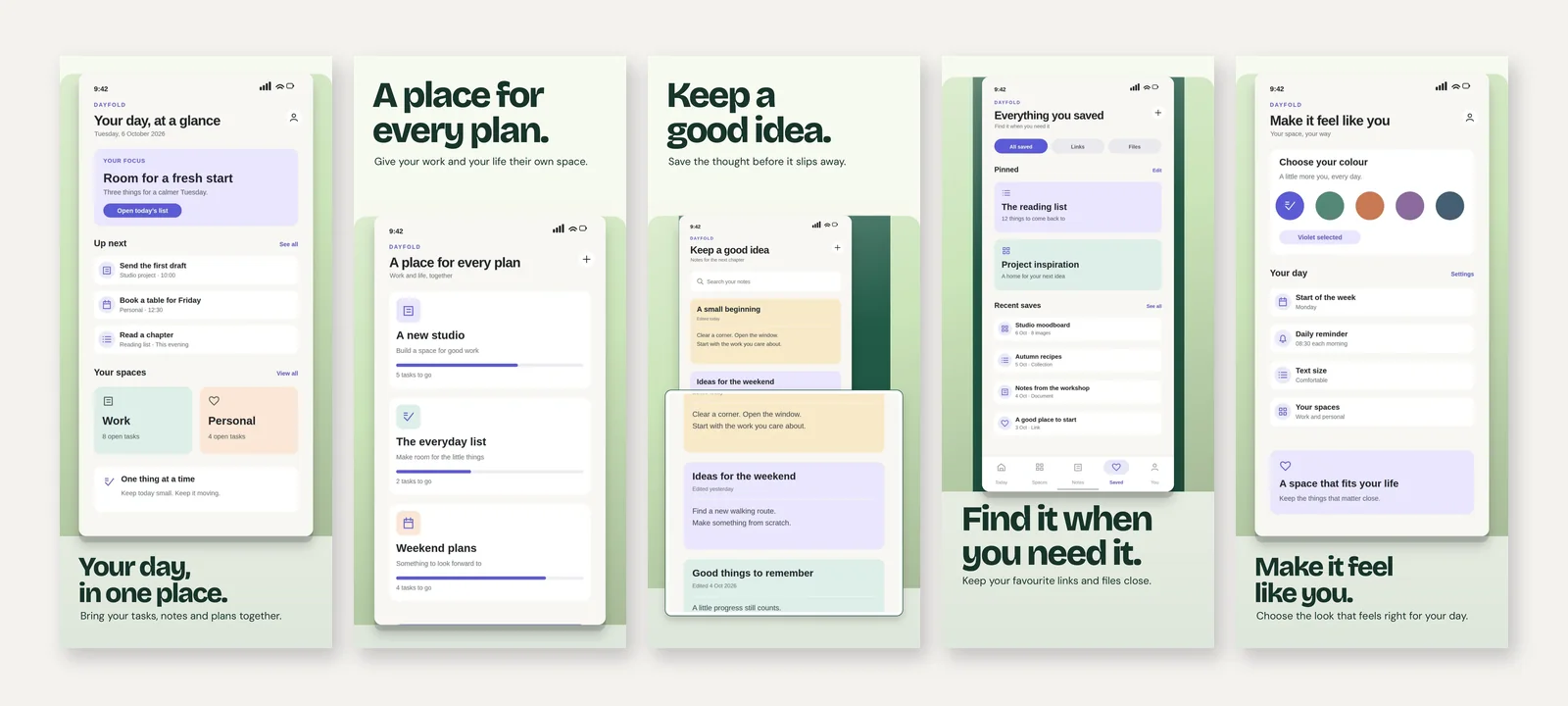
Give the first screenshot your app's clearest benefit, then show what people can do with it. Each style can use a large screen, two screens together, or a close-up of one feature. Your colours and fonts keep the set together as you change the layout.
How it works
Turn your app screens into a matching App Store set. Start with five screenshots, add or remove slides, and mix full screens with feature close-ups. Download your iPhone and iPad sizes together, with a folder for each size and language.
Click Upload app screens and choose your pictures together. Add, duplicate, or move screenshots to put the main benefit first.
Pick a style and write a headline for each screenshot. Open Customize to change its layout, frame, background, or level of detail.
Use Store preview to check the set at listing size. Choose your download sizes and languages, then click Download. The ZIP keeps each set in its own folder.
Do more with thirds.ai
A free tool does one job on one file. thirds.ai makes the finished file for you, in a design that's yours, as many times as you need it.
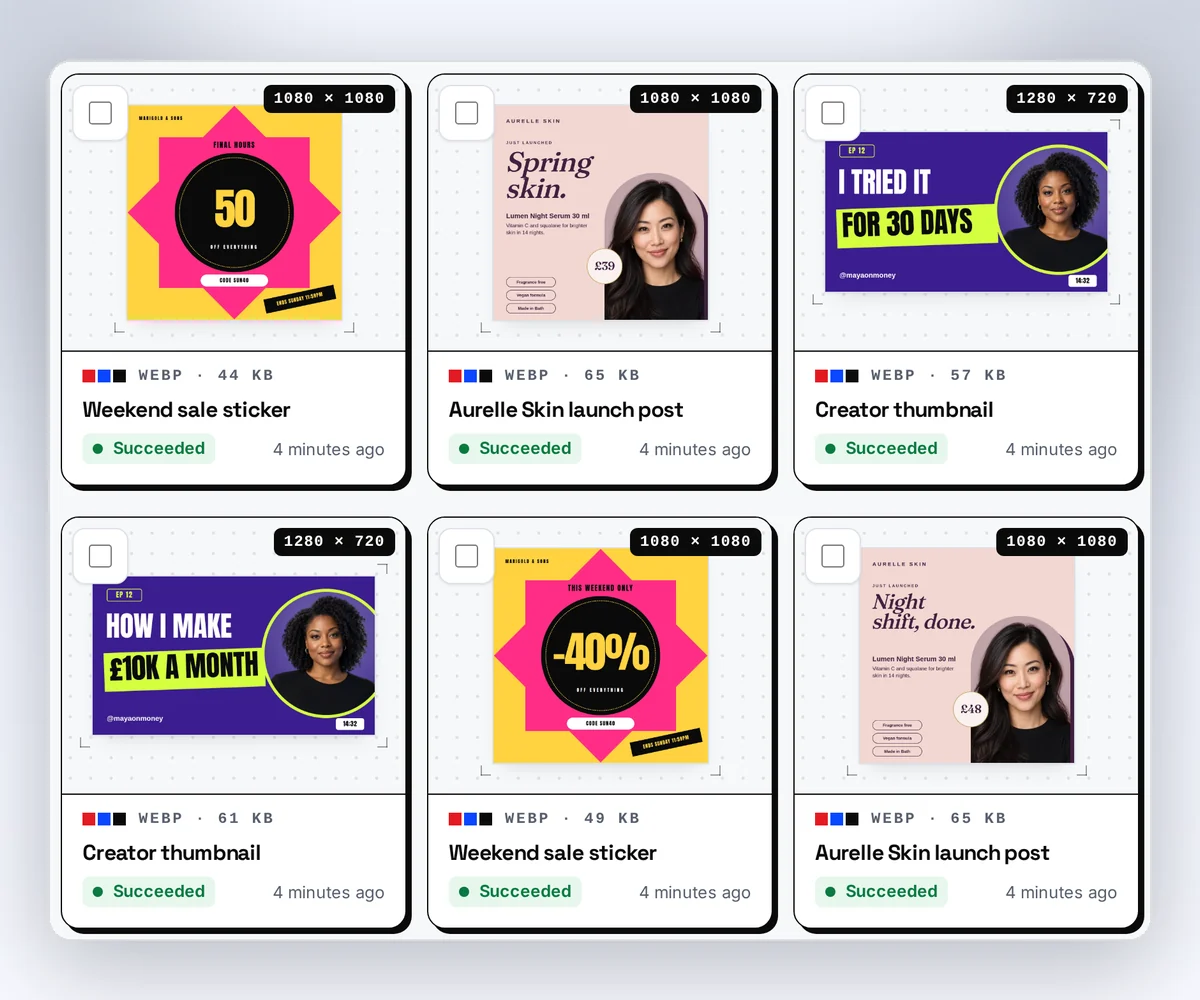
Choose a template from the gallery, or ask your AI assistant to draw one for you. Put your logo, colours, and fonts on it once, and every file after that comes out looking like your business made it.
Set up your brandTell it what you need in plain words, and the finished PDF or picture lands in the chat, in your design and ready to send.
Connect your AIGot a list? Upload a spreadsheet, and each row comes back as its own finished file in your design, all of them in one ZIP.
Make a batchYour words, layouts, and uploaded pictures are saved in this browser. Return on the same browser to keep editing. Clearing your browser's site data removes that draft. Save the set to your thirds.ai account to keep it with your other designs.
Yes. Add a language to copy your set, then type or paste the translated headlines and captions. Upload the matching app screens for that language. Choose left-to-right or right-to-left text. You can keep up to five language versions and download them together. The tool does not translate your words for you.
Yes. You can make up to five sets a day across the free generators, with no watermark. One size in one language counts as one set, with up to ten screenshots. Signed in, each set uses one credit. A free account gets 50 credits a month. The editor's Images ZIP export costs one credit per image.
Choose iPhone at 1320 × 2868 pixels in portrait or 2868 × 1320 in landscape. Choose iPad at 2064 × 2752 or 2752 × 2064. These are accepted sizes for Apple's 6.9-inch iPhone and 13-inch iPad slots, checked on 6 October 2026. Every PNG has an opaque background. Apple's screenshot sizes.
Yes. Upload up to ten JPEG, PNG, or WebP app screens together. Each slide can show one screen, a pair, or a close-up. You can also upload background photos. Pictures are resized before they go to our server to make your file.
Yes. Your brand applies your colours and fonts across the set. Each screenshot can have a headline, a headline and caption, or no text. Customize lets you change the layout, crop, frame, tilt, background, and detail level for one slide or the whole set.
Apple accepts one to ten screenshots for a device size. This tool starts with five and lets you add or delete slides. Start with the benefit that best explains your app, then give each later screenshot a different feature. Apple's product-page guide says the first one to three may appear in search results, so make those count. Checked on 6 October 2026. Apple's product-page guide.
Show your actual app in use, keep the screen large enough to read, and give each image one clear point. Use your own screenshots and describe features your app has. Check the whole set at a small size before you upload it. Apple's review rules require screenshots to show the app in use. Apple's screenshot guidance.
Download and unzip the set first. Each folder holds the numbered PNGs for one size and language. Add those PNGs in order to the matching iPhone or iPad screenshot slot in App Store Connect. Upload the PNG files themselves, then check the listing before you submit it.
Free tools
Save the set in thirds.ai and keep your layout and brand together. Your next release can use new screens and words in the same design. Open any set in the gallery to edit its layers.
Free to start. No card needed.