
If you sell through Stripe, you already get a receipt for every successful payment, and your customer can view it in a browser or download it as a PDF. You can have Stripe email it for you or send it by hand from the Dashboard. You can put your logo, colours, and business details on a Stripe receipt, but the layout is Stripe's and it looks the same for every business. For a receipt that looks like the rest of your paperwork, fill a saved thirds.ai receipt template with the payment details instead. Type them into the editor, ask ChatGPT or Claude, or send them from your own code the moment Stripe reports a payment.


Read the setup prompt
Help me follow https://thirds.ai/blog/stripe-receipt-pdf-from-payment-webhook in ChatGPT or Claude. Read its linked thirds.ai docs before giving steps. Keep API keys and webhook secrets out of chat. Decide whether Stripe’s receipt fits or I need a branded PDF. Ask which fields it must show. If I need a custom file, map a sample event to the Payment receipt template and check one PDF. Before spending credits, tell me the cost and wait for my approval.
The Payment receipt template was made by a designer, so it looks finished before you touch it. Pick your brand kit, and your logo, colours, and fonts go on it in one step. Then nobody has to be at the screen for each sale: ChatGPT or Claude fills it when you tell it who paid, and your own code fills it from the Stripe event, so nobody copies numbers into a document.
Want to see a branded receipt before you sign up? Open the free receipt generator, pick one of its five designs, type the payment, and download an A4 PDF with no account. Click Your brand and type your website address to see it in your own colours.
Read the transcript
Need a Stripe receipt as a PDF? Stripe makes one for every successful payment. Here’s where.
Then let’s make one that looks like your shop.
Open the payment in your Stripe Dashboard. Under Receipt history, choose Send receipt, then Send. Your customer can view it or save it as a PDF.
For every sale, turn on Successful payments under Customer emails.
How far can you brand it? Your logo, icon, colours, and business details.
But there’s no layout setting, so Hattie’s honey shop gets the same layout as everyone else.
Hattie wants hers to match her other paperwork. On thirds.ai, the Payment receipt template already looks finished. A designer made it.
Pick your brand kit, and your logo, colours, and fonts go on in one step.
Open Data, type your shop’s details once, then copy the payment from Stripe: who paid, each item, the total.
Click Export, then Save and export PDF. Check the total matches the amount paid in Stripe.
Easier still: connect ChatGPT or Claude, tell it who paid, for what, and how, and it hands you the PDF.
And if you code, your app can fill it the moment Stripe reports a payment, with nobody at the screen.
And Hattie? She’s back with her bees.
Start with the Payment receipt template on thirds.ai, and make your next receipt your own.
How do I get a Stripe receipt as a PDF?
You get a Stripe receipt as a PDF by opening the receipt for a successful payment and downloading it. Stripe makes a receipt for every successful payment and refund, and you can send it to your customer in two ways. You need a Stripe account with at least one successful payment. The Stripe receipts guide (read on 13 October 2026) covers both ways.
- Send receipts automatically. In the Stripe Dashboard, open Settings, then Business, then Customer emails, and under Payments turn on Successful payments. Stripe emails a receipt only when a payment succeeds, so a failed or declined payment sends nothing.
- Send one receipt by hand. Open Transactions, then Payments, and click the payment. Under Receipt history, open the menu, choose Send receipt, check the email address, and click Send.
Every receipt has its own web link. The link stops working after 30 days, but the receipt itself doesn't expire. When your customer opens an old link, Stripe asks for the email address from the payment and sends a new link. Stripe doesn't email receipts for test payments on its own, so send a manual receipt when you want to see one.
Did you pay a business that uses Stripe? Look for the receipt email from that business, or ask the business to send it again.
How much can you customize a Stripe receipt?
You can change the logo, the icon, the brand colour, the accent colour, and the business details on a Stripe receipt. Stripe's receipts guide lists those settings and none for the receipt's layout (read on 13 October 2026). So a Stripe receipt is a good fit when your logo and colours are enough.
- Branding. Open Settings, then Business, then Branding, and click the Email receipts tab. Your logo and icon must be square, at least 128 x 128 pixels, and a PNG or JPG file of 512 KB or less.
- Business details. Open Settings, then Business, then Business details, and edit Public details. Stripe always shows your legal business name, support address, support email, and privacy policy link.
- Language. Stripe picks the receipt's language from what it knows about your customer.
The Payment receipt template below is the one this guide fills. The goods, names, and amounts in the picture are made up.

Make it without code
The easiest way is to ask your AI assistant. Connect ChatGPT or Claude to thirds.ai, save the Payment receipt template once, and from then on tell it who paid, for what, and how, and it fills the receipt and hands you the PDF.
You can also make the receipt yourself in the thirds.ai editor. It takes three steps, and you need a free thirds.ai account. Keep the payment open in Stripe, so you can copy your customer's name, the items, and the amount paid.
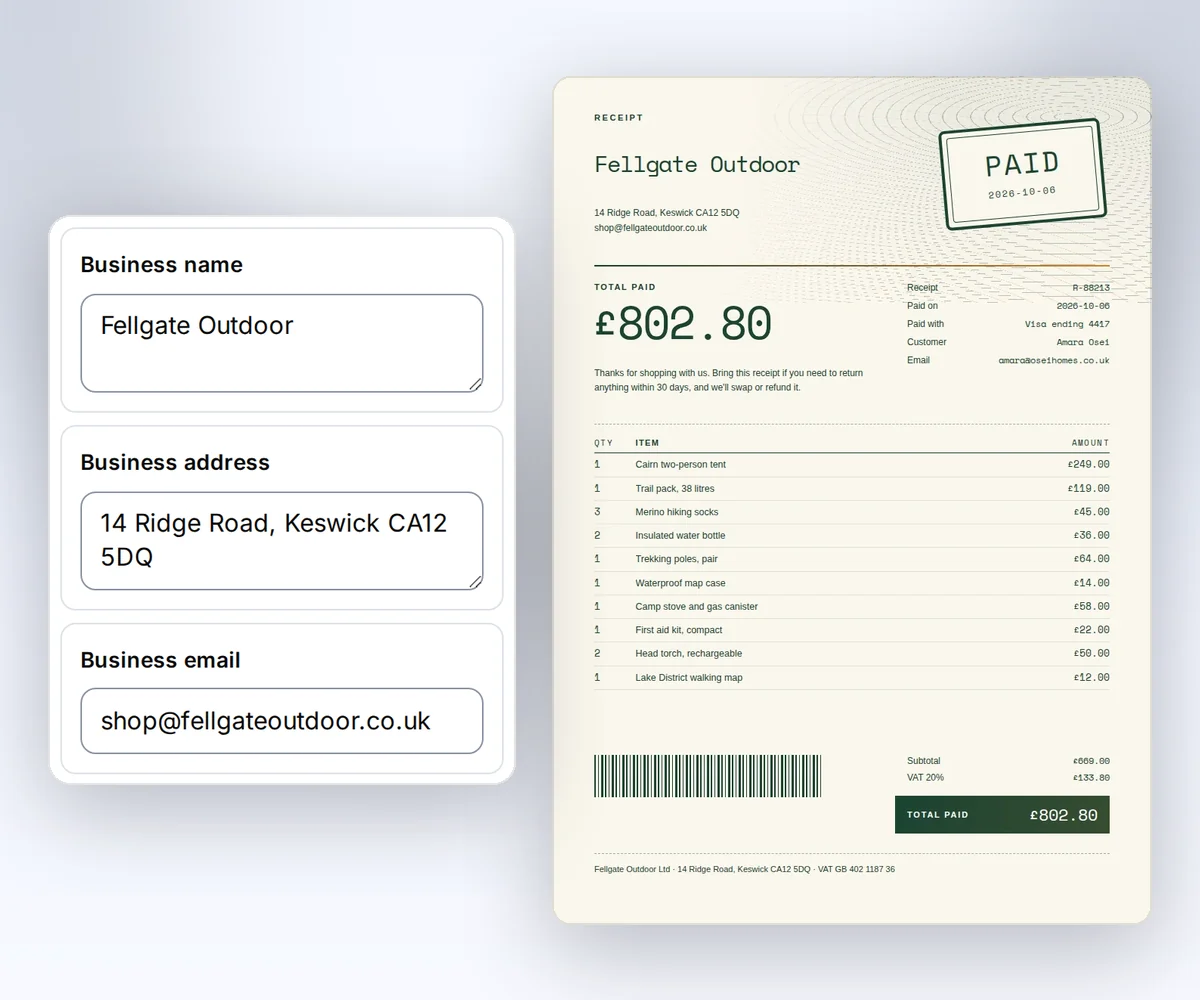
- Open the Payment receipt template and click Use this template. Sign in first if you need to. If you have a brand kit, pick it in the Brand kit box, and the receipt takes your logo, colours, and fonts.
- Open Data and type your business name, address, and email. Then type your customer's name and email, and the date they paid. Use Add row and Remove row to change the items and their amounts. To see the items on the page, click Preview with data above the canvas.
- Click Export, then Save and export PDF. Check that the total matches the amount paid in Stripe before you send it.
Each finished receipt PDF costs one credit on any thirds.ai plan. The design holds up to 12 item rows. The stamp word, such as Paid, can have up to 10 characters.
How do I make a custom receipt PDF from a Stripe payment?
You make a custom receipt PDF from a Stripe payment by checking a successful payment against your own order record, then filling your saved receipt template from your own code. The recipe below takes three steps: start with a sample event, map the details, and create one sample PDF. You need your own copy of the Payment receipt template, an API key, Python 3, and curl on macOS or Linux.
Click Use this template to save your own copy of the Payment receipt template, and keep its source and schema as they are. Set THIRDS_TEMPLATE_ID and THIRDS_TEMPLATE_VERSION to your copy's ID and version. To get the ID, open the Template menu in the editor and click Copy beside Template ID. The version number is under Versions in the same menu, marked Current. Set THIRDS_API_KEY through your secret store. Keep your key and work files out of source control. The mapping code uses only the Python standard library.
In production, process a verified payment_intent.succeeded snapshot event. That event carries a PaymentIntent in data.object. When you create the event destination in Stripe, choose the Snapshot payload format, because this recipe reads data.object and a thin event doesn't carry it. The event reference defines the event, and the PaymentIntent reference defines amount_received, currency, and the succeeded status (both read on 13 October 2026).
Your webhook endpoint must verify the raw body, Stripe-Signature, and endpoint secret with Stripe's official library. It must also check that the event comes from your account and from the mode you expect, test or live. Then it saves accepted events and queues the work before it returns, because Stripe wants a 2xx response quickly and retries a live event for up to three days. Stripe's webhook guide (read on 13 October 2026) explains signature checks and repeated delivery. Don't feed unverified JSON from a request straight into this recipe.
Start with a sample event
Save this JSON as receipt-input.json in a private work folder. It's a small, invented Stripe event and order record, with no signature. The sample only tests the mapping and the PDF. For real use, your verified event worker supplies the event and looks up the order from its own records.
{
  "event": {
    "id": "evt_sample_receipt",
    "type": "payment_intent.succeeded",
    "created": 1788652800,
    "livemode": false,
    "data": {
      "object": {
        "id": "pi_sample_receipt",
        "object": "payment_intent",
        "status": "succeeded",
        "currency": "usd",
        "amount_received": 12000
      }
    }
  },
  "order": {
    "payment_intent_id": "pi_sample_receipt",
    "currency": "usd",
    "merchant": {
      "name": "Fieldnote Studio",
      "address": "Sample business address",
      "email": "hello@fieldnote.example"
    },
    "customer": {
      "name": "Alex Morgan",
      "email": "alex@example.com"
    },
    "receipt_number": "R-SAMPLE-1042",
    "payment_method": "Sample card payment",
    "items": [
      {
        "description": "Workshop booking",
        "quantity": 1,
        "amount_cents": 10000
      }
    ],
    "tax_cents": 2000,
    "tax_label": "Sample tax",
    "note": "Sample receipt for a layout check. No payment takes place.",
    "footer": "Fieldnote Studio sample receipt. Amounts are in USD."
  }
}
The example accepts only USD amounts in whole cents. The order's tax amount is already calculated. Each item's amount_cents is its full line total, including its quantity. Change the adapter and template together for another currency or payment flow.
Map the fields
Save this code as prepare-receipt.py. It checks payment state, PaymentIntent identity, currency, and the final amount before it writes a render request. The paid date uses the successful event's UTC date. The merchant, customer, items, and receipt number come from your order record.
"""Map a local successful-payment fixture to a saved receipt template."""
import json
import sys
from datetime import datetime, timezone
from pathlib import Path

fixture_path, template_id, version, output_path = sys.argv[1:]
try:
    fixture = json.loads(Path(fixture_path).read_text())
    event, order = fixture["event"], fixture["order"]
    payment = event["data"]["object"]
    if event["type"] != "payment_intent.succeeded" or payment["status"] != "succeeded":
        raise SystemExit("payment_not_succeeded")
    if payment["id"] != order["payment_intent_id"]:
        raise SystemExit("payment_mismatch")
    if payment["currency"] != "usd" or order["currency"] != "usd":
        raise SystemExit("unsupported_currency")
    amounts = [item["amount_cents"] for item in order["items"]]
    cents = [*amounts, order["tax_cents"], payment["amount_received"]]
    if any(type(value) is not int or value < 0 for value in cents):
        raise SystemExit("invalid_amount")
    subtotal = sum(amounts)
    total = subtotal + order["tax_cents"]
    if payment["amount_received"] != total or total == 0:
        raise SystemExit("payment_mismatch")
    data = {
        "business_name": order["merchant"]["name"],
        "business_address": order["merchant"]["address"],
        "business_email": order["merchant"]["email"],
        "customer_name": order["customer"]["name"],
        "customer_email": order["customer"]["email"],
        "receipt_number": order["receipt_number"],
        "paid_on": datetime.fromtimestamp(event["created"], timezone.utc).date().isoformat(),
        "payment_method": order["payment_method"],
        "stamp": "Paid",
        "items": [{"description": item["description"], "quantity": item["quantity"],
                   "amount": item["amount_cents"] / 100} for item in order["items"]],
        "subtotal": subtotal / 100,
        "tax_label": order["tax_label"],
        "tax": order["tax_cents"] / 100,
        "total": total / 100,
        "note": order["note"],
        "footer": order["footer"],
    }
    request = {"template_id": template_id, "version": int(version), "data": data,
               "pdf": {"format": "A4"}, "wait": False}
    Path(output_path).write_text(json.dumps(request, indent=2, allow_nan=False) + "\n")
except (KeyError, TypeError, ValueError, OSError, OverflowError):
    raise SystemExit("invalid_input") from None
Create one sample PDF
Set THIRDS_WORK to the private folder that holds the two files. The first command only makes a local request file. The curl command after it makes one PDF and costs one credit on success. Use the PaymentIntent ID and receipt version as the Idempotency-Key:
umask 077
python3 "$THIRDS_WORK/prepare-receipt.py" \
  "$THIRDS_WORK/receipt-input.json" \
  "$THIRDS_TEMPLATE_ID" "$THIRDS_TEMPLATE_VERSION" \
  "$THIRDS_WORK/request.json"
curl --fail-with-body --silent --show-error https://thirds.ai/v1/pdf \
  -H "Authorization: Bearer $THIRDS_API_KEY" \
  -H 'Content-Type: application/json' \
  -H 'Idempotency-Key: receipt-pi_sample_receipt-v1' \
  --data @"$THIRDS_WORK/request.json"
Save the id from the response with your order record. Read the job until status is succeeded. Replace the sample ID with yours.
curl --fail-with-body --silent --show-error \
  https://thirds.ai/v1/pdf/pdf_00000000000000000000000000000000 \
  -H "Authorization: Bearer $THIRDS_API_KEY"
Copy download.url from that response and add https://thirds.ai before it. The download needs no API key.
curl --fail --silent --show-error \
  'https://thirds.ai/v1/downloads/YOUR_SIGNED_DOWNLOAD_TOKEN' \
  --output "$THIRDS_WORK/receipt.pdf"
shasum -a 256 "$THIRDS_WORK/receipt.pdf"
The hash must match artifact.sha256 in the job, and the file size must match artifact.byte_size.
A paid plan keeps your finished files for up to 365 days, and the Free plan keeps them for 30 days. Each signed download link lasts 15 minutes, and a receipt belongs with its order, so store the finished PDF with your own order record. See download handling.
Open receipt.pdf and check the customer, paid date, line amounts, and £120.00 total. The sample tax is there only to fill the layout. Your billing system supplies the actual tax and receipt rules.
Use one durable operation record per PaymentIntent and receipt version. Store the event IDs it handles there too. Repeated delivery must reuse the same request and key. After the API's 24-hour retry window, use your record to find the existing job. Don't create a second PDF just because a poll stops. A refund needs its own document flow, because an old paid receipt doesn't show the new balance.
Handle errors
| Code or state | Next step |
|---|---|
payment_not_succeeded | Stop. Do not label an unpaid order Paid. |
payment_mismatch | Check the PaymentIntent ID and order total in your own records. |
unsupported_currency | Use a reviewed adapter and matching template for that currency. |
invalid_amount or invalid_input | Correct the input shape before any render. |
template_data_invalid | Check the saved receipt schema and field limits. |
idempotency_conflict | Keep the original request with its original key. |
Start with the Payment receipt template, then review one sample PDF. The API workflow guide covers durable render state, and pricing shows the credit cost. You send the PDF to your customer from your own system. The quotes and receipts page shows the receipt designs and the matching quote flow. When you bill before the payment instead, make invoice PDFs from template data with the same kind of saved design. A registration webhook follows the same pattern: see Make event ticket PDFs from registration data.


